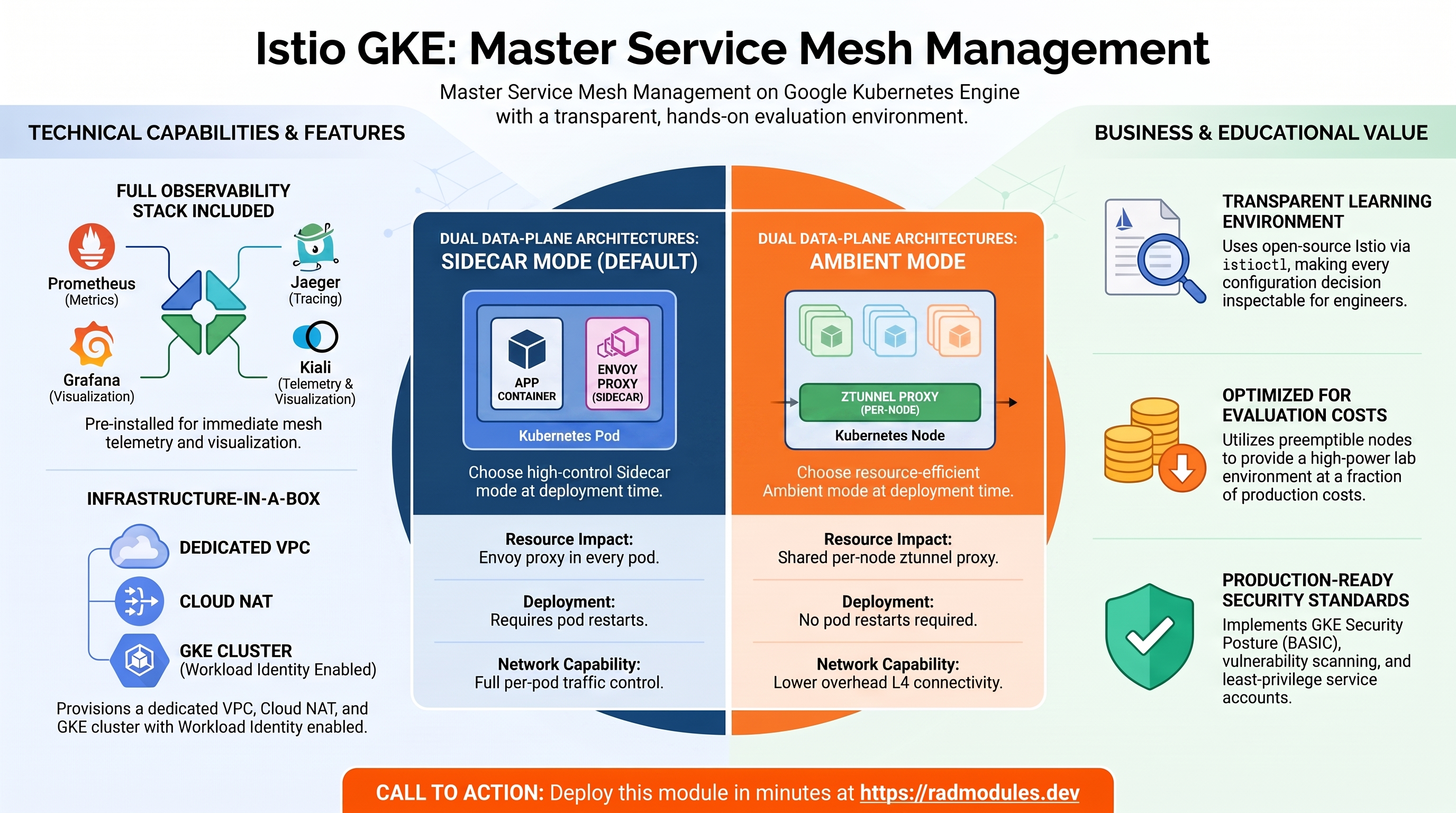
Istio GKE Module
Overview
The Istio GKE module provisions a complete Google Kubernetes Engine (GKE) Standard cluster and installs the open-source Istio service mesh onto it. Unlike Google Cloud Service Mesh (which is Google's managed, commercially supported Istio distribution), this module works directly with upstream Istio — the same project maintained by the Cloud Native Computing Foundation (CNCF) — giving platform engineers hands-on experience with the technology in its original, unmodified form.
This module is designed as a deep learning environment for platform engineers who want to understand how Istio works from the ground up: how the control plane manages the data plane, how proxies intercept and observe traffic, and how the two fundamentally different data plane architectures — sidecar mode and ambient mode — approach the same problems with different trade-offs.
By deploying this module, you gain direct experience with:
- Open-source Istio — the CNCF project that underpins both Google Cloud Service Mesh and many other managed mesh offerings, installed directly via
istioctl - Sidecar mode — the traditional and battle-tested Istio architecture where an Envoy proxy runs as a sidecar container alongside every application pod
- Ambient mode — Istio's newer, sidecar-free architecture where a shared per-node proxy (ztunnel) handles Layer 4 traffic and optional per-namespace waypoint proxies handle Layer 7
- GKE Standard — Google's fully configurable Kubernetes offering, distinct from GKE Autopilot, where you manage node pools and cluster-level settings directly
- Istio traffic management — VirtualService, DestinationRule, Gateway, and the full set of routing and resilience primitives
- Istio observability — the full open-source stack: Prometheus for metrics, Jaeger for distributed tracing, Grafana for dashboards, and Kiali for service mesh visualisation
- GKE enterprise features — Workload Identity, VPC-native networking, Security Posture, Managed Prometheus, and Gateway API running on GKE Standard
The module deploys approximately 10–12 minutes to a single GCP project and requires no AWS account — everything runs on Google Cloud.
What Gets Deployed
On Google Cloud:
- Two GCP APIs enabled: Cloud APIs and Container API
- A VPC network with a subnet, secondary IP ranges for pods and services, and firewall rules
- A Cloud Router and Cloud NAT for outbound traffic from cluster nodes
- A GKE Standard cluster with VPC-native networking, Workload Identity, Security Posture, Managed Prometheus, and Gateway API
- A node pool of 2 preemptible
e2-standard-2nodes
On the GKE Cluster (one of two choices):
| Sidecar Mode (default) | Ambient Mode | |
|---|---|---|
| Data plane | Envoy proxy sidecar in every pod | Shared ztunnel per node, optional waypoint proxies |
| Installation | istioctl install --set profile=default | istioctl install --set profile=ambient |
| Namespace label | istio-injection=enabled | istio.io/dataplane-mode=ambient |
| Observability add-ons | Prometheus, Jaeger, Grafana, Kiali | Prometheus, Jaeger, Grafana, Kiali |
| Layer 7 policies | Per-pod Envoy sidecar | Optional waypoint proxy per namespace |
┌────────────────────────────────────────────────────────────────────────────┐
│ Istio_GKE Module │
│ │
│ Google Cloud Project │
│ ──────────────────────────────────────────────────────────────────── │
│ │
│ ┌──────────────────────────────────────────────────────────────────┐ │
│ │ VPC Network │ │
│ │ ┌──────────────────────────────────────────────────────────┐ │ │
│ │ │ Subnet (10.132.0.0/16) │ │ │
│ │ │ Pod secondary range: 10.62.128.0/17 │ │ │
│ │ │ Service secondary range: 10.64.128.0/20 │ │ │
│ │ │ │ │ │
│ │ │ ┌──────────────────────────────────────────────────┐ │ │ │
│ │ │ │ GKE Standard Cluster │ │ │ │
│ │ │ │ • VPC-native networking │ │ │ │
│ │ │ │ • Workload Identity │ │ │ │
│ │ │ │ • Security Posture │ │ │ │
│ │ │ │ • Managed Prometheus │ │ │ │
│ │ │ │ • Gateway API │ │ │ │
│ │ │ │ │ │ │ │
│ │ │ │ Node Pool (2 × e2-standard-2, preemptible) │ │ │ │
│ │ │ │ │ │ │ │
│ │ │ │ Istio Control Plane (istio-system) │ │ │ │
│ │ │ │ • istiod (service discovery + config + CA) │ │ │ │
│ │ │ │ • Ingress Gateway (LoadBalancer) │ │ │ │
│ │ │ │ │ │ │ │
│ │ │ │ SIDECAR MODE AMBIENT MODE │ │ │ │
│ │ │ │ ┌──────────────┐ ┌──────────────────┐ │ │ │ │
│ │ │ │ │ App Pod │ │ ztunnel (per node│ │ │ │ │
│ │ │ │ │ ┌──────────┐ │ │ L4 mTLS + policy)│ │ │ │ │
│ │ │ │ │ │ App │ │ └────────┬─────────┘ │ │ │ │
│ │ │ │ │ │ Envoy │ │ │ │ │ │ │
│ │ │ │ │ │ sidecar │ │ ┌────────▼─────────┐ │ │ │ │
│ │ │ │ │ └──────────┘ │ │ Waypoint Proxy │ │ │ │ │
│ │ │ │ └──────────────┘ │ (optional, L7) │ │ │ │ │
│ │ │ │ └──────────────────┘ │ │ │ │
│ │ │ │ Observability: Prometheus · Jaeger · Grafana · Kiali │ │ │
│ │ │ └──────────────────────────────────────────────────┘ │ │ │
│ │ └──────────────────────────────────────────────────────────┘ │ │
│ │ Cloud Router + Cloud NAT (outbound egress) │ │
│ └──────────────────────────────────────────────────────────────────┘ │
└────────────────────────────────────────────────────────────────────────────┘
Deployment sequence:
1. Enable GCP APIs (cloudapis, container)
2. Create VPC, subnet with secondary ranges, firewall rules
3. Create Cloud Router and Cloud NAT
4. Create GKE Standard cluster and node pool
5. Download and install Istio via istioctl
6. Label default namespace for mesh enrolment
7. Install observability add-ons (Prometheus, Jaeger, Grafana, Kiali)
GCP Networking
The module creates a dedicated VPC network and configures all the networking components that GKE and Istio require to operate. Understanding this layer is important both for appreciating GKE's networking model and for diagnosing connectivity issues in the mesh.
VPC Network
A custom-mode VPC is created with global routing. Using global routing means that Cloud Routers in any region can learn routes from all subnets across all regions — a prerequisite for multi-region GKE deployments and for Cloud NAT to function correctly. A custom-mode VPC (as opposed to auto-mode) gives complete control over subnet CIDR ranges, which is necessary when GKE requires non-overlapping secondary ranges for pod and service IPs.
The VPC uses auto_create_subnetworks = false, meaning only the explicitly configured subnet is created — no automatic subnets appear in other regions that could create unexpected IP overlap with other projects or on-premises networks.
Subnet and Secondary IP Ranges
GKE's VPC-native networking requires a subnet with two secondary IP ranges in addition to the primary range:
| Range | Default CIDR | Purpose |
|---|---|---|
| Primary subnet range | 10.132.0.0/16 | IP addresses for GKE cluster nodes (EC2-equivalent) |
| Pod secondary range | 10.62.128.0/17 | One IP address per pod — 32,766 pod IPs available |
| Service secondary range | 10.64.128.0/20 | One IP per Kubernetes Service ClusterIP — 4,094 service IPs |
Why secondary ranges matter for Istio: In sidecar mode, every pod has both an application container and an Envoy sidecar. Both share the pod's IP address — there is no secondary IP for the sidecar. However, the sidecar intercepts traffic using iptables rules set up by the istio-init init container, which requires the NET_ADMIN capability. The GKE cluster is configured with allow_net_admin = true specifically to permit this. In ambient mode this is not required because the ztunnel — which runs as a DaemonSet on each node — handles traffic interception at the node level rather than inside pods.
Private Google Access is enabled on the subnet, allowing nodes without external IPs to reach Google APIs (Cloud Logging, Artifact Registry, Cloud Monitoring) over internal Google network paths rather than the public internet.
Firewall Rules
The module creates six firewall rules that together define the network security boundary for the cluster:
| Rule | Direction | Source | Ports | Purpose |
|---|---|---|---|---|
fw-allow-lb-hc | INGRESS | 35.191.0.0/16, 130.211.0.0/22 | TCP 80 | Google Cloud Load Balancer health checks — required for the Istio Ingress Gateway's external load balancer to report healthy |
fw-allow-nfs-hc | INGRESS | 35.191.0.0/16, 130.211.0.0/22 | TCP 2049 | NFS health checks — present for compatibility with storage workloads |
fw-allow-iap-ssh | INGRESS | 35.235.240.0/20 | TCP 22 | SSH to cluster nodes via Identity-Aware Proxy — eliminates the need for a public SSH port or bastion host |
fw-allow-intra-vpc | INGRESS | Configured VPC CIDRs | All | Unrestricted traffic between all resources within the VPC — covers pod-to-pod, node-to-node, and node-to-pod communication including Istio's own control plane traffic |
fw-allow-gce-nfs-tcp | INGRESS | VPC CIDRs | TCP 2049 | NFS service traffic to instances tagged nfs-server |
fw-allow-http-tcp | INGRESS | All sources (0.0.0.0/0) | TCP 80, 443 | External HTTP and HTTPS traffic to instances tagged http-server — this is what makes the Istio Ingress Gateway reachable from the internet |
Why no explicit Istio-specific rules are needed: Istio's control plane traffic (istiod to proxies on port 15012, webhook on port 15017, mTLS between proxies on port 15443) all flows within the VPC. The fw-allow-intra-vpc rule covers all of this without requiring individual rules per Istio component. This is a deliberate simplification for a learning environment — production deployments typically use more granular rules.
Explore firewall rules in the Cloud Console:
Navigate to VPC Network → Firewall in the Cloud Console. Filter by the network name to see all six rules. For each rule, you can view the matched traffic in VPC Network → Firewall → Firewall Rules Logging — useful for understanding which traffic Istio's data plane is actually generating.
# List all firewall rules for the module's VPC
gcloud compute firewall-rules list \
--filter="network:vpc-network" \
--project=GCP_PROJECT_ID
# View a specific rule in detail
gcloud compute firewall-rules describe fw-allow-lb-hc \
--project=GCP_PROJECT_ID
Cloud Router and Cloud NAT
Cluster nodes use private IP addresses (from the 10.132.0.0/16 subnet) and have no external IPs. For nodes to reach the internet — to pull container images from Docker Hub, download Istio from GitHub, or reach any external endpoint — outbound traffic is routed through Cloud NAT.
Cloud Router provides the BGP routing infrastructure that Cloud NAT relies on. It is configured with ASN 64514 (a private ASN in the range reserved for internal use). For this module, the router serves only the NAT function; it does not peer with on-premises networks.
Cloud NAT is configured with AUTO_ONLY IP allocation, meaning Google Cloud automatically assigns external IP addresses from its pool rather than requiring a static IP reservation. This is simpler for learning environments. Logging is set to ERRORS_ONLY to avoid generating log noise from normal NAT operations.
Why this matters for Istio: During installation, istioctl downloads Istio components from github.com and the Istio release bucket. The observability add-ons (Prometheus, Jaeger, Grafana, Kiali) are pulled from their respective container registries. All of this outbound traffic flows through Cloud NAT. Without it, the installation would fail silently as download commands hang waiting for connections that never complete.
# Verify Cloud NAT is healthy and view NAT allocation statistics
gcloud compute routers get-nat-mapping-info cr-region \
--region=GCP_REGION \
--project=GCP_PROJECT_ID
# View NAT gateway configuration
gcloud compute routers nats describe nat-gw-region \
--router=cr-region \
--region=GCP_REGION \
--project=GCP_PROJECT_ID
GKE Standard Cluster
The module provisions a GKE Standard cluster — Google's fully configurable Kubernetes offering where you control node pools, machine types, and cluster-level settings. This is deliberately different from GKE Autopilot, which abstracts all node management away. Using GKE Standard for this module is an intentional learning choice: it exposes the configuration decisions that Autopilot makes automatically, making the trade-offs visible.
GKE Standard vs. GKE Autopilot
Understanding the distinction is a core learning objective of this module:
| Dimension | GKE Standard (this module) | GKE Autopilot |
|---|---|---|
| Node management | You configure machine type, count, disk size | Google manages all nodes invisibly |
| Pricing model | Per node (pay for provisioned capacity) | Per pod (pay for requested resources only) |
| Istio sidecar injection | Requires allow_net_admin = true | Not required — Autopilot handles this automatically |
| Cluster-level control | Full access to all Kubernetes settings | Some settings are locked for security |
| Best for | Learning internals, custom configurations | Production workloads, ops simplicity |
Release Channel
The cluster is enrolled in the REGULAR release channel (configurable via release_channel). GKE release channels are Google's mechanism for delivering Kubernetes version updates and GKE feature updates with different risk and velocity profiles:
| Channel | Update cadence | Use case |
|---|---|---|
RAPID | Earliest access to new Kubernetes versions and GKE features | Testing and experimentation |
REGULAR (default) | ~2–3 months after RAPID; most users | Balanced — current features without bleeding edge risk |
STABLE | ~2–3 months after REGULAR | Production workloads requiring maximum stability |
By enrolling in a release channel, the cluster receives automatic Kubernetes patch version upgrades and GKE component upgrades without manual intervention. The minor version is managed by Google within the bounds of the selected channel.
Explore release channel status in the Cloud Console:
Navigate to Kubernetes Engine → Clusters → [your cluster] → Details and look for the Release channel field. You can also see the current Kubernetes version and whether an upgrade is available.
# View the cluster's current version and release channel
gcloud container clusters describe gke-cluster \
--region=GCP_REGION \
--project=GCP_PROJECT_ID \
--format="value(currentMasterVersion,releaseChannel.channel)"
# List available Kubernetes versions in the REGULAR channel
gcloud container get-server-config \
--region=GCP_REGION \
--project=GCP_PROJECT_ID \
--format="yaml(channels)"
VPC-Native Networking
The cluster uses VPC-native (also called alias IP) networking, enabled by setting the networking mode to VPC_NATIVE. In this mode, every pod receives a real IP address from the pod secondary range (10.62.128.0/17) rather than an overlay address that is NAT'd to a node IP.
This has significant implications for Istio:
- No double-NAT: Traffic between pods flows directly at the IP layer — the Envoy sidecar sees the real source and destination pod IPs in both sidecar and ambient modes
- Cloud Load Balancer integration: GKE can create Network Endpoint Groups (NEGs) that point directly to pod IPs, enabling the Istio Ingress Gateway to receive traffic without node-level port forwarding
- Network policy enforcement: VPC firewall rules and GKE network policies operate on real pod IPs, making security policies easier to reason about
# Verify VPC-native mode and view pod/service CIDR configuration
gcloud container clusters describe gke-cluster \
--region=GCP_REGION \
--project=GCP_PROJECT_ID \
--format="yaml(ipAllocationPolicy)"
# View the pod IP range allocated to each node
kubectl get nodes -o custom-columns=\
'NAME:.metadata.name,POD-CIDR:.spec.podCIDR'
Workload Identity
Workload Identity is GKE's mechanism for giving Kubernetes service accounts a Google Cloud identity, allowing pods to call GCP APIs without static service account keys.
When Workload Identity is enabled on the cluster, each Kubernetes service account can be bound to a Google Cloud service account (GSA). Pods that use that Kubernetes service account automatically receive a short-lived token for the corresponding GSA, issued by the GKE metadata server running on each node. The pod never sees a JSON key file — the credential is injected transparently.
Why this matters for Istio: The istiod control plane and the Istio Ingress Gateway both need to call GCP APIs (Cloud Logging, Cloud Monitoring, Certificate Manager). With Workload Identity, they authenticate using their Kubernetes service accounts bound to the GKE node service account — no key files distributed inside the cluster.
# Verify Workload Identity is enabled on the cluster
gcloud container clusters describe gke-cluster \
--region=GCP_REGION \
--project=GCP_PROJECT_ID \
--format="value(workloadIdentityConfig.workloadPool)"
# Expected output: GCP_PROJECT_ID.svc.id.goog
# View the Kubernetes service accounts used by Istio components
kubectl get serviceaccounts -n istio-system
# Describe istiod's service account to see its annotations
kubectl describe serviceaccount istiod -n istio-system
Explore in the Cloud Console: Navigate to Kubernetes Engine → Clusters → [your cluster] → Security to confirm Workload Identity is enabled and see the workload pool identifier.
Security Posture
The cluster has Security Posture enabled at the BASIC level with VULNERABILITY_BASIC scanning. Security Posture is GKE's built-in security assessment capability that continuously evaluates the cluster against security best practices and known vulnerability databases.
At the BASIC tier, it provides:
- Workload configuration scanning — evaluates running pods against Kubernetes security best practices (privileged containers, host network usage, root filesystem writes, missing resource limits)
- Vulnerability scanning — scans container images running in the cluster against the CVE database and reports known vulnerabilities by severity
This is particularly relevant for a learning environment with Istio because the Istio sidecar injector runs as a privileged admission webhook. Security Posture will flag any misconfigured workloads that conflict with security best practices, making it a useful tool for understanding the security implications of mesh configurations.
Explore Security Posture in the Cloud Console:
Navigate to Kubernetes Engine → Security → Security Posture. The dashboard shows concerns grouped by severity across all clusters in the project. Select your cluster to see workload-specific findings — for example, whether any pods are running without resource limits or with overly permissive capabilities.
# View Security Posture findings via gcloud
gcloud container clusters describe gke-cluster \
--region=GCP_REGION \
--project=GCP_PROJECT_ID \
--format="value(securityPostureConfig)"
Cloud Logging and Managed Prometheus
The cluster is configured to send both system component logs and workload logs to Cloud Logging, and has Managed Prometheus enabled — the same observability integration described in the EKS GKE module, now running on a native GKE cluster.
This creates an interesting learning comparison: the Istio observability add-ons (Prometheus, Jaeger, Grafana, Kiali) are open-source tools running inside the cluster, while GKE's Managed Prometheus collects metrics from the cluster and forwards them to Google Cloud Monitoring. Both exist simultaneously — you can query the same Kubernetes metrics either through the in-cluster Prometheus instance or through Cloud Monitoring's PromQL interface.
# Confirm Managed Prometheus is collecting metrics
kubectl get pods -n gmp-system
# Query a Kubernetes metric via Cloud Monitoring PromQL
# (run in Cloud Console: Monitoring → Metrics Explorer → PromQL)
# kubernetes_io:container_memory_used_bytes{cluster="gke-cluster"}
Gateway API
The cluster has the Gateway API standard channel enabled. Gateway API is the CNCF successor to the Kubernetes Ingress resource, providing a more expressive and extensible API for routing traffic into and within the cluster.
Istio 1.24 has first-class Gateway API support — you can use HTTPRoute, TCPRoute, and Gateway resources from the CNCF Gateway API spec as an alternative to Istio's own VirtualService and DestinationRule resources. Having Gateway API enabled on the GKE cluster means both approaches work side by side, giving platform engineers the opportunity to compare the two traffic management APIs directly.
# Verify Gateway API CRDs are installed
kubectl get crd | grep gateway
# List any Gateway API resources in the cluster
kubectl get gateways,httproutes -A
Node Pool
The cluster has a single node pool of 2 preemptible e2-standard-2 nodes:
| Parameter | Value | Rationale |
|---|---|---|
| Machine type | e2-standard-2 | 2 vCPU, 8 GB RAM — enough for istiod, Envoy sidecars, and the observability stack |
| Disk type | pd-ssd | SSD for faster pod scheduling and image pull |
| Disk size | 50 GB | Sufficient for Istio images and the observability add-on images |
| Preemptible | Yes | Up to 80% cost reduction — acceptable for a learning environment, not for production |
| Node count | 2 | Minimum for high availability of the Istio control plane |
Understanding preemptible nodes: GCE can reclaim preemptible VMs with 30 seconds notice when it needs the capacity. GKE handles this gracefully by draining the node and rescheduling pods on the remaining node. However, if both nodes are reclaimed simultaneously, the cluster becomes temporarily unavailable. For production Istio deployments, regular (non-preemptible) nodes across multiple zones are recommended.
# View node pool details including machine type and preemptibility
gcloud container node-pools describe default-pool \
--cluster=gke-cluster \
--region=GCP_REGION \
--project=GCP_PROJECT_ID
# Check node status and resource capacity
kubectl get nodes -o wide
kubectl describe nodes | grep -A 10 "Allocatable:"
GKE Node Service Account
A dedicated Google Cloud service account is created for GKE nodes with the minimum permissions required for cluster operation:
| Role | Purpose |
|---|---|
storage.objectAdmin / storage.objectViewer | Read and write access to Cloud Storage (for GCS Fuse CSI driver) |
artifactregistry.reader | Pull container images from Artifact Registry |
monitoring.metricWriter / monitoring.viewer | Write metrics to Cloud Monitoring (for Managed Prometheus) |
logging.logWriter | Write logs to Cloud Logging |
compute.networkViewer | Read VPC network configuration (required by GKE networking components) |
stackdriver.resourceMetadata.writer | Write resource metadata for Stackdriver integrations |
container.defaultNodeServiceAccount | Base GKE node permissions |
Using a dedicated service account with only the required roles — rather than the Compute Engine default service account with broad Editor permissions — follows the principle of least privilege and is a GKE security best practice.
# View the node service account and its IAM roles
gcloud iam service-accounts list \
--filter="displayName:gke" \
--project=GCP_PROJECT_ID
# Verify the node pool uses the dedicated service account
gcloud container node-pools describe default-pool \
--cluster=gke-cluster \
--region=GCP_REGION \
--project=GCP_PROJECT_ID \
--format="value(config.serviceAccount)"
Istio Core Concepts
Before exploring the two data plane modes, this section explains what Istio is, how it is structured, and how the module installs it — providing the conceptual foundation for everything that follows.
What Istio Is
Istio is an open-source service mesh — an infrastructure layer that intercepts all network communication between services in a Kubernetes cluster and provides traffic management, security, and observability capabilities without requiring any changes to application code.
The key insight behind Istio is that all the networking concerns that would otherwise be coded into each service — retries, timeouts, circuit breaking, TLS, access control, telemetry — can instead be handled by a proxy layer that wraps every service transparently. Applications communicate as if they are talking directly to each other. The proxy layer handles everything in between.
Istio is the upstream open-source project from which Google Cloud Service Mesh, AWS App Mesh, and several other vendor offerings are derived. Learning Istio directly — as this module teaches — gives platform engineers knowledge that transfers across every managed mesh product built on it.
The Two Planes
Istio has a strict separation between two planes:
The Control Plane: istiod
istiod is a single binary that combines three functions that were separate components in older Istio versions:
| Function | What it does |
|---|---|
| Pilot | Converts Istio configuration (VirtualService, DestinationRule) into Envoy xDS configuration and pushes it to every proxy in the mesh |
| Citadel | Acts as a certificate authority (CA), issuing and rotating X.509 certificates for every proxy — the foundation of mTLS |
| Galley | Validates and distributes Istio configuration, ensuring proxies receive consistent and correct configuration |
istiod runs in the istio-system namespace and is the single point of truth for the mesh. When you apply a VirtualService, istiod translates it into Envoy route configuration and pushes the update to every relevant proxy within milliseconds using the xDS (discovery service) protocol — a gRPC streaming API that Envoy polls continuously.
The Data Plane: Envoy Proxies
The data plane is composed of Envoy proxy instances that intercept and process all network traffic. Envoy is a high-performance, C++-based proxy originally built at Lyft and now a CNCF project in its own right. It is the same proxy used by virtually every service mesh and many API gateways.
Each Envoy instance maintains a live connection to istiod and receives continuous configuration updates. It handles:
- HTTP/1.1, HTTP/2, gRPC, TCP, and WebSocket traffic
- Load balancing across multiple endpoints
- Retries, timeouts, and circuit breaking
- mTLS termination and certificate presentation
- Metrics collection (request count, latency, error rate per route)
- Distributed trace span generation
The control plane and data plane communicate exclusively through the xDS protocol — istiod never directly proxies traffic, and Envoy proxies never read Kubernetes API objects directly. This clean separation means the data plane continues to operate even if istiod is temporarily unavailable; proxies keep their last-known configuration.
# After deploying the cluster and installing Istio, verify istiod is running
kubectl get pods -n istio-system -l app=istiod
# View the istiod logs to see xDS configuration being pushed to proxies
kubectl logs -n istio-system \
-l app=istiod \
--tail=50
# Check the Istio version installed
kubectl exec -n istio-system \
$(kubectl get pod -n istio-system -l app=istiod -o jsonpath='{.items[0].metadata.name}') \
-- pilot-discovery version
How Istio is Installed: istioctl
Unlike Google Cloud Service Mesh (which is activated through the GKE Fleet API with a single gcloud command), open-source Istio is installed using istioctl — the Istio command-line tool. This is a meaningful difference: istioctl gives you direct control over every aspect of the installation, making the configuration transparent and inspectable.
The module downloads the Istio release directly from GitHub at the version specified by istio_version (default 1.24.2) and installs it using an IstioOperator configuration. The IstioOperator is a Kubernetes custom resource that describes the desired Istio installation — which components to install, how to configure them, and what resource requests to set.
The installation sets three mesh-wide identifiers that matter for multi-cluster and multi-network topologies:
| Identifier | Value | Purpose |
|---|---|---|
| Mesh ID | mesh1 | Identifies the logical mesh — clusters with the same mesh ID can share trust |
| Cluster name | cluster1 | Identifies this cluster within the mesh for routing and telemetry |
| Network name | network1 | Identifies the network — used for east-west gateway configuration in multi-network setups |
Even for a single-cluster deployment, these identifiers are set to the standard multi-cluster values so the installation is ready to extend to multi-cluster without reinstallation.
# Connect to the cluster first
gcloud container clusters get-credentials gke-cluster \
--region=GCP_REGION \
--project=GCP_PROJECT_ID
# View all Istio components installed in the cluster
kubectl get all -n istio-system
# Inspect the IstioOperator configuration that was applied
kubectl get istiooperator -n istio-system -o yaml
# Verify the Istio installation is healthy
istioctl verify-install
# Check the overall mesh status
istioctl proxy-status
Explore in the Cloud Console: Navigate to Kubernetes Engine → Clusters → [your cluster] → Workloads and filter by namespace istio-system. You will see istiod, the istio-ingressgateway, and (in sidecar mode) any admission webhooks. The Workloads view shows resource consumption and restart counts for each component.
The Istio Ingress Gateway
Both sidecar and ambient mode installations include an Istio Ingress Gateway — a standalone Envoy proxy deployed as a Kubernetes Deployment with a Service of type LoadBalancer. This creates a GCP External Load Balancer that receives external HTTP/HTTPS traffic and forwards it into the mesh.
The Ingress Gateway is the mesh's entry point. Unlike the sidecar proxies (which are co-located with application pods), the Ingress Gateway runs as a separate workload that you configure independently using Istio Gateway and VirtualService resources.
The gateway is configured with:
- Minimum 1 replica, maximum 5 replicas
- CPU-based horizontal autoscaling at 80% utilisation
- A public external IP assigned by GCP
# Get the external IP of the Istio Ingress Gateway
kubectl get svc istio-ingressgateway -n istio-system
# Watch the external IP being assigned (takes 1-2 minutes after install)
kubectl get svc istio-ingressgateway -n istio-system --watch
# View the ingress gateway pods and their resource usage
kubectl get pods -n istio-system -l app=istio-ingressgateway
kubectl top pods -n istio-system -l app=istio-ingressgateway
Sidecar Mode
Sidecar mode is the traditional and most widely deployed Istio architecture. It is the default when install_ambient_mesh = false. This section explains exactly how it works, what gets created in the cluster, and what you can observe once it is running.
How Sidecar Injection Works
When sidecar mode is installed, istiod registers a Mutating Webhook Admission Controller with the Kubernetes API server. Every time a new pod is created in a namespace labelled istio-injection=enabled, the Kubernetes API server calls this webhook before the pod is scheduled. istiod responds by modifying the pod specification to add:
-
An init container (
istio-init) — runs before the application container and sets upiptablesrules that redirect all inbound and outbound TCP traffic to the Envoy proxy ports. This is why the cluster requiresallow_net_admin = true— the init container needs theNET_ADMINLinux capability to modify the kernel's network table. -
A sidecar container (
istio-proxy) — the Envoy proxy. It listens on two ports:15001for all outbound traffic and15006for all inbound traffic. Becauseiptablesredirects all TCP traffic to these ports, neither the application nor any external client knows the proxy exists — the application binds to its normal port and the proxy intercepts transparently.
The module labels the default namespace with istio-injection=enabled automatically. Any pod deployed to the default namespace receives the sidecar without any per-deployment configuration.
# Verify the sidecar injection webhook is registered
kubectl get mutatingwebhookconfiguration | grep istio
# Confirm the default namespace is labelled for injection
kubectl get namespace default --show-labels
# Deploy a test pod and confirm it received a sidecar
kubectl run test-pod --image=nginx --restart=Never
kubectl get pod test-pod -o jsonpath='{.spec.containers[*].name}'
# Expected: nginx istio-proxy
# View the iptables rules set up by istio-init inside a pod
kubectl debug -it test-pod --image=busybox -- iptables -t nat -L
What the Sidecar Intercepts
Once a pod has a sidecar, every byte of network traffic it sends or receives passes through Envoy. The application never communicates directly with the network. This gives Istio complete visibility and control:
-
Outbound traffic: When the application opens a connection to another service,
iptablesredirects the SYN packet to Envoy's outbound listener (port 15001). Envoy looks up the destination in its routing table (populated byistiodfrom VirtualService and DestinationRule configurations), applies any traffic management rules, performs mTLS handshake with the destination sidecar, and forwards the request. -
Inbound traffic: When a request arrives at the pod,
iptablesredirects it to Envoy's inbound listener (port 15006). Envoy validates the mTLS certificate of the caller, checks any AuthorizationPolicy rules, records the request in its metrics and traces, then forwards it to the application's actual port.
The application sees only plain HTTP or TCP — it never handles TLS or deals with the proxy. This is the "zero code change" promise of a service mesh.
Resource Overhead of Sidecars
Each sidecar consumes resources from the pod's node:
| Resource | Default request | Notes |
|---|---|---|
| CPU | 100m (0.1 vCPU) | Scales with traffic volume — under heavy load, Envoy uses significantly more |
| Memory | 128 Mi | Grows with the number of routes in the mesh |
In a cluster with many pods, sidecar overhead accumulates quickly. A cluster with 100 pods adds approximately 10 vCPUs and 12 GB of memory just for proxy overhead. This is one of the primary motivations for ambient mode. On the e2-standard-2 nodes in this module (2 vCPU, 8 GB each), the sidecar overhead is measurable and visible in the node resource consumption.
# See the resource requests set on the istio-proxy sidecar
kubectl get pod test-pod \
-o jsonpath='{.spec.containers[?(@.name=="istio-proxy")].resources}'
# View actual memory and CPU used by all proxy sidecars across the cluster
kubectl top pods -A --containers | grep istio-proxy | sort -k4 -rh
Mutual TLS in Sidecar Mode
With both source and destination pods having Envoy sidecars, Istio can enforce mutual TLS (mTLS) automatically — both sides present certificates and verify each other's identity before any application data flows.
Certificates are issued by istiod's built-in CA (Citadel) and are rotated automatically every 24 hours. Each certificate contains the pod's SPIFFE identity: spiffe://cluster.local/ns/<namespace>/sa/<service-account>, which encodes the Kubernetes namespace and service account. This means mTLS authentication is tied to Kubernetes identity — not IP addresses or DNS names.
By default, Istio operates in permissive mode: it accepts both mTLS and plain text connections. This allows gradual mesh adoption. Once all services in a namespace have sidecars, you can switch to strict mode with a PeerAuthentication policy:
# Check the current mTLS mode for the default namespace
kubectl get peerauthentication -n default
# Enable strict mTLS for the default namespace
kubectl apply -f - <<EOF
apiVersion: security.istio.io/v1beta1
kind: PeerAuthentication
metadata:
name: default
namespace: default
spec:
mtls:
mode: STRICT
EOF
# Verify mTLS is being used between two pods
# (look for X-Forwarded-Client-Cert header — present only with mTLS)
kubectl exec test-pod -c istio-proxy -- \
curl -s http://kubernetes.default.svc/api --header "Authorization: Bearer $(cat /var/run/secrets/kubernetes.io/serviceaccount/token)" | head -5
# View the certificate istiod issued to a sidecar
istioctl proxy-config secret test-pod
Explore mTLS in the Cloud Console: If Kiali is port-forwarded (see the Observability section), navigate to Graph and enable the Security display option. Padlock icons on service-to-service edges confirm mTLS is active.
Exploring the Sidecar Configuration
istioctl provides rich commands for inspecting what configuration each sidecar proxy has received from istiod:
# View the complete Envoy configuration for a pod's sidecar
istioctl proxy-config all test-pod
# View routing rules (equivalent to VirtualService translations)
istioctl proxy-config routes test-pod
# View cluster definitions (upstream services and load balancing config)
istioctl proxy-config clusters test-pod
# View listeners (ports Envoy is listening on)
istioctl proxy-config listeners test-pod
# View endpoints (the actual pod IPs Envoy knows about for each service)
istioctl proxy-config endpoints test-pod
# Analyse the mesh configuration for potential issues
istioctl analyze -n default
Ambient Mode
Ambient mode is Istio's next-generation data plane architecture, introduced as stable in Istio 1.22. It removes the need for per-pod sidecar proxies entirely, reducing resource overhead and operational complexity while preserving the full Istio feature set for workloads that need it.
Why Ambient Mode Exists
Sidecar proxies are powerful but come with trade-offs. Each pod carries an additional container that consumes CPU and memory, adding up significantly in large clusters. The sidecar lifecycle is tied to the pod lifecycle — updating Istio requires rolling restarts of all workloads. istio-init requires NET_ADMIN privileges, which some security policies prohibit.
Ambient mode resolves these constraints by moving the data plane out of the pods and into dedicated infrastructure components that run at the node and namespace level.
The Two-Layer Architecture
Ambient mode separates data plane responsibilities into two distinct layers:
| Layer | Component | Scope | Protocols |
|---|---|---|---|
| L4 (secure overlay) | ztunnel | Per node (DaemonSet) | TCP, mTLS tunnelling (HBONE) |
| L7 (advanced policy) | Waypoint proxy | Per namespace or service account | HTTP, gRPC, WebSocket |
This separation lets you opt in to L7 features only where needed, keeping baseline infrastructure costs low.
ztunnel — The Zero-Trust Tunnel
ztunnel (zero-trust tunnel) is a lightweight Rust-based proxy deployed as a DaemonSet — one pod on every node in the cluster. It handles all L4 traffic for ambient-mode workloads on that node.
What ztunnel provides:
- Transparent mTLS — encrypts all pod-to-pod traffic without modifying the pod itself
- SPIFFE identity — issues and validates workload certificates exactly as the sidecar does; the same
spiffe://cluster.local/ns/<ns>/sa/<sa>format applies - L4 authorisation — enforces
AuthorizationPolicyresources based on source workload identity and destination port - No
NET_ADMINrequired — traffic redirection uses iptables rules applied at the node level, outside the pod
Inspect ztunnel on any node:
# View the ztunnel DaemonSet
kubectl get daemonset ztunnel -n istio-system
# View ztunnel pods (one per node)
kubectl get pods -n istio-system -l app=ztunnel -o wide
# Stream ztunnel logs for a specific node
kubectl logs -n istio-system -l app=ztunnel --follow
# Inspect ztunnel's workload graph (what it knows about the mesh)
istioctl ztunnel-config workloads
Explore in the Cloud Console: Navigate to Kubernetes Engine → Workloads, filter by namespace istio-system, and select the ztunnel DaemonSet. The Managed pods tab shows one pod per node, confirming node-level coverage.
Waypoint Proxies — On-Demand L7
When you need HTTP-level features — traffic splitting, retries, header manipulation, JWT authentication, or fine-grained AuthorizationPolicy — you deploy a waypoint proxy for a namespace or specific service account.
A waypoint is a standard Envoy proxy deployed as a Kubernetes Deployment, provisioned via the istioctl waypoint command. All traffic entering the target namespace (or service account) is redirected through the waypoint before reaching the destination pod.
# Deploy a waypoint for the default namespace
istioctl waypoint apply --namespace default
# Verify the waypoint is running
kubectl get gateway -n default
# View the waypoint proxy deployment
kubectl get deployment -n default -l gateway.istio.io/managed=istio.io-mesh-controller
# Inspect the waypoint's configuration
istioctl proxy-config routes -n default deployment/waypoint
# Remove a waypoint
istioctl waypoint delete --namespace default
Waypoints use the Kubernetes Gateway API (gateway.networking.k8s.io/v1) rather than Istio-specific resources. This makes waypoint configuration portable and consistent with the broader Kubernetes ecosystem.
Enrolling Workloads in Ambient Mode
Ambient mode is opt-in at the namespace level. Label a namespace to enroll all workloads in it:
# Enroll the default namespace in ambient mode
kubectl label namespace default istio.io/dataplane-mode=ambient
# Verify the label
kubectl get namespace default --show-labels
# Check that ztunnel is tracking workloads in the namespace
istioctl ztunnel-config workloads | grep default
Individual pods can be excluded from ambient mode:
# Exclude a specific pod from ambient mode
kubectl label pod <pod-name> istio.io/dataplane-mode=none
Unlike sidecar mode, enrolling in ambient mode requires no pod restart. ztunnel begins intercepting traffic for labeled pods immediately.
Comparing Sidecar and Ambient Mode
| Dimension | Sidecar Mode | Ambient Mode |
|---|---|---|
| Data plane location | Inside each pod | Node-level (ztunnel) + namespace-level (waypoint) |
| Pod restart required to enroll | Yes (sidecar injection) | No |
| Pod restart required to upgrade Istio | Yes (rolling restart) | No (DaemonSet update only) |
NET_ADMIN required | Yes (istio-init) | No |
| L4 policy | Per-pod sidecar | ztunnel (per-node) |
| L7 policy | Per-pod sidecar | Waypoint proxy (opt-in per namespace) |
| Memory overhead per workload | ~128 MiB (sidecar) | Near zero (shared ztunnel) |
| CPU overhead per workload | ~100m (sidecar) | Near zero (shared ztunnel) |
| Latency | Adds ~0.5ms (two hops) | Lower for L4-only; similar when waypoint is used |
| SPIFFE identity | Yes | Yes |
| Kubernetes Gateway API | Supported | Native (waypoints use Gateway API) |
| Maturity | Stable since Istio 1.0 | Stable since Istio 1.22 |
Ambient Mode Resource Overhead
Because ztunnel is shared across all pods on a node, the per-workload overhead is negligible. The only dedicated resources are:
| Component | Count | Typical resources |
|---|---|---|
| ztunnel pod | One per node | 100m CPU, 128Mi memory |
| Waypoint proxy | One per namespace (optional) | 100m CPU, 128Mi memory |
| istiod | One deployment | 200m CPU, 256Mi memory |
In a 10-node cluster running 200 pods, ambient mode consumes roughly 10× less memory than the equivalent sidecar deployment.
Verifying Ambient Mode End-to-End
After enrolling a namespace, verify that mTLS encryption is active between two pods:
# Deploy two test pods
kubectl run server --image=nginx --port=80
kubectl run client --image=curlimages/curl --restart=Never -- sleep 3600
# From the client pod, curl the server — traffic is transparently encrypted by ztunnel
kubectl exec client -- curl http://server
# Check that ztunnel logged the connection
kubectl logs -n istio-system -l app=ztunnel | grep "server"
# Confirm ztunnel is tracking the connection
istioctl ztunnel-config connections
Explore in the Cloud Console: Navigate to Kubernetes Engine → Service & Ingress and select a Service in the ambient-enrolled namespace. The Traffic tab shows inter-pod flows. For deeper inspection, use Network Intelligence → Network Topology to visualise east-west traffic patterns between enrolled namespaces.
Traffic Management
Istio's traffic management capabilities give platform engineers fine-grained control over how requests flow between services — without modifying application code. All traffic management rules are expressed as Kubernetes custom resources and take effect through configuration pushed to Envoy proxies (or ztunnel/waypoints in ambient mode) via the xDS protocol.
VirtualService
A VirtualService defines how requests addressed to a Kubernetes Service are routed. It intercepts traffic at the client sidecar (sidecar mode) or waypoint proxy (ambient mode) before the request leaves the source pod.
Key capabilities:
- Weighted routing — split traffic across multiple versions of a service by percentage
- Header-based routing — route requests to different backends based on HTTP headers, URI prefixes, or method
- Retries — automatically retry failed requests before returning an error to the caller
- Timeouts — enforce a maximum duration for requests to prevent cascading failures
- Fault injection — deliberately introduce delays or HTTP errors for chaos testing
Canary deployment example — route 10 % of traffic to v2:
apiVersion: networking.istio.io/v1
kind: VirtualService
metadata:
name: my-service
namespace: default
spec:
hosts:
- my-service
http:
- route:
- destination:
host: my-service
subset: v1
weight: 90
- destination:
host: my-service
subset: v2
weight: 10
Retry and timeout example:
apiVersion: networking.istio.io/v1
kind: VirtualService
metadata:
name: my-service
namespace: default
spec:
hosts:
- my-service
http:
- timeout: 5s
retries:
attempts: 3
perTryTimeout: 2s
retryOn: gateway-error,connect-failure,retriable-4xx
route:
- destination:
host: my-service
subset: v1
Apply and verify:
# Apply the VirtualService
kubectl apply -f virtualservice.yaml
# Inspect what rules are active
kubectl get virtualservice -n default
# View the full spec
kubectl describe virtualservice my-service -n default
# Confirm the routing config reached the sidecar proxy
istioctl proxy-config routes <client-pod> | grep my-service
DestinationRule
A DestinationRule defines the properties of traffic after routing has occurred — how Istio connects to the destination, and what subsets of the destination exist. VirtualService references subsets defined here.
Key capabilities:
- Subsets — group pod instances by label (e.g.,
version: v1,version: v2) to represent different versions of a service - Load balancing policy — round-robin, least connections, random, or consistent hash (session affinity)
- Connection pool settings — limit the number of TCP connections or pending HTTP requests to prevent overload
- Outlier detection — automatically eject unhealthy pods from the load-balancing pool (circuit breaking)
- TLS settings — control how the proxy connects to upstream services (auto, ISTIO_MUTUAL, SIMPLE)
Subset and circuit breaker example:
apiVersion: networking.istio.io/v1
kind: DestinationRule
metadata:
name: my-service
namespace: default
spec:
host: my-service
trafficPolicy:
connectionPool:
tcp:
maxConnections: 100
http:
http1MaxPendingRequests: 50
maxRequestsPerConnection: 10
outlierDetection:
consecutiveGatewayErrors: 5
interval: 30s
baseEjectionTime: 30s
subsets:
- name: v1
labels:
version: v1
- name: v2
labels:
version: v2
trafficPolicy:
loadBalancer:
simple: LEAST_CONN
Apply and verify:
# Apply the DestinationRule
kubectl apply -f destinationrule.yaml
# List all DestinationRules
kubectl get destinationrule -n default
# Check that outlier detection is tracking ejections
istioctl proxy-config clusters <client-pod> | grep my-service
Gateway and Ingress Traffic
An Istio Gateway resource configures the Ingress Gateway deployment to accept inbound traffic from outside the mesh. It specifies which ports, protocols, and TLS settings to expose. A VirtualService is then bound to the Gateway to route inbound traffic to internal services.
TLS-terminated ingress example:
apiVersion: networking.istio.io/v1
kind: Gateway
metadata:
name: my-gateway
namespace: istio-system
spec:
selector:
istio: ingressgateway
servers:
- port:
number: 443
name: https
protocol: HTTPS
tls:
mode: SIMPLE
credentialName: my-tls-secret
hosts:
- "app.example.com"
---
apiVersion: networking.istio.io/v1
kind: VirtualService
metadata:
name: my-app
namespace: default
spec:
hosts:
- "app.example.com"
gateways:
- istio-system/my-gateway
http:
- route:
- destination:
host: my-service
port:
number: 80
Explore the ingress gateway:
# Get the external IP of the Ingress Gateway
kubectl get service istio-ingressgateway -n istio-system
# View all Gateways in the cluster
kubectl get gateway -A
# Check what routes the ingress gateway has
istioctl proxy-config routes deployment/istio-ingressgateway -n istio-system
# View access logs (if enabled)
kubectl logs -n istio-system -l app=istio-ingressgateway --follow
Explore in the Cloud Console: Navigate to Kubernetes Engine → Service & Ingress and select the istio-ingressgateway LoadBalancer Service. The Details tab shows the external IP, port mappings, and associated backend pods. The Observability tab (if Cloud Monitoring is active) shows request rates and error percentages for ingress traffic.
AuthorizationPolicy
AuthorizationPolicy controls which workloads are allowed to communicate with each other within the mesh. Policies are enforced by the sidecar proxy (sidecar mode) or by ztunnel and waypoints (ambient mode) and are evaluated after mTLS identity verification.
Deny all, then allow selectively (recommended baseline):
# Deny all traffic by default in the production namespace
apiVersion: security.istio.io/v1
kind: AuthorizationPolicy
metadata:
name: deny-all
namespace: production
spec: {}
---
# Allow the frontend service to call the backend
apiVersion: security.istio.io/v1
kind: AuthorizationPolicy
metadata:
name: allow-frontend-to-backend
namespace: production
spec:
selector:
matchLabels:
app: backend
action: ALLOW
rules:
- from:
- source:
principals:
- "cluster.local/ns/production/sa/frontend"
to:
- operation:
methods: ["GET", "POST"]
paths: ["/api/*"]
Apply and verify:
# Apply the policies
kubectl apply -f authpolicy.yaml
# List all AuthorizationPolicies
kubectl get authorizationpolicy -A
# Test connectivity from the frontend pod
kubectl exec -n production deploy/frontend -- curl http://backend/api/health
# Check that a denied request is rejected
kubectl exec -n production deploy/other-service -- curl http://backend/api/health
# Expected: RBAC: access denied
Kubernetes Gateway API (Istio 1.24+)
Istio 1.24 promotes the Kubernetes Gateway API (gateway.networking.k8s.io) to the primary configuration surface, deprecating Ingress in favour of HTTPRoute, TCPRoute, and GRPCRoute. The Gateway API is already installed on the GKE cluster by this module.
The Gateway API introduces a clean role separation:
- Infrastructure admin — creates
GatewayClassandGateway(cluster-scoped) - Application developer — creates
HTTPRoutepointing to their Service (namespace-scoped)
# View available GatewayClasses
kubectl get gatewayclass
# View Gateways
kubectl get gateway -A
# View HTTPRoutes
kubectl get httproute -A
# Describe an HTTPRoute to see traffic rules
kubectl describe httproute my-route -n default
Observability
Istio provides first-class integrations with the open-source observability stack. The add-on components installed by this module — Prometheus, Grafana, Kiali, and Jaeger — work together to give platform engineers a complete picture of service health, traffic patterns, and distributed request traces.
Prometheus — Metrics Collection
Istio's sidecar proxies (and ztunnel in ambient mode) automatically expose a Prometheus-compatible metrics endpoint. No application instrumentation is required. Prometheus scrapes the /stats/prometheus endpoint on every sidecar and aggregates the data.
Key Istio-generated metrics:
istio_requests_total— request count labelled by source service, destination service, response code, and protocolistio_request_duration_milliseconds— latency histogram for every service-to-service callistio_tcp_sent_bytes_total/istio_tcp_received_bytes_total— byte counters for TCP flowspilot_xds_pushes— number of configuration updates pushed from istiod to proxiesenvoy_cluster_upstream_cx_active— active connections per upstream cluster
Access Prometheus:
# Port-forward Prometheus to your local machine
kubectl port-forward -n istio-system svc/prometheus 9090:9090
# Open http://localhost:9090 in a browser
# Query total requests to a service in the last 5 minutes
# In the Prometheus expression bar, enter:
# rate(istio_requests_total{destination_service_name="my-service"}[5m])
# Query P99 latency for a service
# histogram_quantile(0.99, rate(istio_request_duration_milliseconds_bucket{destination_service_name="my-service"}[5m]))
Explore in the Cloud Console: Navigate to Monitoring → Metrics Explorer. In the metric picker, search for istio to see all Istio metrics forwarded by Google Cloud Managed Service for Prometheus (if GMP integration is enabled). Set the aggregation to sum by (destination_service_name) to see per-service request rates.
Grafana — Dashboards
Grafana is pre-configured with Istio's official dashboard set. These dashboards provide immediate operational visibility without requiring manual dashboard creation.
Key dashboards:
- Istio Mesh Dashboard — cluster-wide overview: global request rate, error rate, P50/P90/P99 latency
- Istio Service Dashboard — per-service inbound and outbound traffic details
- Istio Workload Dashboard — per-Deployment or per-Pod traffic breakdown
- Istio Control Plane Dashboard — istiod health: xDS push rate, connected proxies, configuration errors
- Istio Performance Dashboard — sidecar resource usage (CPU, memory) per workload
Access Grafana:
# Port-forward Grafana
kubectl port-forward -n istio-system svc/grafana 3000:3000
# Open http://localhost:3000 in a browser
# Default credentials: admin / admin (change on first login)
# Navigate to Dashboards → Browse → Istio to find all pre-built dashboards
Explore in the Cloud Console: Navigate to Monitoring → Dashboards and look for any Istio dashboards that may have been imported if GMP is active. Alternatively, create a custom dashboard using the istio_requests_total metric to build a service-level request rate chart.
Kiali — Service Mesh Topology
Kiali is the observability console purpose-built for Istio. It reads from Prometheus, queries the Kubernetes API, and renders an interactive graph of every service-to-service relationship in the mesh.
Kiali capabilities:
- Traffic graph — animated real-time visualisation of request flows with request rates, error rates, and mTLS status on each edge
- Health indicators — red/yellow/green status for each node based on success rate thresholds you configure
- Configuration validation — detects misconfigured
VirtualService,DestinationRule, andGatewayresources and highlights conflicts - Workload detail — per-pod inbound/outbound traffic, health, and associated Istio configuration
- Tracing integration — links from Kiali nodes directly to Jaeger traces for the selected service
Access Kiali:
# Port-forward Kiali
kubectl port-forward -n istio-system svc/kiali 20001:20001
# Open http://localhost:20001 in a browser
# In the Graph view, select your namespace(s) and click Display to show:
# - Security (padlock icons confirming mTLS on each edge)
# - Traffic animation (moving dots proportional to request rate)
# - Response time (P50/P99 labels on edges)
Security audit use case: In the Kiali graph, enable the Security display layer. Any edge without a padlock icon indicates that traffic between those two services is not mTLS-encrypted. This can reveal misconfigured PeerAuthentication policies or workloads not yet enrolled in the mesh.
Jaeger — Distributed Tracing
Jaeger implements the distributed tracing standard for the mesh. When a request enters the mesh through the Ingress Gateway, Istio automatically generates a trace span. Each hop through a sidecar or waypoint adds a child span, giving you a complete timeline of how a request travelled through your services.
Important: Istio propagates trace context (W3C TraceContext or B3 headers) between proxies, but for in-application spans to appear, your application must forward the trace headers it receives to any outbound calls it makes. The required headers are: x-request-id, x-b3-traceid, x-b3-spanid, x-b3-parentspanid, x-b3-sampled, x-b3-flags, and traceparent.
Access Jaeger:
# Port-forward Jaeger
kubectl port-forward -n istio-system svc/tracing 16686:80
# Open http://localhost:16686 in a browser
# In the Search tab:
# - Service: select your service name
# - Operation: leave blank to see all
# - Limit Results: 20
# Click Find Traces to see recent requests
# Inspect a trace to see every hop and latency at each stage
Trace sampling: By default, Istio samples 1 % of traces to limit storage costs. To increase the sampling rate for debugging:
# Check the current sampling rate
kubectl get configmap istio -n istio-system -o jsonpath='{.data.mesh}' | grep sampling
# Patch the mesh config to sample 100% (use only for debugging, not production)
kubectl patch configmap istio -n istio-system --type=merge \
-p '{"data":{"mesh":"defaultConfig:\n tracing:\n sampling: 100.0"}}'
Configuration Reference
The following table covers the key configuration parameters that affect the behaviour of the Istio GKE module. These are the settings available when using the module.
GKE Cluster Settings
| Parameter | Default | Description |
|---|---|---|
| GKE release channel | REGULAR | Determines the Kubernetes version stream. RAPID gets features sooner; STABLE is the most conservative. |
| Node machine type | e2-standard-2 | 2 vCPU, 8 GiB RAM per node. Suitable for demonstration workloads. Increase for production. |
| Node count | 2 | Fixed number of nodes in the node pool. No cluster autoscaler is configured — the pool maintains exactly this count. |
| Preemptible nodes | true | Reduces cost significantly. Not recommended for production; preemptible VMs can be reclaimed with 30 seconds notice. |
| Workload Identity | Enabled | Binds Kubernetes service accounts to Google service accounts. Required for GKE workloads to access Google Cloud APIs. |
| VPC-native networking | Enabled | Pods receive IPs from a secondary subnet range. Required for Istio sidecar mode and enables direct VPC routing to pods. |
| Security Posture scanning | Enabled | Continuously scans workload configurations and container images for vulnerabilities. |
| Gateway API | Enabled | Installs the Kubernetes Gateway API CRDs. Required for Istio 1.24+ ambient mode waypoints. |
Istio Installation Settings
| Parameter | Default | Description |
|---|---|---|
| Data plane mode | Configurable | sidecar for the traditional per-pod proxy model; ambient for the node-level ztunnel architecture. |
| Ingress Gateway | Enabled | Deploys an istio-ingressgateway LoadBalancer Service as the cluster's external entry point. |
| Ingress Gateway replicas | 1 | Starting replica count. The HPA scales between 1 and 5 based on CPU utilisation. |
| mTLS mode | PERMISSIVE | Accepts both plaintext and mTLS traffic. Change to STRICT to reject all unencrypted traffic. |
| Certificate authority | istiod built-in | istiod acts as the mesh CA, issuing 24-hour SPIFFE certificates to all workloads. |
| Trace sampling rate | 1 % | The proportion of requests for which Jaeger traces are generated. |
Observability Add-on Settings
| Parameter | Default | Description |
|---|---|---|
| Prometheus | Enabled | Scrapes metrics from all sidecar proxies and the istiod control plane. Data retained for 15 days by default. |
| Grafana | Enabled | Pre-loaded with the official Istio dashboard set. Connected to the local Prometheus instance. |
| Kiali | Enabled | Service mesh topology console. Reads from Prometheus and the Kubernetes API. |
| Jaeger | Enabled | Distributed tracing backend. Receives traces from the mesh via the Zipkin-compatible collector endpoint. |
Networking Settings
| Parameter | Default | Description |
|---|---|---|
| VPC | Created by module | A dedicated VPC with global routing mode and a single subnet. |
| Subnet region | Configurable | The GCP region where the subnet and GKE cluster reside. |
| Pod IP range | /16 secondary range | Allocates up to 65,536 pod IPs from the subnet's secondary range. |
| Service IP range | /20 secondary range | Allocates up to 4,096 ClusterIP addresses for Kubernetes Services. |
| Cloud NAT | Enabled | Provides outbound internet access for nodes (required for istioctl and add-on image pulls). |
Default Behaviours
Understanding the module's default configuration helps avoid surprises when exploring or extending what is deployed.
mTLS is permissive, not strict. The mesh-wide PeerAuthentication policy defaults to PERMISSIVE mode. Services not yet enrolled in the mesh can still communicate with mesh-enrolled services. This is intentional for incremental adoption, but you should switch individual namespaces to STRICT as workloads are onboarded.
Ingress Gateway has no TLS by default. The istio-ingressgateway Service exposes port 80 (HTTP) and port 443 (HTTPS), but no TLS certificate is pre-configured. You must create a Kubernetes TLS Secret and reference it in a Gateway resource to serve HTTPS.
No AuthorizationPolicy is applied. All service-to-service communication within the mesh is allowed by default. Apply a deny-all baseline policy per namespace and explicitly allow only the required paths, as shown in the Traffic Management section.
Nodes are preemptible. The node pool uses preemptible VMs, which cost significantly less but can be terminated with 30 seconds notice. Workloads must tolerate this via PodDisruptionBudget and multiple replicas.
Observability add-ons use in-cluster storage. Prometheus, Grafana, Jaeger, and Kiali store data within the cluster on PersistentVolumeClaims. Data is lost if the cluster is deleted. For production, configure remote storage (e.g., Google Cloud Managed Service for Prometheus, Google Cloud Trace, or an external Grafana instance).
istiod manages its own CA. The built-in Citadel CA in istiod issues 24-hour SPIFFE certificates. There is no integration with Google Certificate Authority Service or external PKI by default. For compliance environments, configure an external CA.
Node pool has a fixed size of 2. No cluster autoscaler is configured. The node pool maintains exactly 2 preemptible nodes. If workloads require more capacity, update the node_count field and re-apply, or enable the cluster autoscaler manually after deployment.
Prerequisites
Before deploying the Istio GKE module, verify the following:
Google Cloud
- A Google Cloud project with billing enabled
- The following APIs enabled (the module enables them automatically on first run):
container.googleapis.com— GKE APIcompute.googleapis.com— VPC, firewall, Cloud NATiam.googleapis.com— IAM roles and Workload Identitycloudresourcemanager.googleapis.com— project metadata
# Check which APIs are enabled in your project
gcloud services list --enabled --filter="name:container OR name:compute OR name:iam"
Permissions
The identity running the module (user or service account) requires:
roles/container.admin— create and manage GKE clustersroles/compute.networkAdmin— create VPC, subnets, firewall rules, Cloud NATroles/iam.serviceAccountAdmin— create node service accountsroles/iam.workloadIdentityUser— bind Kubernetes service accounts
# Check your current IAM roles
gcloud projects get-iam-policy <PROJECT_ID> \
--flatten="bindings[].members" \
--filter="bindings.members:user:<YOUR_EMAIL>"
Local Tools
The following tools must be available in the environment running the module:
gcloudCLI (authenticated withgcloud auth loginorgcloud auth activate-service-account)kubectl(available viagcloud components install kubectl)istioctl(downloaded by the module during installation)helm(required only if using the Gateway API via Helm)
# Verify gcloud authentication
gcloud auth list
# Verify kubectl is installed
kubectl version --client
# Install kubectl via gcloud if missing
gcloud components install kubectl
Deploying the Module
Initial Deployment
- Authenticate to Google Cloud:
gcloud auth login
gcloud auth application-default login
gcloud config set project <YOUR_PROJECT_ID>
-
Confirm the target region and cluster name in the module configuration.
-
Apply the module. The deployment sequence is:
- VPC and subnets created
- GKE Standard cluster provisioned (~5–8 minutes)
- Node pool added with autoscaling configured
- Workload Identity configured on the cluster
istioctldownloaded and Istio installed into the cluster (~3–5 minutes)- Observability add-ons (Prometheus, Grafana, Kiali, Jaeger) deployed
-
Configure
kubectlto connect to the cluster:
# Get credentials for the new cluster
gcloud container clusters get-credentials <CLUSTER_NAME> --region <REGION>
# Verify the connection
kubectl get nodes
kubectl get pods -n istio-system
- Verify the Istio installation:
# Confirm all Istio components are running
istioctl verify-install
# Check the overall mesh health
istioctl analyze
# Confirm the Ingress Gateway has an external IP
kubectl get service istio-ingressgateway -n istio-system
Enrol Your First Application
After the cluster is running and Istio is verified:
# Label the namespace for sidecar injection (sidecar mode)
kubectl label namespace default istio-injection=enabled
# Or label for ambient mode
kubectl label namespace default istio.io/dataplane-mode=ambient
# Deploy a sample application
kubectl apply -f https://raw.githubusercontent.com/istio/istio/release-1.24/samples/bookinfo/platform/kube/bookinfo.yaml
# Verify all pods are running with sidecars injected (sidecar mode: 2/2 containers per pod)
kubectl get pods -n default
# Access the application via the Ingress Gateway
kubectl apply -f https://raw.githubusercontent.com/istio/istio/release-1.24/samples/bookinfo/networking/bookinfo-gateway.yaml
# Get the ingress gateway external IP
kubectl get service istio-ingressgateway -n istio-system \
-o jsonpath='{.status.loadBalancer.ingress[0].ip}'
Cleaning Up
To avoid ongoing charges, delete the cluster when finished:
# Delete the GKE cluster
gcloud container clusters delete <CLUSTER_NAME> --region <REGION>
# Confirm the cluster is deleted
gcloud container clusters list
Further Learning
Open Source Istio
- Istio documentation: https://istio.io/latest/docs/
- Istio concepts overview: https://istio.io/latest/docs/concepts/
- Ambient mode guide: https://istio.io/latest/docs/ambient/
- Traffic management reference: https://istio.io/latest/docs/reference/config/networking/
- Security reference: https://istio.io/latest/docs/reference/config/security/
- Istio by example: https://istiobyexample.dev/
GKE
- GKE documentation: https://cloud.google.com/kubernetes-engine/docs
- GKE Standard clusters: https://cloud.google.com/kubernetes-engine/docs/concepts/types-of-clusters
- VPC-native clusters: https://cloud.google.com/kubernetes-engine/docs/concepts/alias-ips
- Workload Identity: https://cloud.google.com/kubernetes-engine/docs/how-to/workload-identity
- GKE Security Posture: https://cloud.google.com/kubernetes-engine/docs/concepts/about-security-posture-dashboard
Observability
- Prometheus documentation: https://prometheus.io/docs/
- Grafana documentation: https://grafana.com/docs/
- Kiali documentation: https://kiali.io/docs/
- Jaeger documentation: https://www.jaegertracing.io/docs/
- Google Cloud Managed Service for Prometheus: https://cloud.google.com/stackdriver/docs/managed-prometheus
Service Mesh Concepts
- SPIFFE standard: https://spiffe.io/docs/latest/spiffe-about/overview/
- Envoy proxy documentation: https://www.envoyproxy.io/docs/envoy/latest/
- Kubernetes Gateway API: https://gateway-api.sigs.k8s.io/
- CNCF Service Mesh Landscape: https://landscape.cncf.io/card-mode?category=service-mesh
Common Issues and Variable Dependencies
Variables That Depend on Each Other
install_ambient_mesh selects between two mutually exclusive Istio installations: When install_ambient_mesh = false (default), null_resource.install_sidecar_mesh runs — it installs Istio with the default profile and enables sidecar injection in the default namespace. When install_ambient_mesh = true, null_resource.install_ambient_mesh runs instead — it installs Istio with the --set profile=ambient flag, labels the default namespace with istio.io/dataplane-mode=ambient, and applies a Waypoint proxy. Exactly one of the two null resources is created; setting both would require changing the count expressions.
create_cluster = false requires a pre-existing cluster named gke_cluster in region: When create_cluster = false, the module uses data.google_container_cluster.existing_cluster. If the cluster does not exist, the data source fails. No service account, node pool, or IAM resources are created when reusing an existing cluster.
deploy_application deploys the Istio Bookinfo app using istioctl and kubectl: The application deployment (null_resource in outputs.tf) is not shown explicitly — the lab guide covers this manually. The Bookinfo manifests are part of the downloaded Istio release bundle at $HOME/istio-<version>/samples/bookinfo/platform/kube/.
create_network = false requires network_name and subnet_name to identify an existing network: The subnet must have secondary IP ranges with names matching pod_ip_range and service_ip_range. The cluster requires these range names in its ip_allocation_policy.
enable_services must be true for a fresh project: The module only enables two APIs: cloudapis.googleapis.com and container.googleapis.com. If these are not enabled, the google_container_cluster resource will fail. The null_resource.wait_for_container_api polls until container.googleapis.com is confirmed active.
Variables That Affect Other Variables' Behavior
istio_version determines the download URL, Helm chart, and observability addon URLs: The sidecar and ambient install scripts download the Istio release from GitHub using var.istio_version as the version tag. The observability addons (Prometheus, Grafana, Jaeger, Kiali) are installed from raw.githubusercontent.com/istio/istio/release-<major.minor>/samples/addons/. Specifying an invalid version will cause the download to fail.
istio_version regex is evaluated at plan time: The expression regex("^(\\d+\\.\\d+)", var.istio_version)[0] extracts the major.minor portion. If the version string does not start with digits and a dot (e.g., if a prerelease tag like 1.24.2-rc1 is used), the regex will still match the leading 1.24 portion correctly. However, the release branch URL (release-1.24) must exist on GitHub.
GKE cluster uses LEGACY_DATAPATH: The cluster is created with datapath_provider = "LEGACY_DATAPATH" (kube-proxy mode, not eBPF/Dataplane V2). This is required for open-source Istio compatibility — Dataplane V2 (eBPF) conflicts with Istio's packet-interception model. Do not change this setting.
GKE cluster uses allow_net_admin = true: This grants the NET_ADMIN Linux capability to pods, which Istio's istio-init init container requires to configure iptables rules for traffic interception (sidecar mode). In ambient mode, ztunnel handles interception at the node level, but allow_net_admin is still set globally.
resource_creator_identity is used in gcloud container clusters get-credentials calls: Both the sidecar and ambient install scripts optionally pass --impersonate-service-account=<identity> to gcloud. If the runner is authenticated as a user (not a service account), this impersonation may succeed only if the user has iam.serviceAccounts.actAs on the target service account.
Common Pitfalls
-
Istio download must succeed before installation: The install scripts use
curl -fL ... | tar xz. If the GitHub release URL is unavailable or the version does not exist, the command fails and the Terraform apply aborts. Theset -eo pipefailin the script ensures failures propagate. Verify the version exists athttps://github.com/istio/istio/releasesbefore applying. -
Node pool uses preemptible nodes: The Standard cluster node pool uses
preemptible = true. Preemptible nodes can be reclaimed by GCP with 30 seconds notice. If a node is preempted during Istio installation, the install script may fail waiting for nodes to be ready. The--timeout=300sonkubectl waitprovides a buffer. -
istioctl verify-installmay report warnings: The script runsistioctl verify-install || echo "Warning..."— failures are non-fatal. Common warnings include missing CRDs for Istio components not deployed in the profile. These are normal and do not indicate a broken installation. -
Observability addon installation may fail silently: The addon install loop (
for addon in prometheus jaeger grafana kiali) uses|| echo "Warning: Failed..."— individual addon failures do not abort the script. Checkkubectl get pods -n istio-systemafter installation to verify which addons are running. -
Sidecar mode labels the
defaultnamespace only: Theinstall_sidecar_meshscript labelsdefaultwithistio-injection=enabled. Other namespaces created after installation will not have sidecar injection unless explicitly labeled. -
Ambient mode applies a Waypoint proxy to the
defaultnamespace: Theistioctl waypoint apply --namespace defaultcommand deploys a Waypoint Deployment. This Waypoint handles L7 traffic policies for the namespace. Without the Waypoint, AuthorizationPolicy and other L7 resources have no effect in ambient mode. -
Destroy provisioners are graceful (
set +e): Both the sidecar and ambient destroy provisioners useset +eto prevent individual cleanup step failures from aborting the destroy. This means a failed Istio uninstall during destroy will log a warning but not block GKE cluster deletion.