AKS GKE Module: Google Kubernetes Engine Multi-Cloud Deep Dive
1. Overview and Learning Objectives
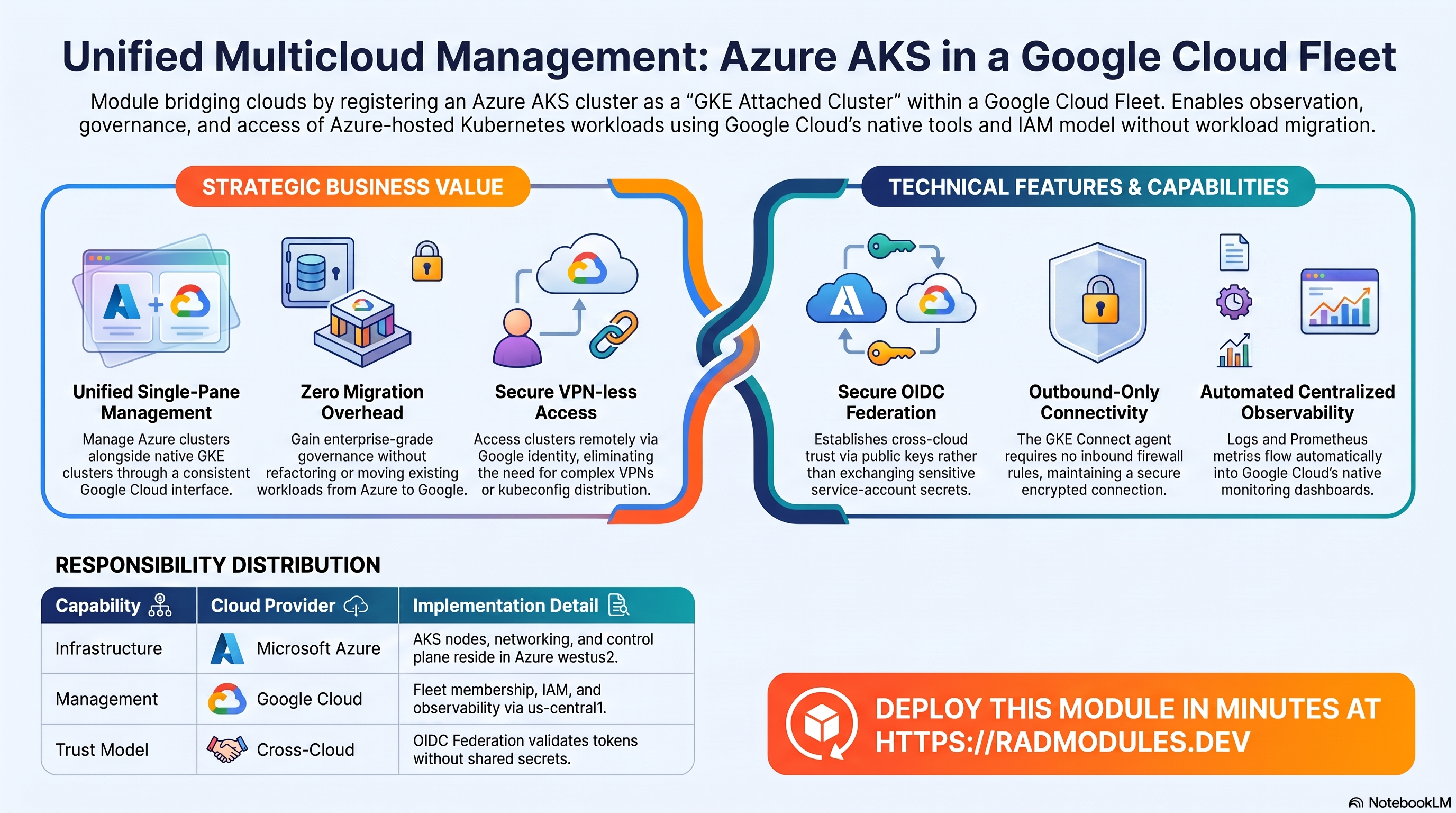
This module deploys a Microsoft Azure Kubernetes Service (AKS) cluster and registers it with Google Cloud as a GKE Attached Cluster, making it a full member of a GKE Fleet. From that point forward, the cluster is visible and manageable from the Google Cloud Console alongside any native GKE clusters in the same project.
The primary purpose of this module is educational: it gives platform engineers hands-on exposure to Google Cloud's multi-cloud Kubernetes management layer. By working with a live deployment, engineers develop a concrete understanding of how Google Cloud extends its Kubernetes management plane beyond its own infrastructure.
After deploying this module, engineers will have practical experience with:
- How GKE Attached Clusters bring non-GKE Kubernetes clusters under Google Cloud management without migrating workloads.
- How GKE Fleet creates a unified management boundary spanning Azure, AWS, on-premises, and Google Cloud clusters.
- How GKE Connect and the Connect Gateway enable secure
kubectlaccess to remote clusters using Google Cloud identity, with no VPN or public API endpoints required. - How OIDC federation establishes cryptographic trust between AKS and Google Cloud, eliminating shared credentials between clouds.
- How Cloud Logging and Managed Prometheus centralise observability for clusters running in Azure.
- How Anthos Service Mesh can be installed on non-GKE clusters, bringing Istio-compatible service mesh capabilities to workloads in Azure.
2. What This Module Deploys
The module provisions infrastructure across two clouds in three sequential phases.
Phase 1 — Azure Infrastructure
An Azure Resource Group and an AKS cluster are created in Azure. The cluster is configured with a system-assigned managed identity, an OIDC issuer endpoint, and a default node pool. The cluster's managed identity is granted the Network Contributor role on the resource group so that AKS can manage Azure load balancers and network resources on behalf of Kubernetes workloads.
Phase 2 — GKE Attachment
Bootstrap manifests are fetched from Google's API and installed on the AKS cluster via Helm. These manifests deploy the GKE Connect agent, which establishes a persistent outbound connection from AKS to Google Cloud. Once the agent is running, the AKS cluster is registered as a GKE Attached Cluster, enrolled in a GKE Fleet, and configured with managed logging, Managed Prometheus, and admin user authorization.
Phase 3 — Service Mesh (Manual / Optional)
An attached-install-mesh sub-module is included in the repository but is not invoked automatically by this module's main.tf. To install Anthos Service Mesh on the AKS cluster, the sub-module must be called separately and supplied with the cluster kubeconfig and context. When invoked, it downloads Google Cloud's asmcli tool and uses it to install ASM, enabling mTLS, advanced traffic management, and distributed observability for workloads running in Azure. See modules/attached-install-mesh/ for configuration variables.
3. GKE Attached Clusters
3.1 What Problem This Solves
Many organisations run Kubernetes on multiple cloud providers simultaneously. Managing these clusters typically means learning separate tooling for each: Azure Portal and az CLI for AKS, and the Google Cloud Console and gcloud for GKE. Observability, access control, and policy enforcement are each siloed per cloud.
GKE Attached Clusters solves this by extending Google Cloud's Kubernetes management plane to clusters that Google did not provision. The AKS cluster continues to run entirely in Azure — its control plane, nodes, and networking are unchanged — but Google Cloud gains the ability to observe, access, and manage it through the same interfaces used for native GKE clusters.
3.2 Platform Version
Every GKE Attached Cluster is assigned a platform version — the version of the GKE Connect agent and supporting components installed on the cluster. The platform version must be compatible with the AKS cluster's Kubernetes version. An AKS cluster running Kubernetes 1.34 uses platform version 1.34.0-gke.1.
To explore available platform versions for any Google Cloud region:
gcloud alpha container attached get-server-config --location=us-central1
3.3 Viewing the Attached Cluster in the Console
After deployment, the AKS cluster appears in the Google Cloud Console at:
Kubernetes Engine → Clusters
It is listed alongside any native GKE clusters in the project. The cluster entry shows its type as Attached, its Kubernetes version, node count, and status. Clicking the cluster name opens its detail view, where nodes, workloads, namespaces, and Kubernetes events are all browsable from the same Console interface used for GKE.
To inspect the cluster record from the command line:
# List all attached clusters in a project
gcloud container attached clusters list \
--location=us-central1 \
--project=my-gcp-project
# Describe the cluster registration details
gcloud container attached clusters describe azure-aks-cluster \
--location=us-central1 \
--project=my-gcp-project
The describe output shows the cluster's OIDC issuer URL, platform version, fleet project, logging and monitoring configuration, and admin user list — the complete picture of how Google Cloud sees the cluster.
3.4 Default Configuration
| Configuration | Default Value | Notes |
|---|---|---|
| Cluster name prefix | azure-aks-cluster | Used as the cluster name in both Azure and Google Cloud |
| AKS Kubernetes version | 1.34 | The Kubernetes minor version deployed on AKS |
| GKE platform version | 1.34.0-gke.1 | Must be compatible with the Kubernetes version |
| Azure region | westus2 | Where the AKS cluster is physically deployed |
| Google Cloud region | us-central1 | Where the attached cluster record is stored in GCP |
| Node count | 3 | Number of worker nodes in the default node pool |
| Node VM size | Standard_D2s_v3 | Azure VM SKU for worker nodes |
4. OIDC Federation: Cross-Cloud Identity Without Shared Secrets
4.1 The Core Concept
One of the most architecturally significant features demonstrated by this module is OIDC-based cross-cloud federation. This is the mechanism by which Google Cloud trusts tokens issued by the AKS cluster without any service account keys, certificates, or passwords being shared between Azure and Google Cloud.
AKS exposes a public OpenID Connect Discovery Endpoint — a URL that publishes the cluster's cryptographic public keys (JSON Web Key Set, or JWKS). When the AKS cluster is attached to Google Cloud, GCP fetches these public keys and stores them in its trust configuration. From that point, whenever the GKE Connect agent presents a Kubernetes service account token to Google Cloud, GCP validates the token's cryptographic signature against the stored keys. If valid, GCP knows the token genuinely originated from that AKS cluster — no Azure credentials required.
4.2 Inspecting the OIDC Configuration
After deployment, the OIDC trust relationship can be inspected directly:
# View the OIDC issuer URL stored in the attached cluster record
gcloud container attached clusters describe azure-aks-cluster \
--location=us-central1 \
--project=my-gcp-project \
--format="value(oidcConfig.issuerUrl)"
# View the Workload Identity Pool created for the fleet
gcloud iam workload-identity-pools list \
--location=global \
--project=my-gcp-project
# Describe the pool to see the OIDC provider configuration
gcloud iam workload-identity-pools describe PROJECT_ID.svc.id.goog \
--location=global \
--project=my-gcp-project
The Workload Identity Pool is visible in the Google Cloud Console at:
IAM & Admin → Workload Identity Federation
Each attached cluster that joins the fleet contributes an OIDC provider to this pool, representing the trust relationship between the cluster and Google Cloud.
4.3 Why This Matters for Platform Engineers
This pattern — Workload Identity Federation — is the modern approach to cross-cloud authentication. The alternative, distributing service account key files, creates operational risk: keys can be leaked, forgotten, or left unrotated for years. OIDC federation eliminates the secret entirely. The same pattern underpins how GitHub Actions authenticates to Google Cloud, how Terraform Cloud authenticates to GCP, and how native GKE Workload Identity works. Understanding it here provides a transferable mental model for all of these systems.
4.4 Enabling Application Workloads to Access Google Cloud APIs
Once the cluster is fleet-enrolled with OIDC, individual pods running on AKS can authenticate directly to Google Cloud APIs — Cloud Storage, Pub/Sub, BigQuery — without credential files. The setup involves annotating a Kubernetes service account on AKS to link it to a Google Cloud service account:
# Create a Google Cloud service account for the workload
gcloud iam service-accounts create aks-workload-sa \
--project=my-gcp-project
# Grant it access to a Google Cloud resource (e.g. Storage)
gcloud projects add-iam-policy-binding my-gcp-project \
--member="serviceAccount:aks-workload-sa@my-gcp-project.iam.gserviceaccount.com" \
--role="roles/storage.objectViewer"
# Allow the Kubernetes service account on AKS to impersonate it
gcloud iam service-accounts add-iam-policy-binding \
aks-workload-sa@my-gcp-project.iam.gserviceaccount.com \
--role=roles/iam.workloadIdentityUser \
--member="principal://iam.googleapis.com/projects/PROJECT_NUMBER/locations/global/workloadIdentityPools/PROJECT_ID.svc.id.goog/subject/ns/default/sa/my-app-sa"
# On the AKS cluster: annotate the Kubernetes service account
kubectl annotate serviceaccount my-app-sa \
--namespace default \
iam.gke.io/gcp-service-account=aks-workload-sa@my-gcp-project.iam.gserviceaccount.com
Pods using this annotated service account will automatically receive short-lived GCP access tokens via the OIDC token exchange, with no key files mounted or managed.
5. GKE Fleet: Unified Multi-Cluster Management
5.1 What is a Fleet?
A GKE Fleet is a Google Cloud construct that groups Kubernetes clusters — regardless of where they run — into a single management boundary. Any cluster enrolled in a fleet can be governed, observed, and configured uniformly alongside every other fleet member.
Fleets are scoped to a Google Cloud project. In this module, the AKS cluster is enrolled in the fleet of the destination GCP project specified at deployment time.
5.2 Viewing Fleet Membership in the Console
After deployment, the fleet membership is visible in the Google Cloud Console at:
Kubernetes Engine → Fleet
The Fleet page shows all enrolled clusters, their registration status, health, and which fleet features are active on each cluster. The AKS cluster appears here with its distribution type (aks) and membership state.
To explore fleet membership from the command line:
# List all clusters enrolled in the fleet
gcloud container fleet memberships list \
--project=my-gcp-project
# Describe the AKS cluster's fleet membership
gcloud container fleet memberships describe azure-aks-cluster \
--project=my-gcp-project
5.3 What Fleet Membership Enables
Fleet enrollment activates a range of Google Cloud platform features that are not available to unregistered clusters:
Connect Gateway — Engineers run kubectl against the AKS cluster using Google Cloud IAM identity. No AKS credentials, no kubeconfig distribution, no VPN required.
Unified Console View — The AKS cluster appears in Kubernetes Engine → Clusters alongside any native GKE clusters. Workloads, nodes, namespaces, and events are browsable from the same interface.
Anthos Config Management — Synchronises Kubernetes configurations and policies from a Git repository to all fleet clusters simultaneously. A single commit can apply namespace definitions, RBAC policies, or resource quotas to both GKE and AKS clusters.
Policy Controller — Built on OPA Gatekeeper, enforces organisational policies (resource limits, required labels, image registry restrictions) fleet-wide using identical constraint definitions across GKE and AKS clusters.
Multi-Cluster Services — Allows Kubernetes Services to be exported from one fleet cluster and consumed by other fleet clusters without manual DNS configuration or network peering.
Service Mesh — Anthos Service Mesh can be managed fleet-wide, providing uniform mTLS, traffic management, and distributed tracing across all member clusters.
5.4 Accessing the AKS Cluster via Connect Gateway
Connect Gateway is one of the most practical fleet features. After deployment, admin users connect to the AKS cluster using only their Google Cloud identity:
# Fetch credentials — this configures kubectl to use Connect Gateway
gcloud container attached clusters get-credentials azure-aks-cluster \
--location=us-central1 \
--project=my-gcp-project
# All standard kubectl commands now work against the AKS cluster
kubectl get nodes
kubectl get namespaces
kubectl get pods --all-namespaces
kubectl top nodes
kubectl describe node NODE_NAME
The kubeconfig entry written by get-credentials points to Google Cloud's Connect Gateway endpoint, not to the AKS API server directly. All commands are authenticated by Google Cloud IAM and proxied through the Connect agent tunnel.
To verify which context is active and confirm the gateway endpoint:
kubectl config current-context
kubectl config view --minify
5.5 Exploring Fleet Features in the Console
Each fleet feature has a dedicated section in the Fleet page:
- Kubernetes Engine → Fleet → Feature manager shows which features are enabled and their health status across all fleet clusters.
- Kubernetes Engine → Config (when Anthos Config Management is enabled) shows the sync status of each cluster's configuration against the source Git repository.
- Kubernetes Engine → Policy (when Policy Controller is enabled) shows active constraints and any policy violations across fleet clusters.
6. Google Cloud Managed Logging for AKS
6.1 The Multi-Cloud Observability Problem
AKS logs flow natively to Azure Monitor and Log Analytics. GKE logs flow to Google Cloud Logging. Teams operating both must maintain expertise in two separate query languages, two alerting systems, and two retention configurations. Cross-cloud incident investigation means switching between Azure Portal and the Google Cloud Console, correlating timestamps manually.
This module routes AKS logs to Google Cloud Logging alongside any GKE cluster logs in the same project. The AKS cluster continues to run in Azure, but its logs arrive in one centralised place.
6.2 What Gets Logged
Two categories of logs are collected from the AKS cluster:
System Component Logs capture the operational output of the Kubernetes control plane and node-level components: the API server, scheduler, controller manager, kubelet, and CNI plugins. These are essential for diagnosing cluster-level failures — why a pod could not be scheduled, why a node went NotReady.
Workload Logs capture the stdout and stderr of every container running in user namespaces. Any application writing to stdout has its logs forwarded automatically — no log shippers, sidecar containers, or application changes required.
6.3 Exploring Logs in the Console
Open the Google Cloud Console and navigate to:
Logging > Log Explorer
In the query bar, filter to the attached AKS cluster by entering:
resource.labels.cluster_name="azure-aks-cluster"
The Log Explorer shows all log entries from the cluster, with filters for namespace, pod name, container name, and severity. The log schema is identical to GKE, so queries written for GKE clusters work without modification on the attached AKS cluster.
To explore specific log types, use these refined queries in the Log Explorer query bar:
# System component logs (control plane and node components)
resource.type="k8s_cluster"
resource.labels.cluster_name="azure-aks-cluster"
# All workload container logs
resource.type="k8s_container"
resource.labels.cluster_name="azure-aks-cluster"
# Logs from a specific namespace
resource.type="k8s_container"
resource.labels.cluster_name="azure-aks-cluster"
resource.labels.namespace_name="default"
# Error and critical logs only
resource.labels.cluster_name="azure-aks-cluster"
severity>=ERROR
6.4 Querying Logs from the Command Line
# All recent logs from the AKS cluster
gcloud logging read \
'resource.labels.cluster_name="azure-aks-cluster"' \
--project=my-gcp-project \
--limit=50 \
--format=json
# Workload logs from a specific pod
gcloud logging read \
'resource.type="k8s_container" AND resource.labels.cluster_name="azure-aks-cluster" AND resource.labels.pod_name:"my-app"' \
--project=my-gcp-project \
--limit=20
# System component logs in the last hour
gcloud logging read \
'resource.type="k8s_cluster" AND resource.labels.cluster_name="azure-aks-cluster"' \
--project=my-gcp-project \
--freshness=1h
6.5 Creating a Log-Based Metric
Log-based metrics turn log entries into numeric signals that can be charted and alerted on. Navigate to Logging > Log-based Metrics > Create Metric, or use the CLI:
gcloud logging metrics create aks-oomkilled-count \
--description="Count of OOMKilled container restarts on AKS cluster" \
--log-filter='resource.labels.cluster_name="azure-aks-cluster" AND jsonPayload.reason="OOMKilling"' \
--project=my-gcp-project
# Confirm the metric was created
gcloud logging metrics list --project=my-gcp-project
Once created, this metric appears in Cloud Monitoring and can be used in dashboards and alerting policies.
6.6 Creating a Log-Based Alert
In Log Explorer, run the following query to find BackOff events on the AKS cluster:
resource.labels.cluster_name="azure-aks-cluster"
jsonPayload.reason="BackOff"
severity=WARNING
Click Create alert in the Log Explorer toolbar to open the alerting policy wizard pre-populated with this filter. Alternatively, navigate to Monitoring > Alerting > Create Policy, select Log-based metric as the signal source, and choose the metric created in the previous step.
7. Google Cloud Managed Prometheus for AKS
7.1 What Managed Prometheus Provides
This module enables Google Cloud Managed Service for Prometheus (GMP) on the AKS cluster. GMP accepts metrics in Prometheus format and stores them durably with up to 24 months of retention, without requiring engineers to run or maintain any Prometheus infrastructure.
When enabled, GMP installs a collector DaemonSet on AKS nodes. This collector scrapes Prometheus metrics from pods and forwards them to Cloud Monitoring. Scrape targets are configured using PodMonitoring and ClusterPodMonitoring custom resources, which follow the same specification as on native GKE clusters.
7.2 Exploring Metrics in the Console
After deployment, navigate to:
Monitoring > Metrics Explorer
In the Select a metric field, search for kubernetes to browse the Kubernetes metrics flowing from the AKS cluster. Filter any metric by resource.cluster_name = "azure-aks-cluster" to isolate the AKS cluster's data. Key metrics to explore:
kubernetes.io/container/cpu/core_usage_time— CPU usage per containerkubernetes.io/container/memory/used_bytes— Memory usage per containerkubernetes.io/node/cpu/total_cores— Total CPU capacity per nodekubernetes.io/pod/network/received_bytes_count— Network ingress per pod
7.3 Querying Metrics from the Command Line
# Confirm Kubernetes metrics are flowing from the AKS cluster
gcloud monitoring metrics list \
--filter='metric.type=starts_with("kubernetes.io/container")' \
--project=my-gcp-project
# List all Kubernetes metric types available
gcloud monitoring metrics list \
--filter='metric.type=starts_with("kubernetes.io")' \
--project=my-gcp-project \
--format="value(metric.type)"
7.4 Querying with PromQL in the Console
In Monitoring > Metrics Explorer, switch the query mode from MQL to PromQL. Enter these expressions to explore AKS cluster metrics:
# CPU usage rate for all containers on the AKS cluster
rate(kubernetes_io:container_cpu_core_usage_time{cluster_name="azure-aks-cluster"}[5m])
# Memory usage summed by namespace
sum by (namespace_name) (
kubernetes_io:container_memory_used_bytes{cluster_name="azure-aks-cluster"}
)
# Container restart count
kubernetes_io:container_restart_count{cluster_name="azure-aks-cluster"}
7.5 Scraping Custom Application Metrics
To configure GMP to scrape a custom application on the AKS cluster, first connect to the cluster, then apply a PodMonitoring resource:
# Connect to the cluster
gcloud container attached clusters get-credentials azure-aks-cluster \
--location=us-central1 --project=my-gcp-project
# Verify the GMP collector DaemonSet is running on AKS nodes
kubectl get daemonset -n gmp-system
kubectl get pods -n gmp-system
# Apply a PodMonitoring resource to scrape a custom app
kubectl apply -f - <<EOF
apiVersion: monitoring.googleapis.com/v1
kind: PodMonitoring
metadata:
name: my-app-monitoring
namespace: default
spec:
selector:
matchLabels:
app: my-app
endpoints:
- port: metrics
interval: 30s
EOF
# Confirm it was accepted
kubectl get podmonitoring -n default
Custom metrics appear in Cloud Monitoring within a few minutes under the prometheus.googleapis.com metric prefix.
7.6 Viewing Built-in Kubernetes Dashboards
Navigate to Monitoring > Dashboards and look for dashboards prefixed with GKE:
- GKE — Cluster summary — node-level CPU, memory, and disk usage for the AKS cluster
- GKE — Workloads — pod-level resource consumption, restart rates, and network activity
- GKE — Node — per-node drill-down into resource utilisation
These dashboards are populated automatically from Managed Prometheus metrics with no additional configuration after the cluster is attached.
8. GKE Connect and the Connect Agent
8.1 How the Connect Agent Works
The GKE Connect agent is a lightweight Deployment installed on the AKS cluster during the attachment process. It maintains a persistent, encrypted, outbound-only connection from AKS to Google Cloud's gkeconnect.googleapis.com endpoint.
The significance of outbound-only cannot be overstated. It means the AKS API server does not need a public endpoint. No inbound firewall rules need to be opened in Azure. No VPN or VPC peering is required between Azure and Google Cloud. The cluster can sit behind a NAT gateway with no public IP and the Connect agent will still function. All management traffic — kubectl commands via Connect Gateway, log collection, metrics — is multiplexed over this single outbound gRPC stream. The agent reconnects automatically after network interruptions.
8.2 Viewing the Connect Agent in the Console
After deployment, navigate to:
Kubernetes Engine > Clusters > azure-aks-cluster
The cluster detail page shows a Connect status indicator. A green status confirms the agent tunnel is active and Google Cloud can reach the cluster. If the status shows a warning, the agent pod logs are the first place to investigate.
Fleet membership status is also visible at:
Kubernetes Engine > Fleet > Clusters
Each cluster entry shows its connection health, last heartbeat time, and which fleet features are active.
8.3 Verifying the Connect Agent from the Command Line
# Connect to the cluster via Connect Gateway
gcloud container attached clusters get-credentials azure-aks-cluster \
--location=us-central1 --project=my-gcp-project
# Confirm the Connect agent pod is running
kubectl get pods -n gke-connect
# View the Connect agent pod details
kubectl describe pod -n gke-connect -l app=gke-connect-agent
# Stream Connect agent logs to check tunnel health
kubectl logs -n gke-connect -l app=gke-connect-agent --follow
# Check all resources deployed by the bootstrap manifests
kubectl get all -n gke-connect
A healthy agent shows a Running pod and log lines confirming an active connection to gkeconnect.googleapis.com.
8.4 Exploring the Cluster via Connect Gateway
With credentials fetched via get-credentials, all standard kubectl commands work against the AKS cluster through the Connect Gateway tunnel:
# Inspect nodes and their Azure VM details
kubectl get nodes -o wide
# View resource consumption across all nodes
kubectl top nodes
# List all namespaces
kubectl get namespaces
# Browse workloads across all namespaces
kubectl get pods --all-namespaces
# Inspect cluster-level events
kubectl get events --all-namespaces --sort-by='.lastTimestamp'
# View RBAC roles granted to connected users
kubectl get clusterrolebindings | grep gke-connect
8.5 Understanding the Bootstrap Manifests
The Kubernetes resources installed by the bootstrap process are all scoped to the gke-connect namespace. Exploring them reveals how Google Cloud establishes and maintains the cluster relationship:
# List all resources in the gke-connect namespace
kubectl get all,configmap,secret,serviceaccount -n gke-connect
# View the ConfigMap containing the cluster's GCP identity
kubectl describe configmap -n gke-connect
# Inspect the ClusterRoles granted to the Connect agent
kubectl get clusterrole | grep gke-connect
kubectl describe clusterrole gke-connect-agent-cluster-role
9. Google Cloud APIs Enabled by This Module
Deploying this module enables ten Google Cloud APIs on the destination project. Understanding what each one does gives platform engineers a clear picture of Google Cloud's multi-cloud Kubernetes management capabilities.
9.1 Viewing Enabled APIs in the Console
Navigate to:
APIs & Services > Enabled APIs & Services
Filter by gke or anthos to see the APIs activated by this module. Each API entry shows its current usage, quota limits, and a link to its documentation.
9.2 Inspecting Enabled APIs from the Command Line
# List all APIs enabled on the project
gcloud services list --enabled --project=my-gcp-project
# Check whether a specific API is enabled
gcloud services list --enabled \
--filter="name:gkemulticloud.googleapis.com" \
--project=my-gcp-project
# View details of a specific API
gcloud services describe gkemulticloud.googleapis.com \
--project=my-gcp-project
9.3 What Each API Enables
| API | What It Enables |
|---|---|
GKE Multi-Cloud (gkemulticloud) | Core API for managing attached clusters — registration, platform version management, and cluster lifecycle |
GKE Connect (gkeconnect) | Manages the Connect agent's communication channel between AKS and Google Cloud |
Connect Gateway (connectgateway) | Powers the kubectl proxy that lets engineers access the AKS cluster using Google Cloud identity |
Cloud Resource Manager (cloudresourcemanager) | Access to the GCP project hierarchy — required for project ID and number lookups |
Anthos (anthos) | Activates Anthos platform entitlements, enabling fleet features including Config Management, Policy Controller, and Service Mesh |
Cloud Monitoring (monitoring) | Receives Managed Prometheus metrics and powers alerting, dashboards, and PromQL queries |
Cloud Logging (logging) | Receives AKS system component and workload logs into Log Explorer |
GKE Hub (gkehub) | Manages Fleet membership registrations and fleet feature configurations |
Operations Config Monitoring (opsconfigmonitoring) | Monitors the health of the cluster's observability pipeline |
Kubernetes Metadata (kubernetesmetadata) | Collects Kubernetes metadata (namespace labels, workload annotations) to enrich log and metric records |
These APIs are enabled non-destructively. Removing the module deployment does not disable them, protecting other workloads in the same project that may depend on them.
10. Google Cloud Service Mesh on Attached Clusters
10.1 What Anthos Service Mesh Brings to AKS
The attached-install-mesh sub-module, located at modules/attached-install-mesh/, can install Google Cloud Service Mesh (ASM) — Google's distribution of Istio — on the AKS cluster. This sub-module is not invoked automatically by the root module; it must be called separately with the cluster kubeconfig and context variables. Once invoked, it gives workloads running in Azure the full Istio service mesh feature set, managed through the same Google Cloud interfaces used for service mesh on GKE.
10.2 Core Service Mesh Capabilities
Mutual TLS (mTLS) encrypts all pod-to-pod communication at the Envoy sidecar layer automatically. Applications do not implement TLS themselves. mTLS applies even to applications that predate the mesh deployment.
Traffic Management uses Istio's VirtualService and DestinationRule resources to control traffic flow between services: canary deployments by percentage, circuit breaking, retry policies, and traffic mirroring for shadow testing.
Observability generates distributed traces, service-to-service metrics (request rate, error rate, latency), and access logs for all inter-service communication — without application code changes. Telemetry flows to Cloud Trace, Cloud Monitoring, and Cloud Logging.
Security Policies use AuthorizationPolicy resources to define which services may communicate with which others, implementing zero-trust networking at the application layer.
10.3 Viewing the Service Mesh in the Console
After installing the service mesh, navigate to:
Anthos > Service Mesh
This page shows a topology graph of all services in the mesh, with live metrics for request rate, error rate, and p99 latency on each edge. Clicking a service shows its traffic details, health, and any active security policies.
The mesh dashboard is also accessible from:
Kubernetes Engine > Clusters > azure-aks-cluster > Observability
10.4 Exploring the Mesh from the Command Line
# Confirm Istio control plane is running
kubectl get pods -n istio-system
# Check the Istio version installed
kubectl get deployment istiod -n istio-system -o jsonpath='{.spec.template.spec.containers[0].image}'
# List all services currently in the mesh
kubectl get svc --all-namespaces -l istio
# Check sidecar injection status across namespaces
kubectl get namespace -L istio-injection
# Enable sidecar injection for a namespace
kubectl label namespace default istio-injection=enabled
# Verify sidecar is injected in a pod
kubectl describe pod my-pod | grep istio-proxy
# View mesh-wide configuration
kubectl get meshconfig -n istio-system -o yaml
10.5 Exploring mTLS Enforcement
# Check the current mTLS mode across the mesh
kubectl get peerauthentication --all-namespaces
# View the default mesh-wide mTLS policy
kubectl get peerauthentication -n istio-system
# Inspect a certificate issued to a pod's sidecar
kubectl exec my-pod -c istio-proxy -- \
openssl s_client -connect other-service:8080 2>&1 | grep -A5 "Certificate chain"
# Check Envoy's view of upstream cluster TLS settings
kubectl exec my-pod -c istio-proxy -- \
pilot-agent request GET clusters | grep tls
10.6 Certificate Authority Options
When installing the service mesh, the certificate authority for mTLS certificates is selected from three options:
Mesh CA (default) is a Google-managed CA built into Anthos Service Mesh. Certificates are automatically provisioned, rotated, and revoked with no infrastructure overhead. Recommended for most deployments.
Google Certificate Authority Service (GCP CAS) integrates the mesh with Google Cloud's enterprise CA product. Suited to regulated environments requiring a fully auditable CA, custom root certificates, and compliance reporting. Navigate to Certificate Authority Service in the Console to view issued certificates and CA configuration.
Citadel (Istiod CA) uses Istio's built-in CA. Primarily useful when migrating an existing open-source Istio installation to Anthos Service Mesh.
10.7 Exploring Traffic Management
# List all Istio traffic management resources
kubectl get virtualservice,destinationrule,gateway --all-namespaces
# Example: apply a canary split sending 10% of traffic to a new version
kubectl apply -f - <<EOF
apiVersion: networking.istio.io/v1beta1
kind: VirtualService
metadata:
name: my-app
namespace: default
spec:
hosts:
- my-app
http:
- route:
- destination:
host: my-app
subset: stable
weight: 90
- destination:
host: my-app
subset: canary
weight: 10
EOF
# View the traffic split taking effect
kubectl get virtualservice my-app -o yaml
10.8 Tool Bootstrapping and Air-Gap Support
The service mesh sub-module downloads asmcli, the Google Cloud SDK, and jq at installation time. All three download sources are configurable, enabling the URLs to point to an internal artifact repository. This makes the module deployable in air-gapped environments where direct internet access is restricted by security policy.
11. Configuration Reference
11.1 Cluster Configuration
| Option | Default | Description |
|---|---|---|
| Cluster name prefix | azure-aks-cluster | Base name for the AKS cluster and all associated Azure resources |
| Azure region | westus2 | Azure region where the AKS cluster and resource group are deployed |
| Kubernetes version | 1.34 | Kubernetes minor version for the AKS control plane and nodes |
| GKE platform version | 1.34.0-gke.1 | Version of the GKE Connect agent and attached cluster components — must be compatible with the Kubernetes version |
| Node count | 3 | Number of worker nodes in the default node pool |
| Node VM size | Standard_D2s_v3 | Azure VM SKU for all nodes in the default node pool |
| GCP region | us-central1 | Google Cloud region where the attached cluster record and fleet membership are stored |
11.2 Access Control
| Option | Default | Description |
|---|---|---|
| Trusted users | (deploying user) | List of Google Cloud user email addresses granted cluster-admin access via Connect Gateway. The identity running the deployment is always included automatically. |
11.3 Azure Authentication
These four values are required to allow the module to create and manage resources in Azure. They are always treated as sensitive and never appear in logs or plan output.
| Option | Description |
|---|---|
| Azure Client ID | Application ID of the Azure Service Principal used for authentication |
| Azure Client Secret | Secret credential for the Azure Service Principal |
| Azure Tenant ID | Azure Active Directory tenant that owns the Service Principal |
| Azure Subscription ID | Azure subscription where resources will be created |
11.4 GCP Project
| Option | Description |
|---|---|
| GCP Project ID | Destination Google Cloud project where the attached cluster is registered and fleet membership is created |
11.5 Service Mesh Options (attached-install-mesh sub-module)
| Option | Default | Description |
|---|---|---|
| Certificate authority | mesh_ca | CA for mTLS certificates: mesh_ca (Google-managed), gcp_cas (Certificate Authority Service), or citadel (Istiod CA) |
| Enable cluster roles | false | Authorises creation of ClusterRoles required by ASM components |
| Enable cluster labels | false | Authorises addition of topology and mesh labels to cluster nodes |
| Enable GCP components | false | Installs GCP-specific mesh components including the Stackdriver telemetry adapter |
| Enable GCP APIs | false | Automatically enables additional GCP APIs required by the mesh |
| Enable GCP IAM roles | false | Grants required IAM roles to the mesh service account |
| Enable MeshConfig init | false | Initialises the MeshConfig resource with mesh-wide default settings |
| Enable namespace creation | false | Creates the istio-system namespace if it does not already exist |
| Enable registration | false | Re-registers the cluster with the fleet (redundant if the root module has already done this) |
| gcloud SDK version | 491.0.0 | Version of the Google Cloud SDK downloaded during installation |
| asmcli version | 1.22 | Version of the asmcli tool used for mesh installation |
| gcloud download URL | (Google CDN) | Override to point to an internal mirror for air-gapped environments |
| asmcli download URL | (Google GCS) | Override to point to an internal mirror for air-gapped environments |
12. Deployment Workflow
12.1 Prerequisites
- A Google Cloud project with billing enabled.
- An Azure subscription and a Service Principal with Contributor access.
- The Google Cloud SDK installed and authenticated:
gcloud auth application-default login
gcloud config set project my-gcp-project
- Azure CLI installed and Service Principal credentials exported:
export ARM_CLIENT_ID="your-client-id"
export ARM_CLIENT_SECRET="your-client-secret"
export ARM_TENANT_ID="your-tenant-id"
export ARM_SUBSCRIPTION_ID="your-subscription-id"
12.2 Deployment Steps
# Initialise and deploy
terraform init
terraform plan
terraform apply
Expect approximately 12–15 minutes. The longest phase is AKS cluster provisioning in Azure (6–9 minutes).
12.3 Expected Deployment Duration
| Phase | Duration |
|---|---|
| Google Cloud API enablement | 1–2 min |
| Azure resource group creation | < 1 min |
| AKS cluster provisioning | 6–9 min |
| Bootstrap manifest installation | 2–3 min |
| GKE attached cluster registration | 1–2 min |
| Total | ~12–15 min |
12.4 Verifying a Successful Deployment
After terraform apply completes, run these commands to confirm every layer is working:
# 1. Confirm fleet membership is active
gcloud container fleet memberships list --project=my-gcp-project
# 2. Confirm the attached cluster record is healthy
gcloud container attached clusters describe azure-aks-cluster \
--location=us-central1 --project=my-gcp-project
# 3. Fetch credentials and connect via Connect Gateway
gcloud container attached clusters get-credentials azure-aks-cluster \
--location=us-central1 --project=my-gcp-project
# 4. Verify node access
kubectl get nodes -o wide
# 5. Confirm the Connect agent is running
kubectl get pods -n gke-connect
# 6. Confirm Managed Prometheus collector is running
kubectl get pods -n gmp-system
# 7. Confirm logs are flowing in Cloud Logging
gcloud logging read \
'resource.labels.cluster_name="azure-aks-cluster"' \
--project=my-gcp-project --limit=5
# 8. Confirm metrics are flowing in Cloud Monitoring
gcloud monitoring metrics list \
--filter='metric.type=starts_with("kubernetes.io/node")' \
--project=my-gcp-project
Then open the Google Cloud Console and verify visually:
- Kubernetes Engine > Clusters — AKS cluster appears with type
Attachedand a green status. - Kubernetes Engine > Fleet — Cluster is listed as a fleet member.
- Logging > Log Explorer — Logs are visible with
resource.labels.cluster_name="azure-aks-cluster". - Monitoring > Metrics Explorer — Kubernetes metrics are queryable for the cluster.
12.5 Teardown
terraform destroy
This deregisters the cluster from Google Cloud, removes the Connect agent from AKS, and deletes all Azure resources. The Google Cloud APIs enabled during deployment are intentionally left enabled to avoid disrupting other workloads sharing the same project.
13. Key Learning Outcomes for Platform Engineers
13.1 Multi-Cloud Kubernetes Management
This module demonstrates Google Cloud's core multi-cloud insight: the management plane can be decoupled from the data plane. Workloads run in Azure on AKS infrastructure. The management plane — access control, observability, policy, service mesh — runs in Google Cloud and applies uniformly to the Azure cluster. Engineers who internalise this separation are equipped to design platform strategies for organisations with heterogeneous cloud environments.
13.2 Zero-Trust Cross-Cloud Authentication
The OIDC federation pattern shown here is the foundation of zero-trust authentication across cloud environments. Understanding how OIDC issuer endpoints, JWKS, and token validation eliminate the need for shared credentials is a transferable skill that applies to GKE Workload Identity, GitHub Actions, Terraform Cloud, and any other system that uses federated identity.
13.3 Centralised Observability Architecture
Routing AKS logs and metrics to Cloud Logging and Cloud Monitoring demonstrates that Google Cloud's observability stack is not limited to GKE. It is designed to be the observability backend for any Kubernetes cluster, regardless of where it runs. The single-pane-of-glass this creates reduces the operational burden on platform teams managing mixed cloud environments.
13.4 Service Mesh as a Platform Concern
Installing Anthos Service Mesh on an AKS cluster shows that service mesh is a platform-level concern, not a per-cluster one. The same mesh management interfaces, certificate authorities, traffic policies, and observability signals apply whether workloads run on GKE or on a fleet-enrolled AKS cluster — the foundation for portable microservice architectures that span cloud providers.
13.5 GKE Fleet as a Platform Primitive
Fleet is the most important concept for platform engineers building multi-cluster environments on Google Cloud. This module's single attached cluster is the simplest possible fleet topology, but it establishes the mental model that scales to dozens of clusters across multiple clouds and on-premises environments — all governed, observed, and configured from a single GCP project.
13.6 Console Navigation Summary
| Feature | Console Location |
|---|---|
| Attached cluster status and details | Kubernetes Engine > Clusters |
| Fleet membership and feature health | Kubernetes Engine > Fleet |
| Fleet feature enable / status | Kubernetes Engine > Fleet > Feature manager |
| Multi-Cluster Services status | Kubernetes Engine > Fleet > Feature manager |
| Anthos Config Management sync status | Kubernetes Engine > Config |
| Policy Controller violations | Kubernetes Engine > Policy |
| Log Explorer for AKS logs | Logging > Log Explorer |
| Log-based metrics | Logging > Log-based Metrics |
| Metrics Explorer and PromQL | Monitoring > Metrics Explorer |
| Built-in Kubernetes dashboards | Monitoring > Dashboards |
| Custom dashboards | Monitoring > Dashboards > Create Dashboard |
| Metric-based alerting policies | Monitoring > Alerting |
| Firing alert incidents | Monitoring > Alerting > Incidents |
| Distributed traces (service mesh) | Trace > Trace Explorer |
| Service Mesh topology and security | Anthos > Service Mesh |
| Workload Identity pools and providers | IAM & Admin > Workload Identity Federation |
| Workload Identity IAM bindings | IAM & Admin > Service Accounts > Permissions |
| Enabled APIs | APIs & Services > Enabled APIs & Services |
| Certificate Authority (GCP CAS option) | Certificate Authority Service |
14. Cloud Trace: Distributed Tracing via the Service Mesh
14.1 What Cloud Trace Captures
When Anthos Service Mesh is installed, the Envoy sidecar proxies automatically generate distributed traces for every request that passes through the mesh — without any instrumentation in application code. Each trace records the full path a request takes across services: which pods handled it, how long each hop took, and whether any errors occurred.
These traces are forwarded to Cloud Trace, Google Cloud's managed distributed tracing backend. Cloud Trace stores them with sub-millisecond precision and provides a UI for exploring latency, identifying bottlenecks, and correlating slow requests with specific service versions.
14.2 Viewing Traces in the Console
After the service mesh is installed and workloads are generating traffic, navigate to:
Trace > Trace Explorer
The Trace Explorer shows a scatter plot of all recent traces plotted by latency over time. Each dot is a single request. Outliers — requests significantly slower than the median — appear visually as high dots, making latency regressions immediately apparent without writing queries.
To filter traces to a specific service on the AKS cluster:
- Open Trace > Trace Explorer
- Click Add filter and select Service name
- Enter the Kubernetes service name to scope the view
Clicking any individual trace opens a waterfall diagram showing every service hop, the time spent at each, and any errors or status codes returned.
To view traces linked to a specific log entry, open a log entry in Logging > Log Explorer and click View in Trace if a trace ID is present — this jumps directly to the corresponding trace waterfall.
14.3 Exploring Traces from the Command Line
# List recent traces for the project (last 1 hour)
gcloud trace traces list \
--project=my-gcp-project \
--start-time=$(date -u -d '1 hour ago' +%Y-%m-%dT%H:%M:%SZ)
# Describe a specific trace by ID
gcloud trace traces get TRACE_ID \
--project=my-gcp-project
# List traces filtered by a minimum latency (e.g. over 500ms)
gcloud trace traces list \
--project=my-gcp-project \
--filter="latency > 0.5s" \
--start-time=$(date -u -d '1 hour ago' +%Y-%m-%dT%H:%M:%SZ)
14.4 Confirming Trace Collection is Active
After the mesh is installed, verify the trace export is working:
# Connect to the cluster
gcloud container attached clusters get-credentials azure-aks-cluster \
--location=us-central1 --project=my-gcp-project
# Check that the Stackdriver trace exporter is configured in the mesh
kubectl get meshconfig -n istio-system -o jsonpath='{.spec.defaultConfig.tracing}'
# Generate a test request between two mesh-enrolled pods to produce a trace
kubectl exec -n default deploy/my-app -- \
curl -s http://other-service/health
# Confirm traces are appearing in Cloud Trace (allow ~30 seconds)
gcloud trace traces list \
--project=my-gcp-project \
--start-time=$(date -u -d '2 minutes ago' +%Y-%m-%dT%H:%M:%SZ)
15. Fleet Feature Management
15.1 Enabling and Inspecting Fleet Features
Fleet features are optional capabilities that apply to all clusters in a fleet simultaneously. They are managed independently of cluster provisioning — a feature can be enabled on an existing fleet at any time without redeploying clusters.
The gcloud container fleet features command group provides full control over fleet feature lifecycle:
# List all available fleet features and their current state
gcloud container fleet features list \
--project=my-gcp-project
# Describe a specific feature and its configuration
gcloud container fleet features describe configmanagement \
--project=my-gcp-project
# Check which fleet features are currently enabled
gcloud container fleet features list \
--filter="resourceState.state=ACTIVE" \
--project=my-gcp-project
15.2 Anthos Config Management
Anthos Config Management (ACM) synchronises Kubernetes configuration from a Git repository to all fleet clusters. A single policy commit can update namespace definitions, RBAC bindings, resource quotas, and network policies across both GKE and the AKS cluster simultaneously.
Enabling ACM on the fleet:
# Enable the Config Management fleet feature
gcloud container fleet config-management enable \
--project=my-gcp-project
# Confirm the feature is active
gcloud container fleet config-management status \
--project=my-gcp-project
Applying a Config Management configuration to the AKS cluster:
# Connect to the cluster
gcloud container attached clusters get-credentials azure-aks-cluster \
--location=us-central1 --project=my-gcp-project
# Apply a ConfigManagement resource pointing to a Git repository
kubectl apply -f - <<EOF
apiVersion: configmanagement.gke.io/v1
kind: ConfigManagement
metadata:
name: config-management
spec:
clusterName: azure-aks-cluster
git:
syncRepo: https://github.com/my-org/my-config-repo
syncBranch: main
secretType: none
EOF
# Check sync status on the cluster
kubectl get configmanagement
kubectl get rootsyncs -n config-management-system
Viewing sync status in the Console:
Navigate to Kubernetes Engine > Config. This page shows each fleet cluster, its last sync time, and any errors encountered during reconciliation. A green status confirms the cluster's configuration matches the Git repository.
# Check ACM sync status across all fleet clusters
gcloud container fleet config-management status \
--project=my-gcp-project
# Describe the sync status for the AKS cluster specifically
gcloud container fleet config-management fetch-for-apply \
--membership=azure-aks-cluster \
--project=my-gcp-project
15.3 Policy Controller
Policy Controller enforces organisational policies across all fleet clusters using OPA Gatekeeper constraint templates. Policies defined once apply identically to the AKS cluster and any GKE clusters in the same fleet.
Enabling Policy Controller:
# Enable Policy Controller on the fleet
gcloud container fleet policycontroller enable \
--project=my-gcp-project
# Check Policy Controller status across fleet clusters
gcloud container fleet policycontroller status \
--project=my-gcp-project
Exploring Policy Controller on the cluster:
# List all constraint templates installed by Policy Controller
kubectl get constrainttemplates
# List all active constraints
kubectl get constraints --all-namespaces
# Check for policy violations across the cluster
kubectl get constraints -o jsonpath='{range .items[*]}{.metadata.name}{"\t"}{.status.totalViolations}{"\n"}{end}'
Viewing violations in the Console:
Navigate to Kubernetes Engine > Policy. This page lists all active constraints and any violations detected on each fleet cluster, making cross-cluster compliance visible from a single view.
16. Service Mesh Security: Authorization Policies
16.1 What AuthorizationPolicy Does
An AuthorizationPolicy is an Istio resource that defines which workloads are permitted to communicate with which others within the mesh. Without an AuthorizationPolicy, all mTLS-authenticated traffic between mesh-enrolled pods is allowed. With one applied, only explicitly permitted traffic flows — implementing zero-trust networking at the application layer.
This is the service mesh equivalent of a firewall rule, but it operates at the workload identity level rather than the IP level. Policies are evaluated by the Envoy sidecar on the receiving pod, enforced before the request reaches the application container.
16.2 Viewing Existing Policies
# Connect to the cluster
gcloud container attached clusters get-credentials azure-aks-cluster \
--location=us-central1 --project=my-gcp-project
# List all authorization policies across all namespaces
kubectl get authorizationpolicy --all-namespaces
# Describe a specific policy in detail
kubectl describe authorizationpolicy POLICY_NAME -n NAMESPACE
16.3 Creating and Testing an Authorization Policy
This example creates a policy that allows only the frontend service account to call the backend service, and denies all other callers:
# Apply a deny-all policy to the backend service first
kubectl apply -f - <<EOF
apiVersion: security.istio.io/v1beta1
kind: AuthorizationPolicy
metadata:
name: backend-deny-all
namespace: default
spec:
selector:
matchLabels:
app: backend
action: DENY
rules:
- {}
EOF
# Verify the policy is in place
kubectl get authorizationpolicy -n default
# Now allow only the frontend service account through
kubectl apply -f - <<EOF
apiVersion: security.istio.io/v1beta1
kind: AuthorizationPolicy
metadata:
name: backend-allow-frontend
namespace: default
spec:
selector:
matchLabels:
app: backend
action: ALLOW
rules:
- from:
- source:
principals:
- "cluster.local/ns/default/sa/frontend"
EOF
# Test that the frontend can reach the backend
kubectl exec -n default deploy/frontend -- curl -s http://backend/health
# Test that another service is blocked (expect 403)
kubectl exec -n default deploy/other-service -- curl -s http://backend/health
16.4 Viewing Policy Effects in the Console
After applying authorization policies, their effects appear in the Anthos Service Mesh topology view:
Navigate to Anthos > Service Mesh
Services with active policies show a lock icon on their edges in the topology graph. Clicking a service shows its current authorization rules and any recent denied requests, identifiable by HTTP 403 responses in the service's error rate metrics.
Denied requests also appear in Cloud Logging:
gcloud logging read \
'resource.labels.cluster_name="azure-aks-cluster" AND jsonPayload.response_code=403' \
--project=my-gcp-project \
--limit=20
17. Mesh Diagnostics with istioctl
17.1 Installing istioctl
istioctl is the primary command-line tool for inspecting, diagnosing, and troubleshooting an Istio service mesh installation. It works against any cluster that kubectl is configured to access, including the AKS cluster connected via Connect Gateway.
# Download the istioctl binary matching the installed ASM version
curl -sL https://istio.io/downloadIstioctl | sh -
# Add to PATH
export PATH=$HOME/.istioctl/bin:$PATH
# Confirm it connects to the AKS cluster
istioctl version
17.2 Verifying the Mesh Installation
# Run the full pre-check for mesh installation health
istioctl verify-install
# Check that all Istio components are healthy
istioctl proxy-status
# Identify any pods that are out of sync with the control plane
istioctl proxy-status | grep -v SYNCED
17.3 Inspecting Sidecar Configuration
# Check whether a specific pod has a sidecar injected
istioctl experimental check-inject -n default deploy/my-app
# View the full Envoy configuration for a pod's sidecar
istioctl proxy-config all my-pod -n default
# View only the listener configuration (inbound/outbound ports)
istioctl proxy-config listeners my-pod -n default
# View the cluster configuration (upstream services)
istioctl proxy-config clusters my-pod -n default
# View the route configuration (HTTP routing rules)
istioctl proxy-config routes my-pod -n default
# View TLS certificates loaded into the sidecar
istioctl proxy-config secret my-pod -n default
17.4 Diagnosing Traffic and Policy Issues
# Analyse the mesh configuration for misconfigurations
istioctl analyze --all-namespaces
# Analyse a specific namespace only
istioctl analyze -n default
# Check whether a VirtualService is correctly applied
istioctl analyze -n default --failure-threshold WARNING
# Describe what traffic policy applies to a specific service
istioctl experimental describe service my-service -n default
# Describe the mesh policy applying to a specific pod
istioctl experimental describe pod my-pod -n default
17.5 Generating a Mesh Bug Report
When escalating a mesh issue to Google Cloud Support or filing a bug, istioctl can collect all relevant diagnostics in one command:
# Generate a full diagnostic bundle
istioctl bug-report --istio-namespace istio-system
# The bundle is saved as a tar.gz file in the current directory
# It contains: proxy configs, control plane logs, Istio custom resources,
# and cluster state — everything needed to diagnose the issue
18. Multi-Cluster Services
18.1 What Multi-Cluster Services Enables
Multi-Cluster Services (MCS) is a GKE fleet feature that allows a Kubernetes Service defined in one cluster to be discovered and consumed by workloads in other clusters in the same fleet — without VPN tunnels, manual DNS entries, or shared network configuration. Once a Service is exported from a cluster, other fleet members see it as if it were a local Service.
This is particularly powerful in a mixed-cloud fleet: a workload running on the AKS cluster in Azure can consume a Service exported from a GKE cluster in Google Cloud, and vice versa, using standard Kubernetes DNS.
18.2 Enabling Multi-Cluster Services on the Fleet
# Enable the Multi-Cluster Services fleet feature
gcloud container fleet multi-cluster-services enable \
--project=my-gcp-project
# Confirm it is active across fleet members
gcloud container fleet multi-cluster-services describe \
--project=my-gcp-project
# Grant the MCS service account permission to read fleet membership
gcloud projects add-iam-policy-binding my-gcp-project \
--member="serviceAccount:my-gcp-project.svc.id.goog[gke-mcs/gke-mcs-importer]" \
--role="roles/compute.networkViewer"
18.3 Exporting a Service from One Cluster
On the cluster that owns the Service, create a ServiceExport resource. This signals to the fleet that the Service should be made available to other members:
# Connect to the source cluster (e.g. a GKE cluster)
gcloud container clusters get-credentials my-gke-cluster \
--region=us-central1 --project=my-gcp-project
# Export an existing Service
kubectl apply -f - <<EOF
apiVersion: net.gke.io/v1
kind: ServiceExport
metadata:
name: my-backend
namespace: default
EOF
# Confirm the export was accepted
kubectl get serviceexport -n default
kubectl describe serviceexport my-backend -n default
18.4 Consuming the Exported Service from AKS
On the AKS cluster, the exported Service is automatically imported and becomes reachable via a predictable DNS name:
# Connect to the AKS cluster
gcloud container attached clusters get-credentials azure-aks-cluster \
--location=us-central1 --project=my-gcp-project
# Check that the ServiceImport has been created automatically
kubectl get serviceimport -n default
# Describe it to see the imported endpoints
kubectl describe serviceimport my-backend -n default
# The service is reachable from any pod on the AKS cluster at:
# my-backend.default.svc.clusterset.local
kubectl exec -n default deploy/my-app -- \
curl -s http://my-backend.default.svc.clusterset.local/health
18.5 Viewing MCS in the Console
Navigate to Kubernetes Engine > Fleet > Feature manager and select Multi-Cluster Services. This page shows which clusters have MCS enabled, which Services are exported, and the import status on each fleet member.
19. Metric-Based Alerting with Managed Prometheus
19.1 Why Metric-Based Alerts Complement Log-Based Alerts
Log-based alerts (covered in §6.6) fire when a specific log entry appears. Metric-based alerts fire when a numeric threshold is crossed — for example, when CPU usage exceeds 80% for five minutes, or when the container restart count on the AKS cluster increases by more than three in an hour. Both patterns are necessary for comprehensive cluster monitoring.
19.2 Creating a Metric-Based Alert in the Console
Navigate to Monitoring > Alerting > Create Policy.
- Click Select a metric and search for
kubernetes.io/container/restart_count. - Add a filter:
resource.cluster_name = azure-aks-cluster. - Set the aggregation to Sum across all containers, with a 1-hour rolling window.
- Set the threshold condition: is above 3.
- Set the notification channel (email, PagerDuty, Slack, etc.).
- Name the policy:
AKS Container Restart Spike.
19.3 Creating a Metric-Based Alert from the Command Line
# Create a notification channel (email) first
gcloud beta monitoring channels create \
--display-name="Platform Team Email" \
--type=email \
--channel-labels=email_address=platform-team@example.com \
--project=my-gcp-project
# Capture the channel ID
CHANNEL_ID=$(gcloud beta monitoring channels list \
--filter="displayName='Platform Team Email'" \
--format="value(name)" \
--project=my-gcp-project)
# Create an alerting policy on container restart count for the AKS cluster
gcloud alpha monitoring policies create \
--display-name="AKS Container Restart Spike" \
--condition-display-name="Restart count > 3 in 1 hour" \
--condition-filter='resource.type="k8s_container" AND resource.labels.cluster_name="azure-aks-cluster" AND metric.type="kubernetes.io/container/restart_count"' \
--condition-threshold-value=3 \
--condition-threshold-duration=3600s \
--condition-threshold-comparison=COMPARISON_GT \
--notification-channels="$CHANNEL_ID" \
--project=my-gcp-project
# List all alerting policies to confirm it was created
gcloud alpha monitoring policies list --project=my-gcp-project
19.4 Creating a PromQL-Based Alert
For more expressive conditions, alerting policies can use PromQL directly against Managed Prometheus data:
# Alert when any node on the AKS cluster exceeds 90% CPU for 5 minutes
# Create this via the Console: Monitoring > Alerting > Create Policy
# Switch condition type to "Prometheus Query Language (PromQL)" and enter:
# PromQL condition:
# (
# rate(kubernetes_io:node_cpu_usage_seconds_total{cluster_name="azure-aks-cluster"}[5m])
# /
# kubernetes_io:node_cpu_allocatable_cores{cluster_name="azure-aks-cluster"}
# ) > 0.9
In the Console, navigate to Monitoring > Alerting > Create Policy, set the condition type to Prometheus Query Language (PromQL), and paste the expression above. PromQL-based alert conditions support any metric available in Managed Prometheus, including custom application metrics scraped via PodMonitoring resources.
19.5 Listing and Managing Alert Policies
# List all alerting policies in the project
gcloud alpha monitoring policies list --project=my-gcp-project
# Describe a specific policy
gcloud alpha monitoring policies describe POLICY_ID \
--project=my-gcp-project
# View currently firing alerts in the Console
# Navigate to: Monitoring > Alerting > Incidents
20. Custom Monitoring Dashboards
20.1 Creating a Custom Dashboard
The built-in GKE dashboards (§7.6) show standard Kubernetes metrics. Custom dashboards allow engineers to combine AKS cluster metrics with GKE cluster metrics on the same chart — making cross-cloud comparisons visible at a glance.
Navigate to Monitoring > Dashboards > Create Dashboard. Add a chart, select Metrics Explorer as the chart type, and filter by cluster_name to add series for both the AKS cluster and any GKE clusters. A single chart can show CPU or memory usage across all fleet clusters simultaneously.
20.2 Creating a Dashboard from the Command Line
# Create a minimal custom dashboard for the AKS cluster
gcloud monitoring dashboards create --config='{
"displayName": "AKS Cluster Overview",
"gridLayout": {
"widgets": [
{
"title": "Container CPU Usage - AKS",
"xyChart": {
"dataSets": [{
"timeSeriesQuery": {
"timeSeriesFilter": {
"filter": "metric.type=\"kubernetes.io/container/cpu/core_usage_time\" resource.labels.cluster_name=\"azure-aks-cluster\"",
"aggregation": {
"alignmentPeriod": "60s",
"perSeriesAligner": "ALIGN_RATE"
}
}
}
}]
}
}
]
}
}' --project=my-gcp-project
# List all dashboards to find the new one
gcloud monitoring dashboards list --project=my-gcp-project
# Describe a specific dashboard
gcloud monitoring dashboards describe DASHBOARD_ID \
--project=my-gcp-project
20.3 Exploring Dashboards in the Console
Navigate to Monitoring > Dashboards. The custom dashboard appears alongside the built-in GKE dashboards. Use the Add chart button to add new panels, and the Variables feature to create a dashboard-level filter that toggles between the AKS cluster and any GKE clusters with a single dropdown.
21. Workload Identity: Console Exploration
21.1 Viewing Identity Bindings in the Console
Section 4.4 covers the CLI commands for setting up Workload Identity Federation for application pods. The Console provides a complementary view of the full identity chain.
Navigate to IAM & Admin > Workload Identity Federation.
The page lists all Workload Identity Pools in the project. The fleet creates a pool named PROJECT_ID.svc.id.goog. Clicking the pool shows:
- All OIDC providers registered to it — one per attached cluster in the fleet.
- The issuer URL for each provider (the AKS OIDC endpoint).
- The attribute mappings that translate Kubernetes service account tokens into Google Cloud principal identifiers.
To inspect the IAM bindings that link Kubernetes service accounts to Google Cloud service accounts, navigate to IAM & Admin > Service Accounts, select the Google Cloud service account, and click the Permissions tab. Any Workload Identity User bindings granted to fleet principals are listed here.
21.2 Verifying Workload Identity End-to-End
After completing the setup in §4.4, deploy a test pod to confirm the identity exchange is working:
# Connect to the AKS cluster
gcloud container attached clusters get-credentials azure-aks-cluster \
--location=us-central1 --project=my-gcp-project
# Deploy a test pod using the annotated service account
kubectl apply -f - <<EOF
apiVersion: v1
kind: Pod
metadata:
name: workload-identity-test
namespace: default
spec:
serviceAccountName: my-app-sa
containers:
- name: test
image: google/cloud-sdk:slim
command: ["sleep", "3600"]
EOF
# Wait for the pod to start
kubectl wait --for=condition=Ready pod/workload-identity-test --timeout=60s
# Inside the pod, request a GCP access token via the OIDC exchange
kubectl exec workload-identity-test -- \
curl -s -H "Metadata-Flavor: Google" \
"http://metadata.google.internal/computeMetadata/v1/instance/service-accounts/default/token"
# Use the token to call a GCP API (e.g. list GCS buckets)
kubectl exec workload-identity-test -- \
gcloud storage buckets list --project=my-gcp-project
# Clean up
kubectl delete pod workload-identity-test
A successful token response confirms the full OIDC exchange is working: the pod's Kubernetes service account token was accepted by Google Cloud's Workload Identity Federation endpoint and exchanged for a short-lived GCP access token — with no credential files anywhere in the chain.
22. Service Mesh Observability UIs
22.1 Opening Mesh UIs with istioctl Dashboard
istioctl can open local browser-based UIs for mesh observability tools that are deployed as part of the Istio installation. These provide richer visualisations than the terminal and complement the Cloud Console views.
# Open Kiali — service mesh topology and health visualisation
istioctl dashboard kiali
# Open Jaeger — distributed trace explorer (open-source alternative to Cloud Trace)
istioctl dashboard jaeger
# Open Grafana — pre-built Istio dashboards (if deployed)
istioctl dashboard grafana
# Open Prometheus — raw PromQL interface for mesh metrics (if deployed)
istioctl dashboard prometheus
# Open Envoy admin interface for a specific pod's sidecar
istioctl dashboard envoy my-pod.default
Each command establishes a port-forward to the relevant service in the istio-system namespace and opens the UI in the default browser.
22.2 What Each UI Shows
Kiali provides an interactive graph of all services in the mesh, with real-time traffic flow, error rates, and health indicators on each edge. It shows which services have mTLS enabled, which have VirtualService or DestinationRule resources applied, and highlights misconfigurations. This is the fastest way to get a topological view of how services are communicating.
Jaeger provides a trace search and waterfall UI scoped to the local Istio installation. It is useful when Cloud Trace ingestion latency makes it preferable to query traces directly from the local Jaeger store for immediate debugging.
Grafana (if deployed alongside Istio) provides pre-built dashboards for Istio control plane health, sidecar injection rates, and per-service request metrics — using data from the local Prometheus instance rather than Cloud Monitoring.
22.3 Verifying UI Availability
# Check which observability tools are deployed in the mesh
kubectl get deployments -n istio-system
# Kiali
kubectl get svc kiali -n istio-system
# Jaeger
kubectl get svc tracing -n istio-system
# Grafana
kubectl get svc grafana -n istio-system
If a service is not present, it was not included in the asmcli installation profile. The Anthos Service Mesh installation with --option attached-cluster deploys a subset of these tools; Cloud Trace and the Anthos Service Mesh Console (§10.3) serve as the primary observability surfaces for the managed mesh.
23. Common Issues and Variable Dependencies
23.1 Variables That Depend on Each Other
k8s_version and platform_version must be compatible: The platform_version (e.g., 1.34.0-gke.1) must correspond to the k8s_version (e.g., 1.34). The major.minor of platform_version must match the major.minor of k8s_version. Using a platform version whose minor differs from the cluster Kubernetes minor will cause the google_container_attached_cluster resource to fail.
trusted_users is combined with the deploying identity: The module always adds data.google_client_openid_userinfo.me.email (the identity running Terraform) to the trusted_users list. The final admin user list on the attached cluster is the union of the deployer's identity and var.trusted_users, deduplicated. You do not need to add the deploying identity to trusted_users.
Azure credentials are all required together: client_id, client_secret, tenant_id, and subscription_id are all required. The AzureRM provider is configured from all four. Missing any one will cause authentication failures; there is no way to supply partial credentials.
gcp_location must support GKE Hub Attached Clusters: Not all GCP regions support Attached Clusters. Use gcloud alpha container attached get-server-config --location=<region> to verify. The default us-central1 is supported.
23.2 Mutually Exclusive Variable Combinations
deployment_id and auto-generated IDs: If deployment_id is null (the default), a random 2-byte hex ID is generated via random_id.default. If deployment_id is set, the provided value is used directly. Changing deployment_id after initial deployment will cause the cluster_name_prefix to remain the same (it does not incorporate the deployment ID), but the random_id local will change, potentially causing drift if any resources reference it.
OIDC configuration: The module sets oidc_issuer_enabled = true on the AKS cluster, which enables the public OIDC discovery endpoint. If this is set to false, the google_container_attached_cluster resource requires the jwks field to be populated manually. The module does not support manual JWKS configuration; oidc_issuer_enabled must remain true.
23.3 Variables That Affect Other Variables' Behavior
cluster_name_prefix is used verbatim: The AKS cluster name, resource group name (<prefix>-rg), DNS prefix (<prefix>-dns), and the GKE attached cluster name are all derived directly from cluster_name_prefix. There is no deployment ID appended to the cluster name. This means deploying two instances of this module with the same cluster_name_prefix in the same Azure subscription and GCP project will cause resource conflicts.
azure_region constrains vm_size availability: Not all Azure VM SKUs are available in all regions. Using Standard_D2s_v3 in a region where the SKU is not available causes the AKS node pool creation to fail with an availability error. Verify SKU availability before changing azure_region away from westus2.
node_count affects cluster HA: With a single node (node_count = 1), GKE Connect agent eviction or node maintenance will temporarily interrupt the fleet connection. The default of 3 is recommended for any sustained exploration.
23.4 The attached-install-mesh Sub-Module
The attached-install-mesh sub-module (modules/attached-install-mesh/) is not invoked by the root module. It exists as a separately callable module for installing Anthos Service Mesh on an attached cluster. To use it:
kubeconfigandcontextare required; they must point to the AKS cluster's kubeconfig, which the AKS Terraform output does not expose directly. You must retrieve it withaz aks get-credentials.fleet_idmust match theproject_idused in the root module.asmcli_cadefaults tomesh_ca. The only valid values aremesh_ca,gcp_cas, andcitadel. Any other value will fail validation.- Setting
asmcli_enable_all = trueenables allasmcli_enable_*flags simultaneously. Individual flags are ignored whenenable_all = true. - The sub-module downloads
gcloud,jq, andasmcliat execution time. In air-gapped environments, setgcloud_download_url,jq_download_url, andasmcli_download_urlto point to internal mirrors.
23.5 Common Pitfalls
-
AKS cluster provisioning time: AKS clusters take 6–10 minutes to provision. The GKE attachment steps that follow add another 3–5 minutes. Do not interrupt
terraform applyduring this window. -
Azure Service Principal scope: The Service Principal identified by
client_id/client_secretmust have at leastContributorrights on the target Azure subscription. Granting only resource group-level rights is insufficient because the module creates the resource group itself. -
GCP project APIs take time to activate: After
google_project_serviceenables the 10 APIs, there is a propagation delay before they are usable. The module depends on this resource before creating the attached cluster, but rapid re-apply immediately after the first apply may still encounter transient "API not enabled" errors. Wait 60 seconds and re-apply. -
trusted_usersvalidation: The variable validates that no entry is an empty string or whitespace, and that there are no duplicates. Passing[""]will fail validation. Pass an empty list[]ornullto add no additional admin users. -
Teardown leaves APIs enabled:
disable_on_destroy = falsemeans the 10 enabled APIs remain enabled afterterraform destroy. This is intentional to protect other workloads. The AKS cluster, resource group, and GKE attached cluster are fully destroyed.