EKS GKE Module
Overview
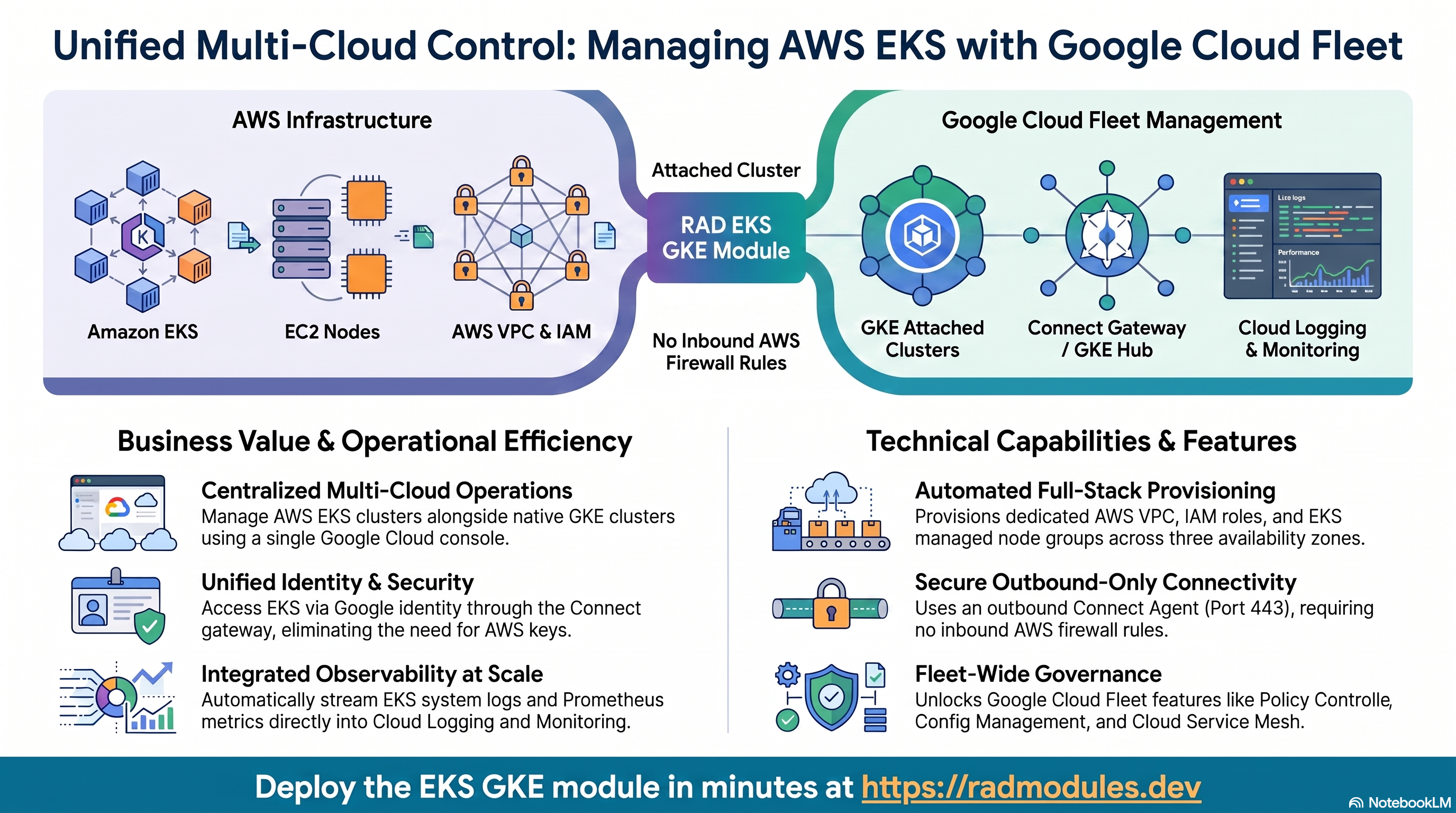
The EKS GKE module provisions a complete Amazon Elastic Kubernetes Service (EKS) cluster on AWS and registers it with Google Cloud as a GKE Attached Cluster. Once registered, the EKS cluster is visible and manageable from the Google Cloud console alongside any native GKE clusters in the same project — giving platform engineers a single pane of glass across both clouds.
This module is designed as a hands-on learning environment for platform engineers who want to understand how Google Cloud's multi-cloud Kubernetes capabilities work in practice. By deploying it, you gain direct experience with:
- GKE Attached Clusters — Google Cloud's mechanism for bringing any conformant Kubernetes cluster under GCP management
- GKE Fleet — a logical grouping of clusters (across clouds and regions) that enables unified policy, configuration, and service management
- Anthos — Google's application management platform that provides a consistent operating model across GKE, EKS, AKS, and on-premises clusters
- Cloud Logging and Cloud Monitoring — unified observability for workloads running on AWS, queried and alerting in the same place as GCP-native workloads
- Google Cloud Managed Service for Prometheus — a fully managed Prometheus-compatible metrics backend that collects metrics from EKS without requiring you to operate a Prometheus server
- Connect Gateway — a secure proxy that lets you run
kubectlagainst the EKS cluster using your Google identity, with no AWS credentials or VPN required
The module takes approximately 10 minutes to deploy from a single configuration file. It requires an AWS account (for EKS) and a Google Cloud project (for registration and observability).
What Gets Deployed
At a high level, the module creates two sets of resources in parallel and then connects them:
On AWS:
- A dedicated Virtual Private Cloud (VPC) with subnets spread across three availability zones
- An EKS cluster running Kubernetes 1.34 (configurable)
- A managed node group of 2–5 EC2 worker nodes
- The IAM roles and policies required for EKS to operate
- An Anthos Connect Agent installed onto the EKS cluster
On Google Cloud:
- Ten required Google Cloud APIs are enabled on the target project
- The EKS cluster is registered as a GKE Attached Cluster in the specified GCP region
- The cluster is enrolled in a GKE Fleet
- Cloud Logging is configured to receive system and workload logs from EKS
- Cloud Managed Prometheus is configured to collect metrics from EKS
┌─────────────────────────────────────────────────────────────────────────────┐
│ EKS_GKE Module │
│ │
│ AWS (default: us-west-2) Google Cloud (default: us-central1) │
│ ───────────────────────── ──────────────────────────────── │
│ │
│ ┌─────────────────────────┐ ┌───────────────────────────────┐ │
│ │ VPC (10.0.0.0/16) │ │ GKE Multi-Cloud API │ │
│ │ 3 subnets × 3 AZs │ │ Attached Cluster "primary" │ │
│ └──────────┬──────────────┘ │ • distribution: eks │ │
│ │ │ • logging: system+workloads │ │
│ ┌──────────▼──────────────┐ OIDC │ • managed prometheus on │ │
│ │ EKS Cluster │◄─────────►│ • admin users authorized │ │
│ │ Kubernetes 1.34 │ └──────────────┬────────────────┘ │
│ │ 2–5 worker nodes │ │ │
│ │ │ ┌──────────────▼────────────────┐ │
│ │ ┌─────────────────┐ │ │ GKE Fleet │ │
│ │ │ Anthos Connect │◄───┼──────────►│ • Cluster membership │ │
│ │ │ Agent (on EKS) │ │ │ • Unified policy + config │ │
│ │ └─────────────────┘ │ └──────────────┬────────────────┘ │
│ └─────────────────────────┘ │ │
│ ┌─────────────▼─────────────────┐ │
│ │ Unified Observability │ │
│ │ • Cloud Logging │ │
│ │ • Cloud Monitoring │ │
│ │ • Managed Prometheus │ │
│ └───────────────────────────────┘ │
└─────────────────────────────────────────────────────────────────────────────┘
Deployment sequence:
1. Enable 10 GCP APIs on the target project
2. Create AWS VPC, subnets, and routing
3. Create AWS IAM roles for EKS
4. Create EKS cluster and worker node group
5. Install Anthos Connect Agent on EKS (via bootstrap manifest)
6. Register cluster in GCP as a GKE Attached Cluster
Google Cloud APIs
Deploying this module enables ten Google Cloud APIs on the target project. Understanding what each API does gives you a map of the Google Cloud capabilities that underpin multi-cloud Kubernetes management.
GKE Multi-Cloud API (gkemulticloud.googleapis.com)
This is the foundational API for the entire module. The GKE Multi-Cloud API is Google Cloud's service for registering and managing Kubernetes clusters that run outside of Google Cloud — on AWS, Azure, or on-premises — as if they were native GKE clusters. It provides the registration endpoint that accepts the EKS cluster, stores its configuration (OIDC issuer, fleet project, logging and monitoring preferences), and tracks its health and version status.
Without this API, there is no concept of an "attached cluster" in Google Cloud. Everything else in this module depends on it.
GKE Connect API (gkeconnect.googleapis.com)
The GKE Connect API manages the lifecycle of the Connect Agent — a lightweight proxy process that runs inside the EKS cluster and maintains a persistent, outbound-only HTTPS connection back to Google Cloud. This is the communication channel through which Google Cloud sends management instructions to the EKS cluster and receives status updates from it.
Because the connection is outbound-only from EKS, no inbound firewall rules are needed on AWS. The cluster does not need a public API server endpoint — it only needs to be able to reach gkeconnect.googleapis.com on port 443.
Connect Gateway API (connectgateway.googleapis.com)
The Connect Gateway API is what makes kubectl access to the EKS cluster possible using a Google identity, with no AWS credentials required. When you run kubectl against a Connect Gateway endpoint, your request travels:
Your terminal → Connect Gateway API → Connect Agent (on EKS) → EKS API server
Google Cloud authenticates your identity, checks that you are in the cluster's admin_users list, and proxies the request through the Connect Agent channel already established by GKE Connect. This eliminates the need for VPNs, bastion hosts, or AWS IAM credentials just to run kubectl get pods.
Cloud Resource Manager API (cloudresourcemanager.googleapis.com)
This is a foundational GCP API used by nearly every service. In the context of this module, it is required to look up the numeric project number from the project ID, and to perform IAM policy checks during cluster registration and fleet enrollment. The GKE Multi-Cloud API uses it to validate that the service account running Terraform has the necessary permissions on the target project.
Anthos API (anthos.googleapis.com)
The Anthos API is the umbrella platform API that enables the Anthos product suite on a Google Cloud project. Enabling it activates the licensing and entitlement layer that allows the project to use features such as:
- Anthos Service Mesh (ASM) — Istio-based service mesh management
- Anthos Config Management — GitOps-based configuration sync across clusters
- Anthos Policy Controller — Open Policy Agent (OPA) Gatekeeper for governance
Even if you do not use these features immediately, enabling the Anthos API is a prerequisite for the GKE Multi-Cloud API to register external clusters into a fleet.
Cloud Monitoring API (monitoring.googleapis.com)
Cloud Monitoring is Google Cloud's managed observability service. Enabling it on the project allows the EKS cluster's metrics — collected by Google Cloud Managed Service for Prometheus — to be stored, queried, and alerted on in the same place as any other GCP resource metrics.
Platform engineers who have previously operated a Prometheus stack (Prometheus server, Thanos or Cortex for long-term storage, Grafana for dashboards, Alertmanager for notifications) will find that Cloud Monitoring replaces all of those components with a fully managed service. You write PromQL; Google Cloud handles storage, scalability, and availability.
Cloud Logging API (logging.googleapis.com)
Cloud Logging is Google Cloud's managed log aggregation service. Enabling it allows the EKS cluster's system component logs and workload container logs to be forwarded to Cloud Logging via the Connect Agent. Logs are stored in Cloud Logging's Log Buckets and are searchable with the same Log Explorer queries you use for GCP-native resources.
The EKS cluster ships two categories of logs to Cloud Logging:
- System component logs — the Kubernetes control plane (API server, scheduler, controller manager) and node-level components (kubelet, kube-proxy)
- Workload logs — stdout and stderr from every container running in the cluster
This means a platform team can use a single log query interface for applications running on EKS and on GKE, without deploying or operating a log aggregation stack on AWS.
GKE Hub API (gkehub.googleapis.com)
GKE Hub is the backbone of the Fleet concept in Google Cloud. When the EKS cluster is registered, it is enrolled as a Fleet Member — an entry in GKE Hub that represents the cluster and its capabilities. GKE Hub is what makes the following cross-cluster features possible:
| Feature | What it enables |
|---|---|
| Policy Controller | Apply and enforce OPA Gatekeeper constraints across all fleet members simultaneously |
| Config Management | Sync a single Git repository to all fleet clusters, keeping their configuration identical |
| Multi-cluster Services | Discover and route to services on other fleet clusters using <svc>.<ns>.svc.clusterset.local |
| Cloud Service Mesh | Manage a shared Istio control plane and mTLS policy across fleet clusters |
| Fleet Dashboard | View the compliance, health, and configuration status of all clusters in one console view |
An EKS cluster enrolled in a GKE Hub fleet can participate in all of these features alongside native GKE clusters in the same fleet.
Explore fleet membership via gcloud:
# List all fleet members across the project
gcloud container fleet memberships list --project=GCP_PROJECT_ID
# Inspect this cluster's fleet membership in detail
gcloud container fleet memberships describe CLUSTER_NAME \
--project=GCP_PROJECT_ID
# View fleet feature status (Policy Controller, Config Management, etc.)
gcloud container fleet features list --project=GCP_PROJECT_ID
Explore fleet membership in the Cloud Console:
Navigate to Kubernetes Engine → Fleet in the Cloud Console. The Clusters tab shows the EKS cluster alongside any GKE clusters in the same project, with health status and feature enablement for each. The Feature Manager tab is where you activate and configure fleet-wide features — select any feature to see its status across all fleet members and to enable it with a single click.
Operations Config Monitoring API (opsconfigmonitoring.googleapis.com)
This API enables the managed observability agents that Google Cloud deploys onto attached clusters. Specifically, it governs the configuration and lifecycle of the log forwarding agent and the metrics collection agent that are installed on the EKS cluster as part of the attached cluster registration. Without this API, the SYSTEM_COMPONENTS and WORKLOADS logging components and the Managed Prometheus scraping would not function even if configured.
Kubernetes Metadata API (kubernetesmetadata.googleapis.com)
The Kubernetes Metadata API collects Kubernetes object metadata — namespaces, deployments, pods, services, nodes — from the registered cluster and makes it available to Cloud Monitoring. This powers the Kubernetes-aware monitoring dashboards in the Cloud Console, where you can browse metrics grouped by namespace, workload, or pod rather than just by raw metric name. It is what enables the Kubernetes Engine section of Cloud Monitoring to show EKS workloads alongside GKE workloads in the same workload-centric views.
AWS Infrastructure
This section describes what the module creates on AWS and the design decisions behind each component. Understanding these choices is useful both for operating the deployed environment and for appreciating how AWS networking integrates with GKE Attached Clusters.
Virtual Private Cloud (VPC)
The module creates a dedicated AWS VPC with a configurable CIDR block (default 10.0.0.0/16). Using a dedicated VPC — rather than a default or shared VPC — gives the EKS cluster network isolation and prevents IP address conflicts with other workloads in the AWS account.
Both DNS hostnames and DNS resolution are enabled on the VPC. These are required for EKS: worker nodes use DNS to resolve the EKS API server endpoint, and Kubernetes service discovery relies on DNS for pod-to-pod communication within the cluster.
Subnet Topology
Subnets are spread across three AWS Availability Zones (default: us-west-2a, us-west-2b, us-west-2c). Distributing subnets across AZs is a core EKS high-availability pattern: if one AZ experiences an outage, the scheduler can still place pods on worker nodes in the remaining two zones. AWS Load Balancers created by the cluster also require multi-AZ subnets to serve traffic from multiple zones simultaneously.
The module supports two subnet topologies, controlled by the enable_public_subnets option:
Public Subnet Topology (default: enable_public_subnets = true)
Three subnets (default CIDRs: 10.0.101.0/24, 10.0.102.0/24, 10.0.103.0/24) are created with direct internet access via an Internet Gateway. Worker nodes receive public IP addresses automatically. This topology is simpler and lower cost, making it well suited for learning environments and demonstrations where security hardening is not the primary concern.
Private Subnet Topology (enable_public_subnets = false)
Three subnets (default CIDRs: 10.0.1.0/24, 10.0.2.0/24, 10.0.3.0/24) are created without public IP assignment. Outbound internet access — needed for nodes to pull container images and for the Anthos Connect Agent to reach Google Cloud — is routed through a NAT Gateway deployed in a public subnet with an Elastic IP. Worker nodes are never directly reachable from the internet.
| Consideration | Public Subnets | Private Subnets |
|---|---|---|
| Worker node internet exposure | Nodes have public IPs | Nodes have no public IPs |
| Cost | Lower (no NAT Gateway) | Higher (NAT Gateway hourly + data transfer) |
| Setup complexity | Simpler | Requires NAT Gateway and routing table |
| Recommended for | Labs, demos, learning | Production, regulated workloads |
All subnets — regardless of topology — are tagged with the EKS cluster name. This tagging convention is required by EKS so that the cluster can discover which subnets belong to it when automatically provisioning AWS Load Balancers for Kubernetes Service objects of type LoadBalancer.
AWS Identity and Access Management (IAM)
EKS requires specific AWS IAM roles to operate. The module creates two roles with the minimum permissions necessary, following the principle of least privilege.
EKS Cluster Role
This role is assumed by the EKS service itself — not by any human user or application. It grants the EKS control plane permission to manage AWS resources on behalf of the cluster: creating and configuring EC2 security groups, elastic network interfaces, and load balancers as workloads are scheduled and services are created. Without this role, the EKS control plane cannot interact with the AWS networking layer that Kubernetes relies on.
EKS Node Group Role
This role is assumed by the EC2 instances that serve as worker nodes. It carries three AWS-managed policies:
| Policy | What it Enables |
|---|---|
| AmazonEKSWorkerNodePolicy | Allows worker nodes to authenticate with the EKS control plane and register themselves as cluster members |
| AmazonEKS_CNI_Policy | Grants the AWS VPC CNI plugin permission to create, attach, and configure elastic network interfaces on EC2 instances — this is how each pod gets its own VPC IP address |
| AmazonEC2ContainerRegistryReadOnly | Allows nodes to pull container images from Amazon ECR repositories in the same account |
Understanding the AWS VPC CNI plugin: Unlike some other Kubernetes networking plugins, the AWS VPC CNI gives each pod a real VPC IP address (not a secondary overlay address). This means pods are directly routable within the VPC and from other VPCs that are peered with it — a meaningful architectural difference from GKE's VPC-native networking, which achieves the same result using secondary IP ranges on the node's network interface.
Amazon EKS Cluster
Amazon Elastic Kubernetes Service (EKS) is AWS's managed Kubernetes control plane service. With EKS, AWS operates the Kubernetes API server, etcd, and controller manager — the components that make up the control plane — as a managed service with built-in high availability and automatic version patching. You only manage the worker nodes.
Kubernetes Version
The cluster runs Kubernetes version 1.34 by default, configurable via k8s_version. The GKE attached cluster platform version (platform_version, default 1.34.0-gke.1) must correspond to the same Kubernetes minor version — Google Cloud validates this alignment during registration. When you update the Kubernetes version on EKS, the platform version should be updated in the same deployment to maintain compatibility.
Worker Node Group
The cluster's compute capacity comes from a managed node group — a set of EC2 instances that EKS provisions, registers with the cluster, and keeps in sync with the control plane version. Using a managed node group (rather than self-managed nodes) means AWS handles node bootstrapping, AMI updates during Kubernetes version upgrades, and graceful node draining during replacements.
The node group is configured with auto-scaling bounds:
| Parameter | Default | Configuration Option |
|---|---|---|
| Starting node count | 2 | node_group_desired_size |
| Minimum node count | 2 | node_group_min_size |
| Maximum node count | 5 | node_group_max_size |
The maximum of 5 nodes defines the ceiling for automatic scale-out, but scaling beyond the desired count requires a cluster autoscaler to be deployed onto the cluster separately — this module does not install one.
Comparing EKS managed nodes to GKE Autopilot: This is a useful learning contrast. GKE Autopilot removes node management entirely — you never think about node counts, instance types, or node group configuration. EKS managed node groups are closer to GKE Standard mode, where you choose the node pool size and instance type. The EKS experience in this module helps platform engineers appreciate what GKE Autopilot abstracts away.
Explore the multi-AZ node distribution:
# See which Availability Zone each node is placed in
kubectl get nodes --label-columns topology.kubernetes.io/zone
# Describe a node to see its full AWS metadata: instance type,
# region, zone, capacity, and allocatable resources
kubectl describe node NODE_NAME | grep -A 20 "Labels:"
# See the actual resource capacity across all nodes
kubectl get nodes \
-o custom-columns='NAME:.metadata.name,CPU:.status.capacity.cpu,MEMORY:.status.capacity.memory,ZONE:.metadata.labels.topology\.kubernetes\.io/zone'
GKE Attached Clusters
GKE Attached Clusters is the Google Cloud feature that makes this module's multi-cloud capability possible. It allows any CNCF-conformant Kubernetes cluster — running on AWS, Azure, bare metal, or any other environment — to be registered with Google Cloud and managed as if it were a native GKE cluster. This section explains each dimension of the attached cluster registration that the module configures.
What "Attached" Means
When a cluster is attached, Google Cloud does not take over scheduling, does not run the Kubernetes control plane, and does not move any workloads. The EKS control plane continues to run entirely on AWS. What changes is that Google Cloud gains a management channel into the cluster through the Connect Agent, and the cluster gains access to Google Cloud's managed services for logging, monitoring, policy enforcement, and service mesh.
The relationship is additive: you keep everything AWS provides (EKS managed control plane, EC2 worker nodes, AWS Load Balancers, ECR) and gain everything Google Cloud's management plane provides on top.
Distribution Type: EKS
The cluster is registered with distribution type eks, which tells the GKE Multi-Cloud API the origin and expectations of the cluster. Google Cloud uses the distribution type to:
- Apply the correct compatibility matrix for platform version support
- Select the appropriate Connect Agent configuration for the cluster's networking model
- Display the correct branding and metadata in the Cloud Console
Google Cloud currently supports eks (Amazon EKS), aks (Azure AKS), and generic (any other conformant cluster) as distribution types.
Explore in the Cloud Console: Navigate to Kubernetes Engine → Clusters. The EKS cluster appears in the same list as any native GKE clusters, but its Type column shows Attached and its detail page shows the distribution as EKS alongside the platform version, fleet membership, and registration status. This is the clearest view of how Google Cloud represents a non-GKE cluster as a first-class member of its fleet.
OIDC-Based Identity Federation
OIDC (OpenID Connect) identity federation is the mechanism that lets Google Cloud trust the EKS cluster's identity — and the identity of workloads running on it — without any static credentials crossing cloud boundaries.
Every EKS cluster automatically runs an OIDC identity provider that issues signed JSON Web Tokens (JWTs) to Kubernetes service accounts. These tokens are cryptographically signed with a private key, and the OIDC discovery document (published at the issuer URL) contains the corresponding public key that any party can use to verify the signature.
When this module registers the cluster, it provides the EKS OIDC issuer URL to Google Cloud. From that point:
- A workload on EKS requests a service account token from the Kubernetes API server
- The token is a signed JWT identifying the pod's namespace and service account name
- The workload presents this token to a Google Cloud API
- Google Cloud fetches the public key from the EKS OIDC discovery endpoint and verifies the token's signature
- If valid, Google Cloud accepts the identity and grants access according to Workload Identity Federation policies
This is the same mechanism used by GKE Workload Identity — the difference is that on GKE the OIDC provider is managed by Google, while on EKS it is managed by AWS. From Google Cloud's perspective, the trust model is identical.
Why this matters for platform engineers: Cross-cloud workload identity without static keys is a significant security improvement over the alternative of distributing GCP service account JSON keys into Kubernetes secrets on EKS. OIDC federation means credentials cannot be accidentally committed to source control, leaked from Kubernetes secrets, or persist beyond their short TTL.
Explore: Inspect the OIDC issuer URL that was registered with Google Cloud:
gcloud container attached clusters describe CLUSTER_NAME \
--location GCP_REGION \
--project GCP_PROJECT_ID \
--format="value(oidcConfig.issuerUrl)"
You can also open that URL in a browser — appending /.well-known/openid-configuration gives you the OIDC discovery document, which contains the public keys Google Cloud uses to verify tokens from EKS workloads.
Fleet Registration
Every cluster registered through this module is automatically enrolled as a member of a GKE Fleet — a logical grouping of Kubernetes clusters that share a management boundary in Google Cloud.
The fleet is scoped to the Google Cloud project. All clusters registered to the same project belong to the same fleet. This means if you later create a native GKE cluster in the same project, it joins the same fleet as the attached EKS cluster and all fleet-level features apply to both simultaneously.
Fleet membership is the prerequisite for the following advanced capabilities:
Policy Controller (Anthos Policy Controller)
Deploys Open Policy Agent (OPA) Gatekeeper as a fleet-wide policy enforcement engine. You define constraints once — for example, requiring all pods to have resource limits, or prohibiting the use of the default namespace — and Policy Controller enforces them on every fleet member cluster, including EKS. Violations are reported in the Fleet dashboard in the Cloud Console.
Config Management (Anthos Config Management) Enables GitOps-based configuration synchronisation across all fleet clusters. A single Git repository serves as the source of truth for Kubernetes manifests. Config Management continuously syncs the desired state from Git to every fleet member, ensuring configuration drift is automatically corrected. A change committed to the Git repository propagates to both the EKS cluster and any GKE clusters in the fleet without manual intervention.
Multi-cluster Services
Allows Kubernetes services to be exported from one fleet cluster and consumed by workloads on another using the DNS name <service>.<namespace>.svc.clusterset.local. This enables cross-cloud service discovery: a workload on a GKE cluster can call a service running on the attached EKS cluster by name, with traffic routed automatically through the Connect Agent channel.
Cloud Service Mesh Enables the Anthos Service Mesh management plane to govern Istio installations across all fleet clusters. With fleet-level mesh management, mTLS policies, traffic management rules, and observability configuration can be applied uniformly across both GKE and EKS workloads from the Cloud Console.
Hands-on: Enable and test Policy Controller
Policy Controller is one of the most immediately useful fleet features to explore. Once the EKS cluster is registered, enable it from the Fleet Feature Manager and deploy a constraint to see it enforcing governance:
# Enable Policy Controller for the fleet (applies to all fleet members)
gcloud container fleet policycontroller enable \
--project=GCP_PROJECT_ID
# Wait for Policy Controller to install on the EKS cluster (~2 minutes),
# then verify its pods are running
kubectl get pods -n gatekeeper-system
# Check that the constraint templates are available
kubectl get constrainttemplates
# Apply a sample constraint that requires all pods to have resource limits
kubectl apply -f - <<EOF
apiVersion: constraints.gatekeeper.sh/v1beta1
kind: K8sRequiredLabels
metadata:
name: require-team-label
spec:
match:
kinds:
- apiGroups: [""]
kinds: ["Pod"]
parameters:
labels:
- key: "team"
EOF
# Test the constraint — this pod should be blocked
kubectl run unlabelled-pod --image=nginx --restart=Never
# This pod should be allowed
kubectl run labelled-pod --image=nginx --restart=Never \
--labels="team=platform"
# View violations in the Cloud Console:
# Kubernetes Engine → Fleet → Policy → Violations
Hands-on: Enable Config Management
# Enable Config Management for the fleet
gcloud container fleet config-management enable \
--project=GCP_PROJECT_ID
# Verify the Config Management operator is running on the cluster
kubectl get pods -n config-management-system
# View sync status (once a Git repository is configured)
kubectl get rootsyncs -n config-management-system
In the Cloud Console, navigate to Kubernetes Engine → Fleet → Feature Manager → Config Management to configure the Git repository, branch, and sync directory for the fleet.
System and Workload Logging
The module configures the attached cluster to forward two categories of logs to Cloud Logging:
System Component Logs Logs from the Kubernetes control plane and node-level components: the API server request logs, scheduler decisions, controller manager events, kubelet activity, and kube-proxy. On a self-managed cluster, these logs are typically scattered across node filesystems or require a dedicated log aggregation stack. On an attached cluster, they flow automatically to Cloud Logging where they can be searched, filtered, and alerted on.
System logs are particularly valuable when troubleshooting cluster-level issues — for example, when a pod fails to schedule, the scheduler logs explain exactly why (insufficient CPU, no matching node selector, pod disruption budget preventing eviction). Having these in Cloud Logging alongside application logs makes root-cause analysis significantly faster.
Workload Logs
The stdout and stderr output of every container running in the cluster, from every namespace. These arrive in Cloud Logging structured with Kubernetes metadata — cluster name, namespace, pod name, container name — so they can be filtered by any of these dimensions. A query like "show me all ERROR-level logs from the payments namespace on this EKS cluster in the last hour" works exactly the same as it does for a native GKE cluster.
The log forwarding agent is deployed onto the EKS cluster automatically as part of the attached cluster registration. There is no log agent to configure or maintain.
Explore logs via gcloud:
# View recent WARNING and above logs from Kubernetes system components
gcloud logging read \
'resource.type="k8s_cluster" severity>=WARNING' \
--project=GCP_PROJECT_ID \
--limit=20 \
--format="table(timestamp,severity,jsonPayload.message)"
# View container logs from the default namespace
gcloud logging read \
'resource.type="k8s_container" resource.labels.namespace_name="default"' \
--project=GCP_PROJECT_ID \
--limit=20
# View scheduler logs to see pod placement decisions
gcloud logging read \
'resource.type="k8s_cluster" logName=~"scheduler"' \
--project=GCP_PROJECT_ID \
--limit=20
Explore logs in the Cloud Console:
Navigate to Logging → Log Explorer. In the resource dropdown, select Kubernetes Cluster and choose your EKS cluster. You can also reach logs directly from Kubernetes Engine → Clusters → [your cluster] → Logs tab, where logs are pre-filtered to the selected cluster. Try switching the resource type to Kubernetes Container to browse workload logs by namespace, pod, and container name.
Google Cloud Managed Service for Prometheus
The module enables Managed Prometheus on the attached cluster. Google Cloud Managed Service for Prometheus (GMP) is a fully managed, Prometheus-compatible metrics backend that replaces the need to operate a self-managed Prometheus stack.
When enabled on an attached cluster, GMP deploys a managed collection agent that scrapes metrics from pods exposing Prometheus endpoints. The agent respects standard Prometheus scrape configuration via two Kubernetes custom resources:
- PodMonitoring — scrapes metrics from pods matching a label selector within a namespace
- ClusterPodMonitoring — scrapes metrics from pods across all namespaces
Scraped metrics are stored in Cloud Monitoring's globally distributed backend with automatic scaling and 24-month retention. Engineers query them using standard PromQL through the Cloud Monitoring API, the built-in Prometheus Query UI in the Cloud Console, or any Grafana instance pointed at Cloud Monitoring as a data source.
What this replaces in a self-managed setup:
| Self-managed component | GMP equivalent |
|---|---|
| Prometheus server | Managed collection agent (auto-deployed) |
| Thanos / Cortex for long-term storage | Cloud Monitoring backend (automatic) |
| Prometheus Operator | PodMonitoring / ClusterPodMonitoring CRDs |
| Alertmanager | Cloud Monitoring alert policies |
| Grafana (with Prometheus data source) | Cloud Monitoring dashboards or Grafana with Cloud Monitoring data source |
The GKE dashboards built into Cloud Monitoring — covering node CPU and memory, pod resource utilisation, network throughput, and persistent volume usage — work for EKS clusters with Managed Prometheus enabled, exactly as they do for native GKE clusters.
Explore Managed Prometheus in the Cloud Console:
Navigate to Monitoring → Metrics Explorer and select PromQL mode. Try querying built-in Kubernetes metrics:
# CPU utilisation across all nodes
rate(kubernetes_io:node_cpu_core_usage_time{cluster=~"CLUSTER_NAME"}[5m])
# Memory usage per pod in the default namespace
kubernetes_io:container_memory_used_bytes{
cluster=~"CLUSTER_NAME",
namespace="default"
}
# Number of running pods per node
count by (node) (
kubernetes_io:pod_running{cluster=~"CLUSTER_NAME"}
)
You can also navigate to Monitoring → Dashboards and select the GKE dashboard group — these pre-built dashboards work for attached EKS clusters identically to native GKE clusters.
Scrape your own application metrics with PodMonitoring:
To collect metrics from a workload you deploy onto the cluster, create a PodMonitoring resource that tells the managed Prometheus agent which pods to scrape:
apiVersion: monitoring.googleapis.com/v1
kind: PodMonitoring
metadata:
name: my-app-monitor
namespace: default
spec:
selector:
matchLabels:
app: my-app
endpoints:
- port: metrics
interval: 30s
Apply this with kubectl apply -f podmonitoring.yaml. Within a few minutes, metrics from pods labelled app: my-app that expose a /metrics endpoint on the metrics port will appear in Cloud Monitoring under the prometheus.googleapis.com metric prefix.
Admin User Authorisation
The module grants Kubernetes cluster-admin RBAC access to a configurable list of Google identities (trusted_users). These users can run kubectl against the EKS cluster through the Connect Gateway using their Google credentials — with full administrative access equivalent to running kubectl with a cluster admin kubeconfig directly against AWS.
The Terraform executor's own Google identity is always included in the admin list automatically, so the person or service account that deploys the module always has access. Additional users are added via the trusted_users configuration option.
This authorisation model bridges two identity systems: AWS IAM (which EKS natively uses for RBAC via aws-auth ConfigMap) and Google Cloud IAM (which the Connect Gateway uses to authenticate kubectl requests). Users in trusted_users authenticate with Google but receive Kubernetes RBAC permissions — they never need an AWS IAM identity to access the cluster after registration.
Verify your RBAC access and inspect the authorisation setup:
# Confirm you have cluster-admin access via Connect Gateway
kubectl auth can-i '*' '*' --all-namespaces
# View the ClusterRoleBinding that grants admin access to trusted users
kubectl get clusterrolebindings \
-o custom-columns='NAME:.metadata.name,ROLE:.roleRef.name,SUBJECTS:.subjects[*].name' \
| grep cluster-admin
# See all RBAC bindings in the cluster — useful for understanding
# what the Connect Agent and GMP agents have been granted
kubectl get clusterrolebindings -A
kubectl get rolebindings -A
Anthos Connect Agent and the Bootstrap Process
Before the EKS cluster can be registered with Google Cloud, a small agent must be running inside the cluster to establish the management channel. This section explains how that agent is installed and what it does once running.
The Bootstrap Manifest
Google Cloud's GKE Multi-Cloud API generates a unique install manifest for each cluster registration. This manifest is a set of Kubernetes resources — deployments, service accounts, cluster roles, and secrets — that together form the Connect Agent. The manifest is specific to:
- The cluster name and Google Cloud project it will be registered to
- The GCP region where the attached cluster will be managed
- The platform version (default:
1.34.0-gke.1) — a GKE-managed version string that determines which version of the Connect Agent and its dependencies will be installed
The module fetches this manifest directly from the Google Cloud API and installs it onto the EKS cluster automatically. No manual steps are required.
How the Bootstrap Installation Works
The manifest is packaged into a Helm chart and applied to the EKS cluster. Using Helm for this installation provides three important properties:
- Idempotency — re-running the deployment does not create duplicate resources; Helm reconciles the desired state
- Ownership tracking — Helm records which resources belong to this installation, enabling clean removal
- Lifecycle management — when the module is torn down, Helm uninstalls the Connect Agent cleanly before the cluster registration is removed from Google Cloud, preventing orphaned resources
The installation sequence is strictly ordered: the Connect Agent must be running and reporting healthy before Google Cloud will accept the cluster registration as complete. This ordering is enforced automatically.
Verify the Connect Agent is running:
# Check the Connect Agent pods in the gke-connect namespace
kubectl get pods -n gke-connect
# View Connect Agent logs to confirm the outbound connection is established
kubectl logs -n gke-connect \
-l app=gke-connect-agent \
--tail=30
# Expected: log lines confirming connection to gkeconnect.googleapis.com
You can also confirm agent health from the Cloud Console by navigating to Kubernetes Engine → Clusters → [your cluster]. A green status indicator confirms the Connect Agent is connected and the cluster is reachable.
Platform Version
The platform_version configuration option (default 1.34.0-gke.1) is a version string managed by Google Cloud that governs the Connect Agent version, the API compatibility surface, and the supported Kubernetes version range for an attached cluster. It follows the pattern {kubernetes_minor_version}.{patch}.{gke_build}.
Google periodically releases new platform versions as Kubernetes minor versions advance. The platform version set in this module must align with the Kubernetes version running on the EKS cluster — Google Cloud validates this during registration and will reject a mismatch.
To upgrade an attached cluster to a newer Kubernetes version:
- Update the Kubernetes version on the EKS cluster
- Update
platform_versionto the corresponding GKE platform version - Redeploy — the module fetches a new bootstrap manifest for the new version and Helm upgrades the Connect Agent in place
List valid platform versions for a region:
# See all currently supported platform versions for attached EKS clusters
gcloud container attached get-server-config \
--location=GCP_REGION \
--project=GCP_PROJECT_ID
# Output includes: validVersions list — the set of platform versions
# currently supported. Use this to choose a compatible platform_version
# value when upgrading or deploying to a new Kubernetes minor version.
The Connect Agent in Operation
Once installed, the Connect Agent runs as a deployment inside the EKS cluster (in the gke-connect namespace). It maintains a persistent, outbound-only HTTPS connection to gkeconnect.googleapis.com on port 443. This single outbound connection is the channel through which all Google Cloud management operations flow.
The outbound-only design has important security properties:
- No inbound firewall rules required — the EKS cluster does not need to open any ports to the internet to be managed by Google Cloud
- No VPN or peering required — connectivity is over the public internet using TLS, with Google Cloud's APIs as the other endpoint
- Works behind NAT — because the connection is initiated from inside the cluster, NAT-traversal is not an issue; both the public and private subnet topologies supported by this module work equally well
The Connect Agent handles:
- Forwarding
kubectlcommands from the Connect Gateway to the EKS API server - Relaying log collection configuration from Cloud Logging to the log forwarding agent
- Receiving Managed Prometheus scrape configuration updates from Google Cloud
- Reporting cluster health and version status back to the GKE Multi-Cloud API
- Accepting policy and configuration updates from Fleet services (Policy Controller, Config Management)
Connect Gateway: kubectl Without AWS Credentials
The Connect Gateway is the feature that allows authorised users to run kubectl against the EKS cluster using only their Google identity. After registration, the cluster appears in the output of gcloud container attached clusters list and a kubeconfig entry can be generated with:
gcloud container attached clusters get-credentials CLUSTER_NAME \
--location GCP_REGION \
--project GCP_PROJECT_ID
Once the kubeconfig is configured, all standard kubectl commands work as normal. The traffic path is:
kubectl → Connect Gateway API → Connect Agent (EKS) → EKS API Server
Authentication: Your Google identity (from gcloud auth login) is used to authenticate with the Connect Gateway API. Google Cloud checks that your email is in the cluster's admin_users list. If it is, your request is forwarded through the Connect Agent to the EKS API server, which receives it as a cluster-admin RBAC request.
What you can do via Connect Gateway:
- All read operations:
kubectl get,kubectl describe,kubectl logs - All write operations:
kubectl apply,kubectl delete,kubectl scale - Port forwarding:
kubectl port-forward - Exec into containers:
kubectl exec - Manage RBAC, namespaces, workloads — full cluster-admin access
What you cannot do via Connect Gateway:
- Node-level SSH access (this requires direct EC2 access through AWS)
- Operations that bypass the Kubernetes API server (direct etcd access, for example)
Comparing Connect Gateway to native GKE access: On a native GKE cluster, gcloud container clusters get-credentials similarly generates a kubeconfig that uses a Google-authenticated endpoint. The user experience is identical — the difference is that for native GKE the endpoint is the cluster's own API server, whereas for attached clusters it routes through the Connect Agent. Latency may be slightly higher for attached clusters due to the additional hop.
Explore the cluster via Connect Gateway:
# List all registered attached clusters in the project
gcloud container attached clusters list \
--location=- \
--project=GCP_PROJECT_ID
# Describe the registered cluster and verify its status
gcloud container attached clusters describe CLUSTER_NAME \
--location=GCP_REGION \
--project=GCP_PROJECT_ID
# Generate kubeconfig entry (no AWS credentials needed)
gcloud container attached clusters get-credentials CLUSTER_NAME \
--location=GCP_REGION \
--project=GCP_PROJECT_ID
# Explore the cluster with kubectl
kubectl get nodes -o wide # Node names, IPs, and Kubernetes version
kubectl get pods -A # All pods across all namespaces
kubectl get namespaces # All namespaces
kubectl cluster-info # Cluster API server endpoint (via Connect Gateway)
kubectl top nodes # Node resource usage (requires metrics-server)
kubectl get events -A --sort-by='.lastTimestamp' | tail -20 # Recent cluster events
Cluster Registration Dependencies
The deployment sequence enforces a strict dependency chain that platform engineers should understand when thinking about timing and troubleshooting:
- The EKS node group must be running before the Connect Agent can be scheduled — the agent needs worker nodes to run on
- Routing to the internet must be established (Internet Gateway for public subnets, NAT Gateway for private) before the Connect Agent can reach
gkeconnect.googleapis.com - The Connect Agent must be healthy and connected before Google Cloud completes the cluster registration
- The cluster registration must be complete before Fleet features (logging agents, Managed Prometheus, Policy Controller) become active
If deployment stalls, the most common causes are networking issues preventing the Connect Agent from reaching Google Cloud APIs, or IAM permission gaps on the GCP service account running the deployment.
Anthos Service Mesh
The module includes an optional Anthos Service Mesh (ASM) installation capability via the attached-install-mesh sub-module. This sub-module is not deployed by the core module automatically — it is an additional step that platform engineers can invoke after the cluster is registered to add a full Istio-based service mesh to the EKS workloads.
What is a Service Mesh?
A service mesh is an infrastructure layer that handles service-to-service communication within a Kubernetes cluster. Rather than embedding networking logic (retries, timeouts, mutual TLS, circuit breaking, observability) into each application, a service mesh injects a lightweight proxy sidecar into every pod. All traffic in and out of the pod passes through this sidecar, which the mesh control plane configures centrally.
Anthos Service Mesh is Google Cloud's managed distribution of Istio — the industry-standard service mesh. Using ASM rather than a self-managed Istio installation means:
- The control plane is managed and upgraded by Google
- Configuration is applied through the same Cloud Console used for the rest of the cluster
- Telemetry (request traces, service-to-service metrics, traffic topology maps) flows into Cloud Trace, Cloud Monitoring, and the Cloud Console Service Mesh dashboard
- mTLS policy, traffic management, and access control are managed consistently across both EKS and GKE clusters in the same fleet
How ASM is Installed
ASM is installed using asmcli — Google's official command-line tool for Anthos Service Mesh installation and upgrades. The sub-module handles downloading asmcli and its dependencies automatically, so no tooling needs to be pre-installed on the machine running the deployment.
The installation runs with the --platform multicloud flag, which selects the correct Istio configuration profile for a non-GKE cluster, and --option attached-cluster, which applies additional configuration appropriate for clusters registered through the Anthos Attached Clusters API.
The full toolchain downloaded during installation:
| Tool | Default Version | Purpose |
|---|---|---|
Google Cloud SDK (gcloud) | 491.0.0 | Authentication and GCP API calls during installation |
jq | 1.6 | JSON processing used by asmcli during validation steps |
asmcli | 1.22 | Anthos Service Mesh installation and configuration |
All tools are downloaded to a local cache directory and discarded after installation. Custom download URLs can be configured for air-gapped or mirror environments.
Certificate Authority Options
mTLS between services requires a certificate authority (CA) to issue and rotate the short-lived certificates used by each Envoy proxy sidecar. ASM supports three CA options, selected via the asmcli_ca configuration option:
| CA | asmcli_ca value | Description |
|---|---|---|
| Mesh CA | mesh_ca (default) | Google-managed CA built into Anthos Service Mesh. Zero operational overhead — Google handles key rotation, certificate issuance, and CA health. Recommended for most workloads. |
| Certificate Authority Service | gcp_cas | Uses Google Cloud Certificate Authority Service as the root CA. Gives organisations control over their PKI hierarchy, supports integration with existing enterprise CA infrastructure, and provides full audit trails of certificate issuance. Required for regulated industries with custom PKI requirements. |
| Citadel | citadel | Istio's built-in CA, operated within the cluster. All certificate operations happen inside the cluster with no dependency on Google Cloud. Suitable for disconnected environments or when bringing an existing Istio installation under ASM management. Certificate rotation is self-managed. |
Choosing a CA: For platform engineers learning ASM, Mesh CA (the default) requires no additional configuration and removes all CA operational concerns. Certificate Authority Service is the right choice when the organisation has an existing PKI hierarchy that workload certificates must chain up to.
Installation Permissions
asmcli requires several permissions on both the Kubernetes cluster and the Google Cloud project to complete installation. These are controlled by a set of boolean configuration options that tell asmcli to grant itself the permissions it needs:
| Option | What it enables |
|---|---|
asmcli_enable_all | Enables all of the permissions below in a single flag — the simplest approach for a first installation |
asmcli_enable_cluster_roles | Creates the Kubernetes ClusterRole and ClusterRoleBinding resources that allow the ASM control plane to manage Istio configuration across all namespaces |
asmcli_enable_cluster_labels | Adds the required labels to the cluster resource that identify it as an ASM-managed cluster |
asmcli_enable_gcp_components | Installs the GCP-managed control plane components that integrate ASM with Cloud Monitoring and Cloud Trace |
asmcli_enable_gcp_apis | Enables additional GCP APIs required specifically for service mesh (mesh.googleapis.com and related) |
asmcli_enable_gcp_iam_roles | Grants the IAM roles that ASM components need to write telemetry to Cloud Monitoring and Cloud Trace |
asmcli_enable_meshconfig_init | Initialises the Mesh Config API, which stores the mesh-wide configuration in Google Cloud |
asmcli_enable_namespace_creation | Creates the istio-system namespace where the ASM control plane components are installed |
asmcli_enable_registration | Registers the cluster with GKE Hub if it is not already registered — not needed for clusters deployed by this module since registration is handled by the core module |
For a first installation, setting asmcli_enable_all = true is the recommended approach. For environments where permissions must be granted incrementally, each flag can be enabled individually.
Authentication for Installation
The sub-module supports three approaches for authenticating to Google Cloud during the asmcli installation, to accommodate different credential management practices:
| Approach | Configuration | When to use |
|---|---|---|
| Service account key file | Set service_account_key_file to the path of a downloaded JSON key | When a dedicated service account key is available on the deployment machine |
| Environment variable | Set use_tf_google_credentials_env_var = true | When credentials are already present as the GOOGLE_CREDENTIALS environment variable |
| Application Default Credentials | Set activate_service_account = false | When gcloud auth application-default login has been run and ADC is configured |
What ASM Adds to the Cluster
Once installed, Anthos Service Mesh adds the following capabilities to the EKS cluster:
Mutual TLS (mTLS) All service-to-service traffic within the mesh is automatically encrypted and both sides are authenticated using short-lived X.509 certificates. No application code changes are required — the Envoy sidecar proxies handle TLS termination and certificate management transparently.
Traffic Management
Istio VirtualService and DestinationRule resources give fine-grained control over how traffic flows between services: canary deployments (send 5% of traffic to a new version), header-based routing (route traffic from internal users to a staging service), connection pool limits, and automatic retries.
Try a simple canary split after enabling sidecar injection on the default namespace:
# Deploy a v2 of the sample app
kubectl create deployment hello-eks-v2 \
--image=gcr.io/google-samples/hello-app:2.0
# Apply a VirtualService that sends 80% to v1 and 20% to v2
kubectl apply -f - <<EOF
apiVersion: networking.istio.io/v1alpha3
kind: VirtualService
metadata:
name: hello-eks
namespace: default
spec:
hosts:
- hello-eks
http:
- route:
- destination:
host: hello-eks
subset: v1
weight: 80
- destination:
host: hello-eks
subset: v2
weight: 20
---
apiVersion: networking.istio.io/v1alpha3
kind: DestinationRule
metadata:
name: hello-eks
namespace: default
spec:
host: hello-eks
subsets:
- name: v1
labels:
app: hello-eks
- name: v2
labels:
app: hello-eks-v2
EOF
# After a few minutes, the traffic split appears in the ASM topology view
# in the Cloud Console under Anthos → Service Mesh → Topology
Observability Without Instrumentation Because all traffic passes through the Envoy sidecars, ASM automatically generates:
- Distributed traces — every request across service boundaries is traced end-to-end, visible in Trace → Trace List in the Cloud Console
- Service-to-service metrics — request count, latency histograms, and error rates for every service pair, visible in Monitoring → Metrics Explorer under the
istio.iometric prefix - Traffic topology — a live map of which services are calling which, with request rates and error rates on each edge, visible under Anthos → Service Mesh → Topology
Applications gain full observability without adding any tracing libraries or metrics instrumentation to their code.
Explore ASM telemetry in the Cloud Console:
Navigate to Anthos → Service Mesh and select your EKS cluster. The Overview tab shows a health summary of all meshed services. Switch to Topology to see the live traffic graph — each edge shows RPS, error rate, and latency. Select a service and click Metrics to see the four golden signals (latency, traffic, errors, saturation) broken down by source and destination. Click any trace in the Traces tab to follow a request across all the services it touched.
Access Control
Istio AuthorizationPolicy resources enforce which services are allowed to call which, at the HTTP method and path level. Policies can require that callers present a valid JWT (for end-user authentication) in addition to the mTLS certificate (for service authentication).
Verify and Explore ASM After Installation
Once the attached-install-mesh sub-module has run, verify the installation and begin exploring mesh capabilities:
# Confirm ASM control plane components are running
kubectl get pods -n istio-system
# Check the ASM version installed
kubectl -n istio-system get pods \
-l app=istiod \
-o jsonpath='{.items[0].metadata.labels.istio\.io/rev}'
# Enable automatic sidecar injection for the default namespace
kubectl label namespace default istio-injection=enabled
# Restart any existing workloads to inject sidecars
kubectl rollout restart deployment hello-eks
# Verify sidecars were injected (should show 2/2 READY — app + Envoy sidecar)
kubectl get pods -n default
# Inspect the Envoy proxy configuration for a running pod
kubectl exec -it POD_NAME -c istio-proxy -- \
pilot-agent request GET config_dump | head -100
Explore ASM in the Cloud Console:
Navigate to Anthos → Service Mesh in the Cloud Console. The Topology view shows a live graph of all services and the traffic flowing between them. The Services tab lists each service with its request rate, error rate, and p50/p95/p99 latency — all without any application-level instrumentation. Select any service to drill into its metrics and trace samples.
Verify mTLS is enforced:
# Check the peer authentication policy applied by ASM
kubectl get peerauthentication -A
# Confirm a pod-to-pod request uses mTLS (look for X-Forwarded-Client-Cert header)
kubectl exec -it POD_NAME -c istio-proxy -- \
curl -s http://hello-eks/headers
ASM Across the Fleet
When both the EKS attached cluster and a native GKE cluster are enrolled in the same fleet and both have ASM installed, the mesh control plane can span both clusters. Workloads on EKS and workloads on GKE can communicate with mTLS enforced across the cloud boundary, traffic can be load balanced across both clusters, and the service topology map in the Cloud Console shows the full multi-cloud service graph in a single view.
Configuration Reference
All configuration options are set before deployment. Options marked Required have no default and must be provided. All others have defaults that work for a standard learning environment.
Google Cloud Settings
| Option | Required | Default | Description |
|---|---|---|---|
project_id | Yes | — | The Google Cloud project ID where the EKS cluster will be registered. The project must have billing enabled. |
gcp_location | No | us-central1 | The GCP region used for cluster registration, Cloud Logging, and Cloud Monitoring. This does not need to be geographically close to the AWS region — it is the Google Cloud control-plane anchor for the cluster. |
AWS Settings
| Option | Required | Default | Description |
|---|---|---|---|
aws_access_key | Yes | — | AWS Access Key ID for the IAM user or role that will create the VPC, EKS cluster, and IAM resources. Stored as a sensitive value. |
aws_secret_key | Yes | — | AWS Secret Access Key corresponding to the above. Stored as a sensitive value. |
aws_region | No | us-west-2 | The AWS region where the VPC, EKS cluster, and worker nodes are provisioned. |
Cluster Identity
| Option | Required | Default | Description |
|---|---|---|---|
cluster_name_prefix | No | aws-eks-cluster | The name used for the EKS cluster and all associated AWS resources (VPC, subnets, IAM roles, node group). Must be unique within the AWS account and region. |
Kubernetes Version
| Option | Required | Default | Description |
|---|---|---|---|
k8s_version | No | 1.34 | The Kubernetes version to run on the EKS cluster. Must align with the minor version in platform_version. |
platform_version | No | 1.34.0-gke.1 | The GKE platform version that governs the Connect Agent version and API compatibility for the attached cluster. Must correspond to the same Kubernetes minor version as k8s_version. |
Networking
| Option | Required | Default | Description |
|---|---|---|---|
vpc_cidr_block | No | 10.0.0.0/16 | The IP address range for the VPC. Must not overlap with other VPCs if you plan to use VPC peering. |
enable_public_subnets | No | true | Controls the subnet topology. true creates public subnets with direct internet access via an Internet Gateway. false creates private subnets with outbound-only internet access via a NAT Gateway. See the Subnet Topology section for guidance. |
public_subnet_cidr_blocks | No | 10.0.101.0/24, 10.0.102.0/24, 10.0.103.0/24 | CIDR blocks for the three public subnets, one per availability zone. Only used when enable_public_subnets = true. |
private_subnet_cidr_blocks | No | 10.0.1.0/24, 10.0.2.0/24, 10.0.3.0/24 | CIDR blocks for the three private subnets, one per availability zone. Only used when enable_public_subnets = false. |
subnet_availability_zones | No | us-west-2a, us-west-2b, us-west-2c | The three AWS Availability Zones in which subnets are created. Must be valid AZs within aws_region. |
Worker Nodes
| Option | Required | Default | Description |
|---|---|---|---|
node_group_desired_size | No | 2 | The number of worker nodes to start with. The node group scales between node_group_min_size and node_group_max_size. |
node_group_min_size | No | 2 | The minimum number of worker nodes. The node group will never scale below this count. |
node_group_max_size | No | 5 | The maximum number of worker nodes. The node group will never scale above this count. |
Access Control
| Option | Required | Default | Description |
|---|---|---|---|
trusted_users | No | [] | A list of Google identity email addresses (e.g. engineer@example.com) granted cluster-admin access to the EKS cluster via the Connect Gateway. The identity deploying the module is always included automatically. No empty strings or duplicates are permitted. |
Default Behaviours
The following behaviours are fixed within the module and cannot be changed through configuration options. Understanding them helps set expectations for what the deployed environment looks like.
| Behaviour | Detail |
|---|---|
| Log components | Both SYSTEM_COMPONENTS and WORKLOADS logs are always forwarded to Cloud Logging. There is no option to forward one without the other. |
| Managed Prometheus | Always enabled on the attached cluster. Cloud Managed Prometheus metrics collection is always active. |
| Fleet project | The cluster is enrolled in the fleet of the same Google Cloud project specified in project_id. Cross-project fleet registration is not supported by this module. |
| Node group distribution | Worker nodes are placed in all three subnets across all three availability zones. Nodes are spread across AZs for high availability by default. |
| API disable on teardown | The ten GCP APIs enabled by this module are not disabled when the module is torn down. This prevents disruption to other services in the project that may depend on the same APIs. |
| GCP APIs propagation | Newly enabled GCP APIs require time to propagate before dependent resources can be created. The module waits for this automatically — no manual delay is needed. |
| Connect Agent Helm release | The Anthos bootstrap connector is installed using a Helm chart generated from the Google Cloud manifest API. The Helm chart is named attached-bootstrap with version 0.0.1 and is placed in the default Helm namespace on the EKS cluster. |
| Admin identity inclusion | The Google identity executing the deployment is always added to the trusted_users list as a cluster admin, regardless of what is specified in the trusted_users option. |
| Resource naming | All AWS resources include cluster_name_prefix in their names. A short random suffix is appended to the cluster name to avoid naming collisions when multiple instances are deployed to the same AWS account. |
Prerequisites
Before deploying this module, ensure the following are in place:
| Prerequisite | Detail |
|---|---|
| Google Cloud project | An existing GCP project with billing enabled. |
| GCP permissions | The deploying identity needs sufficient permissions to enable APIs, create fleet memberships, and register attached clusters. The roles/owner role on the project satisfies all requirements. For least-privilege deployments, the required roles are roles/gkemulticloud.admin, roles/gkehub.admin, roles/logging.admin, and roles/monitoring.admin. |
| AWS account | An AWS account with permissions to create VPCs, EKS clusters, EC2 node groups, and IAM roles and policies. |
| AWS credentials | An IAM user or role with the necessary AWS permissions, with its Access Key ID and Secret Access Key available to provide as configuration options. |
| Network egress | The machine running the deployment must be able to reach both AWS APIs and Google Cloud APIs over HTTPS. |
Deployment
Deploy the Module
The module deploys in a single step and takes approximately 10 minutes to complete. The longest phases are EKS cluster creation (~7 minutes) and the Anthos Connect Agent installation (~2 minutes).
Once deployment completes, connect to the cluster using your Google identity — no AWS credentials are needed:
gcloud container attached clusters get-credentials CLUSTER_NAME \
--location GCP_REGION \
--project GCP_PROJECT_ID
Replace CLUSTER_NAME with the value of cluster_name_prefix, GCP_REGION with the value of gcp_location, and GCP_PROJECT_ID with project_id.
Verify the connection and explore the cluster:
# List nodes
kubectl get nodes
# List all running pods across all namespaces
kubectl get pods -A
# Check system component logs in Cloud Logging (gcloud CLI)
gcloud logging read \
'resource.type="k8s_cluster" severity>=WARNING' \
--project GCP_PROJECT_ID \
--limit 50
Explore the Cluster in the Cloud Console
After registration, the EKS cluster is visible in the Cloud Console under Kubernetes Engine → Clusters. From here you can:
- View node and workload health on the Cluster details page
- Browse workload metrics on the Observability tab — powered by Kubernetes Metadata API and Managed Prometheus
- Query logs on the Logs tab — system component and workload logs in Cloud Logging
- View fleet membership and compliance status under Kubernetes Engine → Fleet → Clusters
Deploy a Sample Workload
To see logging and monitoring working end-to-end, deploy a sample application to the cluster:
# Deploy a simple web server that generates logs and exposes a /metrics endpoint
kubectl create deployment hello-eks \
--image=gcr.io/google-samples/hello-app:1.0 \
--replicas=2
# Expose it as a service
kubectl expose deployment hello-eks \
--port=80 \
--target-port=8080 \
--type=ClusterIP
# Confirm the pods are running
kubectl get pods -l app=hello-eks
# Generate some log output
kubectl logs -l app=hello-eks --follow &
# Port-forward to test locally
kubectl port-forward svc/hello-eks 8080:80
# Visit http://localhost:8080 in your browser to generate traffic
Within 1–2 minutes, the container logs from this workload appear in Cloud Logging. Navigate to Logging → Log Explorer, filter by Resource type: Kubernetes Container and Namespace: default to see them.
Verify Managed Prometheus is Collecting Metrics
The managed Prometheus agent begins collecting built-in Kubernetes metrics immediately after cluster registration — no extra steps required. Verify this in the Cloud Console:
# Check the managed Prometheus collection agent is running on the cluster
kubectl get pods -n gmp-system
# View the default ClusterPodMonitoring resources deployed by GMP
kubectl get clusterpodmonitorings -A
In the Cloud Console, navigate to Monitoring → Metrics Explorer, switch to PromQL mode, and run:
# Pod restart count for your workload
rate(kubernetes_io:container_restart_count{
cluster=~"CLUSTER_NAME",
namespace="default"
}[5m])
Verify the Full Observability Stack
From the Cloud Console, confirm all three observability layers are receiving data from EKS:
| Layer | Where to check |
|---|---|
| Logs | Logging → Log Explorer — filter by resource.type="k8s_container" |
| Metrics | Monitoring → Dashboards → GKE — select your EKS cluster from the dropdown |
| Kubernetes workloads | Kubernetes Engine → Clusters → [your cluster] → Workloads — lists deployments with health status |
Tear Down
Tearing down the module removes all resources in reverse order: the Connect Agent is uninstalled from EKS, the cluster registration is removed from GCP, the EKS node group and cluster are deleted, and the VPC and IAM roles are removed. The GCP APIs enabled by the module are left in place.
The teardown requires network access to the EKS API server from the machine running the teardown. If private subnets were used, ensure the same network path that was available during deployment is available during teardown.
Further Learning
Deploying this module gives you a working environment to explore the following Google Cloud documentation topics hands-on:
| Topic | What to explore in your deployed environment |
|---|---|
| GKE Attached Clusters | View the registered cluster in the Cloud Console, check its status and version |
| GKE Fleet | Explore fleet membership and available features under Kubernetes Engine → Fleet |
| Connect Gateway | Run kubectl commands against EKS using only gcloud credentials |
| Cloud Logging for GKE | Query EKS system and workload logs in Log Explorer |
| Managed Prometheus | Deploy a sample app with a /metrics endpoint and create a PodMonitoring resource to scrape it |
| Anthos Service Mesh | Install ASM using the attached-install-mesh sub-module and observe the service topology map |
| Policy Controller | Enable Policy Controller from the Fleet dashboard and apply a constraint to the EKS cluster |
| Config Management | Enable Config Sync and point it at a Git repository to synchronise manifests to the EKS cluster |
Common Issues and Variable Dependencies
Variables That Depend on Each Other
k8s_version and platform_version must be compatible: The GKE Hub Attached Clusters platform version must match the EKS cluster's Kubernetes minor version. For example, EKS running 1.34 requires platform_version = "1.34.0-gke.1". Mismatched versions cause the google_container_attached_cluster resource to fail with a compatibility error.
enable_public_subnets determines which subnet IDs are used for EKS: When enable_public_subnets = true, EKS nodes are placed in aws_subnet.public subnets with map_public_ip_on_launch = true. When enable_public_subnets = false, nodes are placed in aws_subnet.private subnets and a NAT Gateway is created for internet access. The EKS cluster OIDC issuer URL (required for GKE attachment) is accessible from Google Cloud in both cases because it is a public AWS endpoint.
subnet_availability_zones count must match public_subnet_cidr_blocks and private_subnet_cidr_blocks counts: The lists must all have the same number of elements. The default is 3 AZs with 3 CIDR blocks each. A mismatch causes an index error during for expression evaluation.
trusted_users always includes the deploying GCP identity: data.google_client_openid_userinfo.me.email is always prepended to the final admin user list. You do not need to add the deploying user's email to trusted_users.
node_group_desired_size must be between node_group_min_size and node_group_max_size: EKS validation enforces this. Setting desired_size > max_size or desired_size < min_size causes the node group creation to fail.
Mutually Exclusive Variable Combinations
Public vs. private subnet topology: enable_public_subnets = true creates an Internet Gateway and a public route table. enable_public_subnets = false creates a NAT Gateway (requiring an EIP) and a private route table instead. The two topologies are mutually exclusive — you cannot have both public and private subnets in a single deployment of this module.
Variables That Affect Other Variables' Behavior
cluster_name_prefix is combined with a random suffix: The local.cluster_name_prefix is "${var.cluster_name_prefix}-${random_string.suffix.result}" (2 random lowercase letters). The EKS cluster name, node group name, IAM role names, VPC tags, and subnet tags all use local.cluster_name_prefix. However, local.cluster_name = var.cluster_name_prefix (without the suffix) is used for the GKE attached cluster name and Fleet membership. This inconsistency means the EKS cluster name includes a suffix but the GCP resources use the unmodified prefix.
aws_region determines available EC2 instance types: EKS managed node groups use the AWS-managed AMI for the region. Default instance type selection by AWS depends on the region. The aws_access_key and aws_secret_key must have permission to create resources in aws_region.
vpc_cidr_block must accommodate all subnets: The CIDR blocks in public_subnet_cidr_blocks and private_subnet_cidr_blocks must all be within vpc_cidr_block. The defaults (10.0.0.0/16 for VPC, 10.0.1-3.0/24 private, 10.0.101-103.0/24 public) are compatible.
AWS IAM Roles Created
The module creates two AWS IAM roles:
<prefix>-eks-role: EKS cluster role withAmazonEKSClusterPolicy. This is the role EKS assumes for cluster operations.<prefix>-node-group-role: EC2 node group role withAmazonEKSWorkerNodePolicy,AmazonEKS_CNI_Policy, andAmazonEC2ContainerRegistryReadOnly.
Common Pitfalls
-
AWS credentials must allow EKS, VPC, and IAM operations: The
aws_access_key/aws_secret_keymust have sufficient AWS IAM permissions to create EKS clusters, VPCs, subnets, IAM roles, and route tables. A policy witheks:*,ec2:*, andiam:*on the relevant resources is the simplest approach for a lab environment. -
EKS OIDC issuer is public but the bootstrap Helm chart runs on the cluster: The
attached-install-manifestsub-module installs a Helm chart on the EKS cluster. This requires the Terraform runner to have network access to the EKS cluster API server endpoint. For public subnets, this endpoint is publicly accessible. For private subnets, the runner must be in the same VPC or have network connectivity. -
GCP API propagation: After enabling the 10 GCP APIs, there is a propagation delay. The module does not poll for activation (unlike Bank_GKE). If the
google_container_attached_clusterresource fails with "API not enabled," re-apply after 60 seconds. -
cluster_name_prefixuniqueness: Because the EKS cluster uses<prefix>-<suffix>but the GCP Fleet membership uses<prefix>directly, deploying two instances with the samecluster_name_prefixin the same GCP project will cause a Fleet membership conflict on the GCP side, even if the EKS clusters have different suffixes. -
Teardown requires network access to EKS:
terraform destroycalls theattached-install-manifestmodule's destroy provisioner to uninstall the Helm chart from EKS. This requires the Terraform runner to still have connectivity to the EKS API endpoint. If the EKS cluster is no longer reachable, the Helm uninstall will fail, leaving the destroy process incomplete.