Using RAD
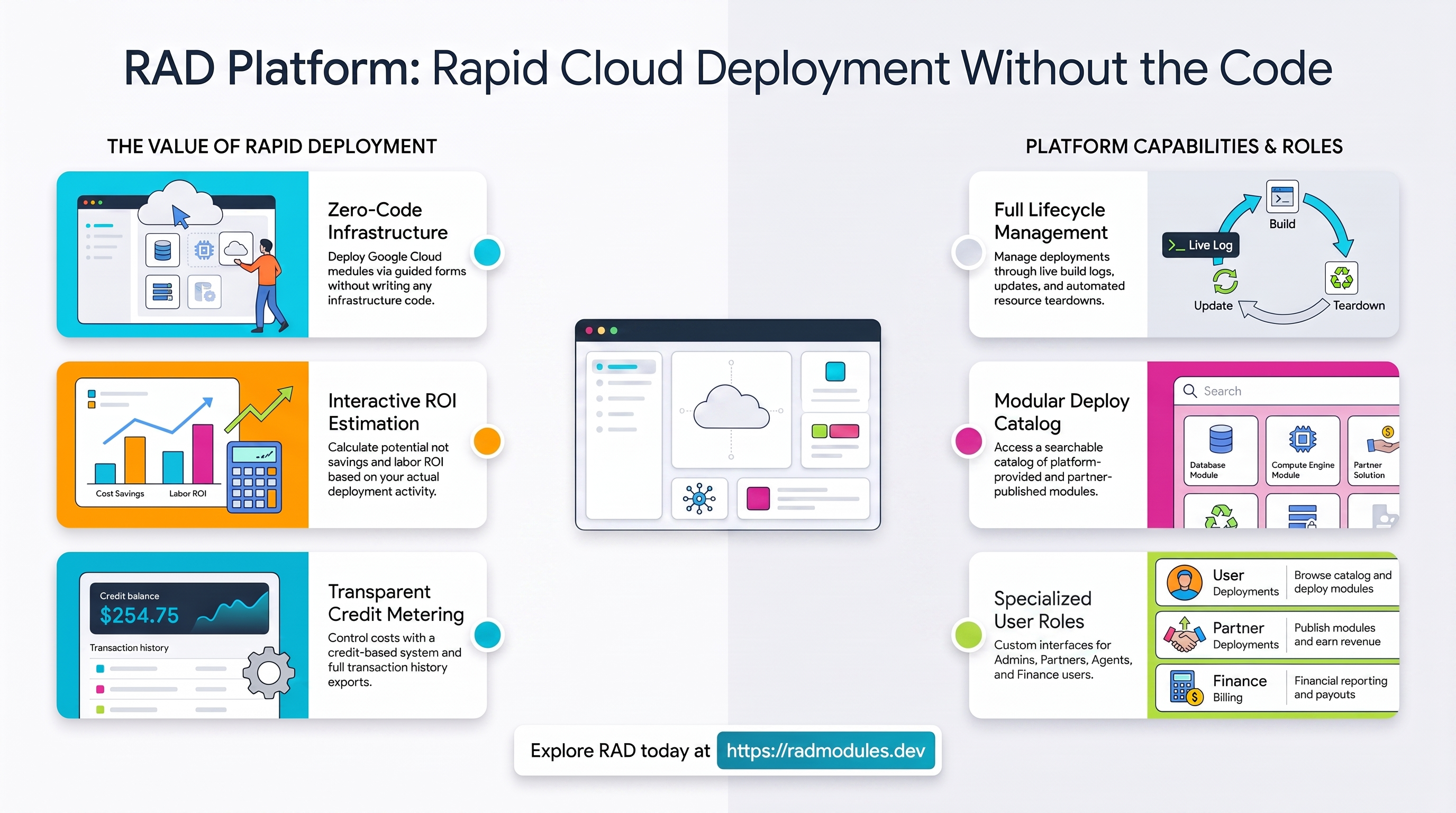
This is the shared overview for everyone who uses RAD. It covers signing in, finding your way around, the roles, and the core concepts (modules, deployments, credits, billing, and getting help). Each role guide links back here for the basics, then focuses on what that role does.
What is RAD
RAD (Rapid Application Deployment) is a web portal for deploying ready-made Google Cloud modules without writing any infrastructure code. You pick a module, fill in a guided configuration form, and the platform provisions it on Google Cloud for you.
Usage is metered in credits: most modules cost a set number of credits to deploy, and your balance is checked before a deployment runs.
Signing in
- Open the RAD sign-in page and click Sign in with Google.
- Choose your Google account.
The first time you sign in, your account is created automatically. New accounts start with the User role and are active right away. You are asked to accept the platform terms before the console opens; that acceptance is recorded against your account, and you are asked again if the terms are later updated. Declining leaves you signed out rather than trapped — Sign out stays available on that screen.
Where you land depends on your role. Finance opens on Billing and agents on Revenue, because each signs in to do a particular job. Everyone else — including admins and partners — opens on Solutions, on the Build Solution tab, so the first screen is what you can build rather than the list of what you built last time. (If the platform is running in private mode, only people who already have a RAD account can sign in — new self-registration is turned off, so ask an administrator to create your account if you can't get in.)
To sign out, open the profile dropdown in the top-right corner and choose Sign out.
Finding your way around
The top navigation bar shows only the items relevant to your role (or roles). Wherever you are, you'll find:
- A profile dropdown (top-right) with Profile and Sign out.
- A Contact us link in the footer that takes you to the Help page.
There is no separate combined dashboard — each item in the top nav is its own page.
After you sign in, RAD takes you to the page that fits your role:
- Admin, Partner, User, Support, Trainer → Solutions, on the Build Solution tab
- Finance → Billing
- Agent → Revenue
- No role assigned yet → Help
Roles at a glance
You can hold more than one role at once (for example Agent and Partner), and a Partner is always also a User. Roles are granted by an administrator.
| Role | What they do | Where they start |
|---|---|---|
| User | Browse the catalog, deploy and manage their own modules, manage their credits | Solutions |
| Admin | Everything a user can do, plus full platform administration: users, settings, modules, and oversight | Solutions |
| Partner | A user who also publishes their own modules and earns revenue from them | Solutions |
| Agent | Earns referral commission on activity from users they referred | Revenue |
| Finance | Financial reporting and payouts: subscription tiers, revenue, invoices | Billing |
| Support | Triages support tickets; sees deployments for the customers whose open tickets are assigned to them | Solutions |
| Trainer | Provisions lab deployments for an assigned roster of participants, one per participant, and sees what they provisioned | Solutions |
See the role guides at the end for the full task lists.
Core concepts
The module catalog (Solutions → Solution Modules)
The Solution Modules tab on Solutions is the module catalog. Each module appears as a card showing its description, a documentation link, an average star rating, how many times it has been deployed, and a credit cost badge.
There are two kinds of modules:
- Platform modules — published by RAD.
- Partner modules — published by partners.
If you're a partner you'll see two tabs (your own Partner modules and Platform modules, which also includes other partners' public modules). Everyone else sees a single combined catalog of public modules.
You can pin the modules you use most so they stay at the top, search by name, filter by category from the list beside the grid, and page through the catalog. A stats strip at the top shows total deployments, your credit balance (when credits are enabled), and how long deployment history is kept.
Deploying a module
-
Click a module card, then choose how to configure it. The Conversational Assistant (the default) describes every setting in one message and proposes changes as you describe what you want; you apply each proposed change yourself, so nothing is set without your say-so. The Configuration Form is the guided, multi-step form — fill in the fields, using Next to move through the steps. You can switch between the two at any point, and both write the same configuration.
Two things the assistant deliberately will not do. It never sees or sets a secret (an API key, token or password): it tells you the field exists and you type the value into the highlighted box on the page — never into the chat, where it would be sent to the model and kept in the conversation. And it will not accept a value that breaks a field's own rule; it tells you what the rule is and asks for a corrected one rather than quietly changing what you typed.
-
A confirmation dialog appears if the module costs credits, has dependencies, or needs special permissions.
-
Click Deploy Module. The deployment is queued and provisioned, and you're taken to the Deployments page. If you don't have enough credits, RAD shows the module's cost against your balance and prompts you to top up.
On the Deployments page each row shows the module, the deployment ID, an editable star rating, when it was created, how long it took, the status, and the action. There's no project or credits column — open a deployment for its project, and its Builds tab for what each build consumed. Admins and support see an extra column for who deployed it, and can switch between All deployments and My deployments; everyone else sees their own. For support, "All deployments" is scoped to the customers whose open tickets are assigned to them, not the whole platform.
Click a deployment to open its details, which has three tabs:
- Outputs — the non-sensitive results (such as URLs and endpoints), shown once the deployment succeeds.
- Build Status — live logs as the deployment runs. Once it succeeds, Explain this opens a plain-English summary of what was created in your Google Cloud project; on a step that failed, Search for a fix and Ask for help both work from the error that step printed.
- Builds — the build history for that deployment.
From the details view you can:
- Update — re-open the configuration form (pre-filled) and re-apply changes. Available once a deployment has finished.
- Delete — choose Delete to tear down the cloud resources, or Purge to remove the deployment from RAD without destroying the cloud resources (useful when a deployment is stuck or was changed outside RAD). A RAD-managed GCP project ("GCP Project on RAD") is torn down the same way, but because that takes the whole project with it, RAD refuses while any other deployment is still running in that project and lists the ones to delete first. Google keeps a deleted project recoverable for about 30 days.
- Cancel — released a deployment that is stuck in Queued and never starts building, or a purge that has stalled.
Deployment statuses you may see include Queued, Pending, Working, Waiting (on a prerequisite deployment to finish), Success, Failure, Internal Error, Deleting, Deleted, Cancelled, Timeout, and Expire.
Solutions
Solutions holds everything you can deploy, on four tabs — and it is where every role except finance and agents lands after signing in.
- Build Solution — answer four plain questions and RAD works out which applications deliver what you described, prices the whole thing, estimates how long it takes, and deploys it. Start here if you know what you want to achieve but not what it is called. It is also reachable directly at /build.
- Custom Solutions — bundles you composed yourself. Describe what you want to build, and RAD suggests modules from the catalog with a short reason for each. Add the ones you want, name it, and save. Your custom solutions are private to you, show Draft until deployed and Deployed afterwards, and deploy through exactly the same pipeline as a platform solution. Where two members have no known connection between them, RAD says so on the card rather than guessing.
- Platform Solutions — ready-made bundles of modules curated by RAD, grouped into categories. Each card shows a combined credit cost and an average rating derived from the modules it contains.
- Solution Modules — the module catalog described above.
A solution's modules are grouped into waves, a rough deploy order — but what actually gates a member's start is its real configuration dependency on another member: it waits only for that specific producer to finish, not for its whole nominal wave, so members frequently provision concurrently both within and across waves. Provisioning a solution walks you through a single configuration form covering its members. The resulting solution deployment gets its own details page, where — as with a module deployment — you can update, delete, or purge it.
Credits
Usage is metered in credits, held in three separate balances:
- Awards — free credits (signup, monthly, referral), reset each month.
- Subscription — credits from a subscription plan. Where the platform is set to reset them, a renewal replaces the allowance rather than adding to it.
- Top-up — credits bought outright as a one-off. These never expire.
Spending draws on awards first, then subscription, then top-up, so the credits that expire soonest go first. Your balance is all three together and is checked before each deployment.
Deploying a module costs that module's credit cost plus a build cost, metered from how long the build actually runs and charged once it finishes — so the final figure can differ a little from the estimate in the confirmation dialog. That dialog quotes the WHOLE chain — deploying into a RAD-managed project also creates your private Google Cloud project and the shared services your applications use, and both are listed with the total. If the build cost exceeds your balance, the remainder carries over and is settled from your next purchase. A partner deploying their own module isn't charged the module cost, but does pay the build cost. An update charges the build cost only.
What a failed deployment costs is a platform setting, not a fixed rule: Finance can choose, separately for the build cost and the module fee, whether either is charged when a new deployment fails or is cancelled. In the current release neither is charged, so a failed deployment costs you nothing. Failed updates and teardowns are not charged either.
The Credits page has:
- A Credit Transactions tab — your full history of awards, purchases, and spend, filterable by deployment and date, with Export CSV.
- A Subscriptions tab and a Buy Credits tab (when enabled).
- An ROI tab — the calculator described below.
To buy credits, choose a currency and amount, pick a payment provider, and complete checkout on the provider's secure page. Your credits are added automatically once the payment confirms.
Some platforms require purchased credits (not just awarded ones) for certain deployments — the confirmation dialog will tell you when that applies.
Billing and subscriptions
Payments are handled through Stripe and Flutterwave. You choose the provider at checkout; which ones are available depends on your currency and what the platform has enabled. Pricing is shown in your selected currency.
Subscriptions are optional recurring plans ("tiers") that grant a set number of credits each billing cycle. You can subscribe, and cancel or reinstate at any time, but you can hold only one subscription at a time — to move to a different tier, or a different payment provider, cancel the current one first. Subscriptions only grant credits — they do not grant the Partner role, which an administrator assigns manually.
ROI
The ROI tab on the Credits page is an interactive estimator. It comes pre-filled with your recent activity and lets you adjust assumptions (such as monthly deployments, manual deployment time, engineer hourly cost, and time-savings percentage) to estimate your labour cost, platform cost, net savings, and ROI. It's an estimator only — it doesn't deploy or charge anything.
Costs and invoices
You can see your own spending on the Credits page, two ways. Credit Transactions lists every award, purchase and charge on your account. Project Transactions — shown whenever project credits are enabled — breaks the project side of that down per Google Cloud project, with the credits debited and the underlying cloud cost for each, over a date range you choose. It exists because a project charge reaches the ledger as one combined row covering all your projects at once.
Platform-wide reporting stays an administrator and finance view: the Module Costs and Project Invoices tabs on the Credits page, and the whole Billing page, are limited to those two roles. If you need a formal invoice, ask through the Support form.
Getting help
The Help page's Support tab is a contact form that raises a support ticket and emails the support team. Depending on your role you may see more tabs there: Setup Requests (admin and finance) and Support Tickets (admin, support, and finance). Where referrals are enabled, the Support tab also carries your Invite Friends card with your referral link and code.
You can also reach Help from the Contact us link in the footer.
Role guides
For the full set of tasks in each role:
Need RAD to do something it does not do yet? Request it on the roadmap, or vote on what is already there.