MC Bank GKE Module

Overview

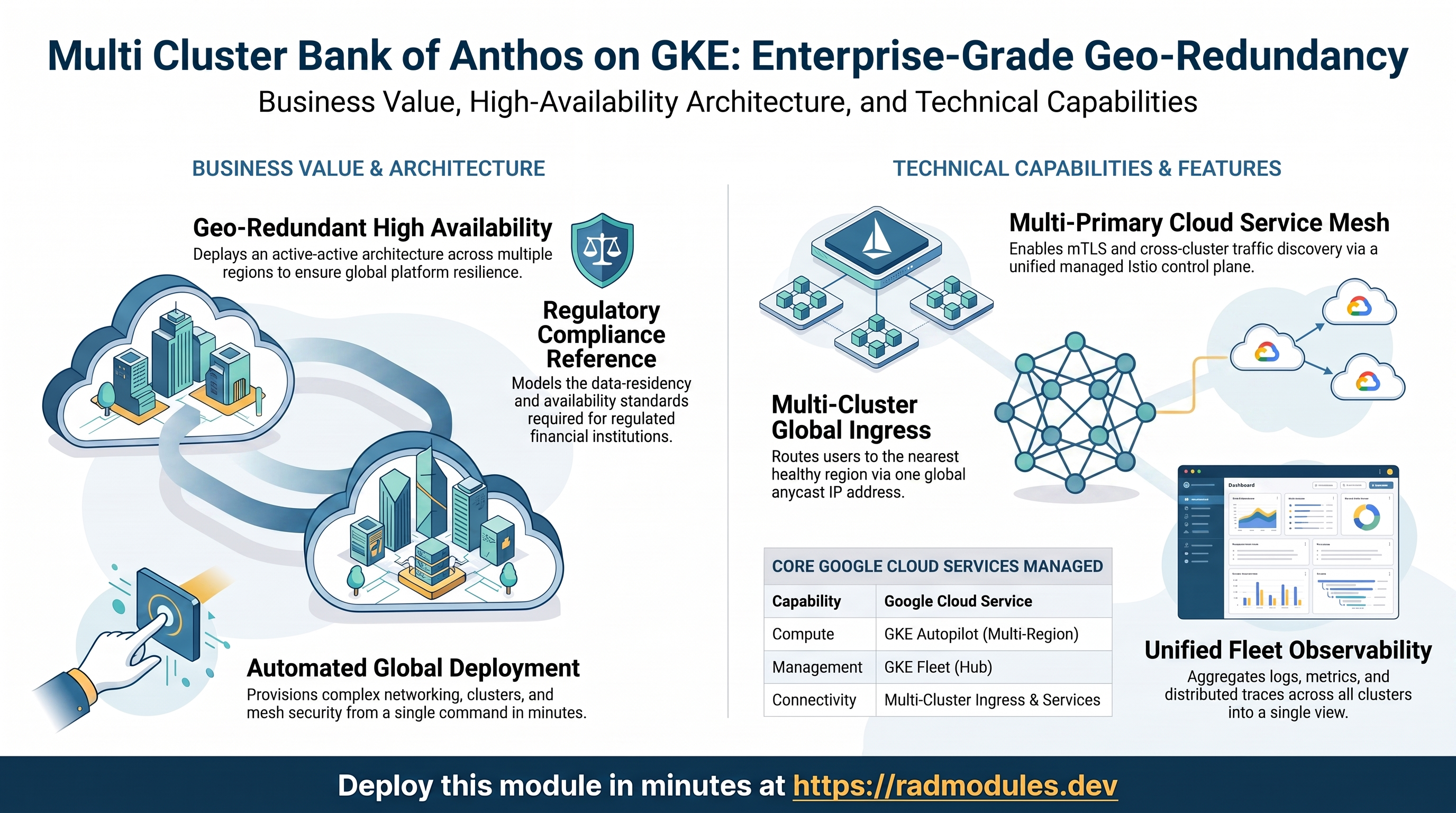
The MC_Bank_GKE module deploys a production-grade, multi-cluster microservices banking application on Google Kubernetes Engine (GKE). It is designed as a comprehensive learning environment for platform engineers who want to gain hands-on experience with advanced GKE capabilities, including multi-cluster networking, service mesh, global load balancing, and cloud-native observability.

The application deployed is Bank of Anthos — an open-source, HTTP-based banking simulation built by Google Cloud Platform. It consists of nine microservices written in Python and Java, communicating over a service mesh, and exposed to the internet via a globally distributed load balancer with automatic TLS certificate management.

This module is intended for educational purposes. It is not a production banking system. Its value lies in the breadth and depth of Google Cloud and Kubernetes features it exercises simultaneously in a realistic, working application context.


What You Will Learn

By deploying and exploring this module, a platform engineer will gain practical experience with:

  • Deploying and managing multiple GKE clusters across regions from a single control plane
  • Registering clusters in a GKE Fleet for unified multi-cluster management
  • Enabling and operating Cloud Service Mesh (Anthos Service Mesh) with automatic sidecar injection
  • Configuring Multi-Cluster Ingress (MCI) and Multi-Cluster Services (MCS) for cross-cluster traffic routing
  • Using Google-managed SSL/TLS certificates with automatic provisioning
  • Applying GKE Security Posture scanning and vulnerability detection
  • Working with Workload Identity to securely bind Kubernetes workloads to GCP service accounts
  • Using Managed Prometheus for cluster and workload observability
  • Configuring the GCS FUSE CSI driver for mounting Cloud Storage buckets as pod volumes
  • Enabling the GKE Gateway API for advanced traffic management
  • Designing and operating a custom VPC with subnet isolation, Cloud NAT, and firewall policies for GKE

Architecture Overview

The module creates the following high-level architecture:

Internet


Global External Load Balancer (Google Cloud)
│ ┌─ HTTPS redirect (HTTP 301)
│ ├─ Google-managed TLS certificate
│ └─ sslip.io dynamic DNS domain


Multi-Cluster Ingress (GKE Hub Feature)
│ ├─ Routes to frontend pods across all clusters
│ └─ Backed by MultiClusterService

├──────────────────────┐
▼ ▼
GKE Cluster 1 GKE Cluster 2
(us-west1) (us-east1)
│ │
└──── GKE Fleet ───────┘

├─ Cloud Service Mesh (ASM)
├─ Multi-Cluster Services
└─ Shared Fleet Config

Key Architectural Decisions

Multi-region placement: Clusters are distributed across two GCP regions by default (us-west1 and us-east1). This mirrors a real high-availability deployment where workloads survive a regional failure.

Single global VPC: All clusters share one VPC network with GLOBAL routing mode. Each cluster has its own subnet with dedicated secondary IP ranges for pods and services, preventing address conflicts.

Config cluster pattern: Multi-Cluster Ingress is configured from cluster1, which acts as the configuration cluster. The GKE Hub multi-cluster ingress feature uses this cluster as the authoritative source for ingress configuration and distributes it across the fleet.

Automatic service mesh: Cloud Service Mesh is enabled at the fleet level with MANAGEMENT_AUTOMATIC mode. GKE manages the control plane, upgrades, and lifecycle of the mesh without manual intervention.

Namespace as mesh boundary: The bank-of-anthos namespace is labelled with istio.io/rev=asm-managed on both clusters, which triggers automatic Envoy sidecar injection into every pod in that namespace.


GKE Cluster Features

Autopilot vs Standard Clusters

This module supports both GKE Autopilot and Standard cluster modes, selectable at deployment time. Autopilot is the default.

FeatureAutopilotStandard
Node managementFully managed by GoogleSelf-managed node pools
Node provisioningAutomatic, per-podManual or cluster autoscaler
Pricing modelPer-pod resource usagePer-node (always-on)
Spot/preemptible nodesSupported via pod configSpot nodes configured in node pool
Workload IdentityEnabled automaticallyMust be explicitly enabled
Security hardeningEnforced by defaultConfigurable
Best forSimplicity and cost efficiencyMaximum control and customisation

In Standard mode, this module provisions node pools with the following defaults:

  • Machine type: e2-standard-2 (2 vCPU, 8 GB RAM)
  • Disk: 50 GB SSD (pd-ssd)
  • Spot instances: enabled — nodes are preemptible, reducing cost by up to 80%, appropriate for a learning environment
  • Node count: 2 nodes per pool, spread across available zones in the region

Explore in the Console: Navigate to Kubernetes Engine → Clusters to see all clusters, their mode (Autopilot/Standard), version, and node count. Click a cluster name and select the Nodes tab to see individual node status, machine type, and zone placement.

Inspect via CLI:

# List all clusters with mode and version
gcloud container clusters list --project PROJECT_ID \
--format="table(name,location,autopilot.enabled,currentMasterVersion,status)"

# Describe a cluster to see full configuration
gcloud container clusters describe gke-cluster-1 \
--region us-west1 --project PROJECT_ID

# List node pools (Standard clusters only)
gcloud container node-pools list \
--cluster gke-cluster-1 \
--region us-west1 --project PROJECT_ID \
--format="table(name,config.machineType,config.spot,initialNodeCount,status)"

# View all nodes and their status
kubectl get nodes --context $CTX1 -o wide

Release Channel

Clusters are enrolled in the REGULAR release channel. GKE release channels automate cluster upgrades and ensure nodes and control planes stay on a supported, tested version.

ChannelUpdate cadenceBest for
RAPIDImmediately after releaseFeature testing, dev environments
REGULAR2–4 weeks after RAPIDMost production workloads
STABLE2–4 weeks after REGULARRisk-averse, compliance-sensitive workloads
EXTENDEDUp to 24 months supportLong-running, infrequently updated clusters

Explore in the Console: Navigate to Kubernetes Engine → Clusters → (cluster name) → Details and look for the Release channel field. The console also shows the current master version and the next available upgrade version.

Inspect via CLI:

# Check release channel and current version for all clusters
gcloud container clusters list --project PROJECT_ID \
--format="table(name,releaseChannel.channel,currentMasterVersion,currentNodeVersion)"

# Check if an upgrade is available
gcloud container get-server-config \
--region us-west1 --project PROJECT_ID \
--format="yaml(channels)"

Security Posture

Each cluster has Security Posture enabled in BASIC mode with VULNERABILITY_BASIC scanning. This feature continuously evaluates your cluster against security best practices and scans workload container images for known CVEs.

What Security Posture provides:

  • Workload configuration auditing: flags pods running as root, containers without resource limits, missing liveness/readiness probes, and other misconfigurations
  • Vulnerability scanning: scans container images in running workloads against OS and language package vulnerability databases
  • Actionable findings: surfaces issues in the GKE Security Posture dashboard with severity ratings and remediation guidance

This is distinct from Artifact Registry vulnerability scanning, which scans images at push time. Security Posture scans running workloads, catching drift between what was pushed and what is actually deployed.

Explore in the Console: Navigate to Kubernetes Engine → Security Posture to see workload configuration findings and vulnerability scan results grouped by severity across all clusters.

Inspect via CLI:

# List active Security Posture findings for a cluster
gcloud container clusters describe gke-cluster-1 \
--region us-west1 --project PROJECT_ID \
--format="value(securityPostureConfig)"

Workload Identity

For Standard clusters, Workload Identity is enabled. This is the recommended mechanism for granting Kubernetes workloads access to Google Cloud APIs without static service account keys.

How it works:

  1. Each GKE cluster gets a Workload Identity Pool: PROJECT_ID.svc.id.goog
  2. A Kubernetes Service Account (KSA) is annotated to link it to a Google Service Account (GSA)
  3. The GSA is granted an IAM binding that allows the KSA to impersonate it
  4. Pods using that KSA call GCP APIs using short-lived tokens — no key files, no secrets

Why this matters: Traditional approaches mount a JSON key file as a Kubernetes Secret. If that secret leaks via a compromised pod, the key can be used from anywhere. With Workload Identity, credentials are short-lived tokens issued by GKE's metadata server and are only valid from within the cluster.

In this module, Bank of Anthos uses Workload Identity to send traces to Cloud Trace and metrics to Cloud Monitoring.

Explore in the Console: Navigate to Kubernetes Engine → Clusters → (cluster name) → Details and confirm the Workload Identity field shows PROJECT_ID.svc.id.goog.

Inspect via CLI:

# Confirm Workload Identity pool on the cluster
gcloud container clusters describe gke-cluster-1 \
--region us-west1 --project PROJECT_ID \
--format="value(workloadIdentityConfig.workloadPool)"

# View the Kubernetes Service Account annotation linking KSA to GSA
kubectl get serviceaccount bank-of-anthos \
-n bank-of-anthos --context $CTX1 -o yaml | grep iam.gke.io

Managed Prometheus

Managed Service for Prometheus is enabled on each cluster — Google's fully managed, Prometheus-compatible monitoring solution built into GKE.

What it provides:

  • Prometheus-compatible metrics collection without deploying or managing a Prometheus server
  • Automatic scraping of Kubernetes system components (kube-state-metrics, node-exporter, kubelet)
  • Long-term storage backed by Google's Monarch metrics infrastructure
  • Query interface via Cloud Monitoring or PromQL
  • Out-of-the-box dashboards for cluster health, node utilisation, and workload metrics

The module enables SYSTEM_COMPONENTS metric collection by default. Workload-level scraping of custom /metrics endpoints requires a PodMonitoring or ClusterPodMonitoring custom resource.

Explore in the Console: Navigate to Monitoring → Dashboards and open the GKE dashboard group. Select GKE Cluster Overview to see node and pod metrics, or Kubernetes Engine Prometheus Overview for Prometheus metrics.

Inspect via CLI:

# Confirm Managed Prometheus is enabled on the cluster
gcloud container clusters describe gke-cluster-1 \
--region us-west1 --project PROJECT_ID \
--format="value(monitoringConfig.managedPrometheusConfig.enabled)"

# List any PodMonitoring resources already deployed
kubectl get podmonitoring -A --context $CTX1

GCS FUSE CSI Driver

The Cloud Storage FUSE CSI driver is enabled on all clusters, allowing pods to mount Google Cloud Storage buckets as a POSIX-compatible filesystem.

Use cases in a microservices context:

  • Sharing large static assets (ML models, media files, config bundles) across pods without baking them into container images
  • Mounting read-only reference data updated externally (e.g. a bucket populated by a CI pipeline)
  • Offloading large write workloads (logs, exports) directly to GCS without a separate sidecar

To use the driver, annotate your service account and reference a GCS bucket in your pod's volume spec. The driver handles mounting, credential negotiation via Workload Identity, and FUSE kernel integration transparently.

Explore in the Console: Navigate to Kubernetes Engine → Clusters → (cluster name) → Details and look for GCS FUSE CSI driver under the Storage section — it should show as Enabled.

Inspect via CLI:

# Confirm the GCS FUSE CSI driver is enabled
gcloud container clusters describe gke-cluster-1 \
--region us-west1 --project PROJECT_ID \
--format="value(addonsConfig.gcsFuseCsiDriverConfig.enabled)"

# Verify the CSI driver pods are running in the cluster
kubectl get pods -n kube-system --context $CTX1 \
-l k8s-app=gcs-fuse-csi-driver

See Exercise 9 for a complete hands-on walkthrough of mounting a GCS bucket into a pod.

Gateway API

The Gateway API is enabled on CHANNEL_STANDARD. Gateway API is the successor to the Kubernetes Ingress resource, providing a more expressive, role-oriented model for configuring traffic routing.

CapabilityIngressGateway API
Traffic splittingLimited / annotation-basedNative (HTTPRoute weights)
Header-based routingAnnotation-basedNative
Role separationSingle resourceSeparate Gateway + Route objects
Protocol supportHTTP/HTTPSHTTP, HTTPS, TCP, gRPC, TLS

Inspect via CLI:

# Confirm Gateway API is enabled and list available GatewayClasses
kubectl get gatewayclass --context $CTX1

# List any deployed Gateway and HTTPRoute resources
kubectl get gateway,httproute -A --context $CTX1

Cost Management

GKE Cost Management is enabled on all clusters. This feature attributes resource costs (CPU, memory, storage) to Kubernetes namespaces and labels, enabling per-team or per-workload cost visibility within a shared cluster. Cost data is available in the Google Cloud Billing console and exportable to BigQuery.

Explore in the Console: Navigate to Billing → Reports and add a grouping by Label → k8s-namespace or Label → k8s-cluster-name to see cost attribution by workload. A dedicated GKE cost breakdown view is available under Kubernetes Engine → Clusters → (cluster name) → Observability → Cost.


Networking

VPC Design

All clusters share a single custom VPC network with GLOBAL routing mode. Using a global VPC means that subnets in different regions can communicate over Google's private backbone without requiring VPC peering or additional routing configuration. This simplifies multi-cluster networking — pods in us-west1 can reach services in us-east1 using internal RFC 1918 addresses.

The VPC uses auto_create_subnetworks = false, meaning no default subnets are created. Every subnet is explicitly defined and sized to match the requirements of each cluster.

Why a custom VPC over the default VPC? The default VPC uses auto-mode subnets with pre-assigned, fixed CIDR ranges. Custom VPCs give you full control over IP address planning, which matters when:

  • You need to avoid overlapping with on-premises or partner networks (VPN/Interconnect)
  • You are planning for a specific number of nodes, pods, and services per cluster
  • You want to enforce network segmentation between environments

Subnet Design and IP Allocation

Each cluster receives a dedicated subnet with three IP ranges:

Range typeCIDR (cluster 1 example)SizePurpose
Primary (nodes)10.0.0.0/204,096 IPsNode VM addresses
Pod secondary range10.0.16.0/204,096 IPsPod IP addresses (VPC-native)
Service secondary range10.0.32.0/204,096 IPsClusterIP service addresses

Subsequent clusters increment these ranges to avoid overlap (cluster 2 uses 10.0.64.0/20, 10.0.80.0/20, 10.0.96.0/20, and so on).

VPC-native clusters: GKE is configured to use VPC-native networking (alias IP ranges). This means pod IP addresses are drawn from the subnet's secondary range and are directly routable within the VPC — no IP masquerading is required for pod-to-pod communication across nodes. This is a prerequisite for Multi-Cluster Services and for using Container-native load balancing with Network Endpoint Groups (NEGs).

Cloud Router and Cloud NAT

Each cluster subnet is paired with a Cloud Router and a Cloud NAT gateway. These provide outbound internet connectivity for nodes and pods without requiring public IP addresses on the nodes themselves.

Cloud Router establishes a BGP session used by Cloud NAT and, optionally, by Cloud Interconnect or Cloud VPN for hybrid connectivity.

Cloud NAT translates outbound traffic from private node and pod IP addresses to ephemeral external IPs managed by Google. Configuration details:

  • IP allocation: AUTO_ONLY — Google automatically allocates and manages the external IPs. No static IPs need to be reserved for NAT.
  • Subnet targeting: LIST_OF_SUBNETWORKS — NAT is applied only to the specific subnet for that cluster, avoiding conflicts when multiple clusters share the same region.
  • Log level: ERRORS_ONLY — NAT translation errors are logged to Cloud Logging, helping diagnose connectivity failures without generating excessive log volume.

Why private nodes with Cloud NAT? Running nodes without public IPs reduces the attack surface — nodes are not directly reachable from the internet. Outbound traffic (pulling container images, calling APIs) flows through NAT. Inbound traffic enters only through the load balancer.

Firewall Rules

The module creates five explicit firewall rules. Understanding these is important for troubleshooting connectivity issues:

Rule nameDirectionSourcePortsPurpose
allow-sshIngress0.0.0.0/0TCP 22SSH access to nodes (for debugging)
allow-internalIngressAll node, pod, and service CIDRsTCP/UDP all, ICMPFull communication between all cluster components
allow-gke-mastersIngress172.16.0.0/28TCP, UDP, ICMPGKE control plane to node communication
allow-health-checksIngressGoogle health checker rangesTCPLoad balancer health probes reaching pods
allow-webhooksIngressNode CIDRsTCP 443, 8443, 9443, 15017Istio/ASM admission webhook calls from API server to sidecar injector

The webhook rule (allow-webhooks) is critical for ASM operation. When a pod is created in a mesh-enabled namespace, the Kubernetes API server calls the ASM sidecar injector webhook — an HTTPS call from the control plane to a pod running in the cluster. Without this rule, pod creation hangs or fails with a webhook timeout error.

The health check rule allows Google's load balancer probers to reach backend pods. These probers originate from four specific Google-owned CIDR ranges. Without this rule, all backends appear unhealthy and the load balancer returns 502 errors.

Explore in the Console: Navigate to VPC Network → VPC Networks → vpc-network to see all subnets, their primary and secondary IP ranges, and the regions they are deployed in.

Inspect via CLI:

# List all subnets and their IP ranges
gcloud compute networks subnets list \
--network vpc-network --project PROJECT_ID \
--format="table(name,region,ipCidrRange,secondaryIpRanges[].rangeName,secondaryIpRanges[].ipCidrRange)"

# List all firewall rules on the VPC
gcloud compute firewall-rules list \
--filter="network:vpc-network" --project PROJECT_ID \
--format="table(name,direction,sourceRanges[].list():label=SOURCES,allowed[].map().firewall_rule().list():label=ALLOW)"

# Describe a specific Cloud NAT gateway
gcloud compute routers nats describe nat-gateway-cluster1 \
--router router-cluster1 \
--region us-west1 --project PROJECT_ID

# Check Cloud NAT logs for translation errors
gcloud logging read \
'resource.type="nat_gateway" severity>=WARNING' \
--project PROJECT_ID --limit 20 --format="table(timestamp,textPayload)"

Static External IP Addresses

One static external IP address is reserved per cluster. These are used for cluster-level ingress and for identity purposes when establishing cross-cluster communication. Static IPs persist across cluster recreations, allowing DNS records and firewall allowlists to remain stable even if the cluster is rebuilt.

Inspect via CLI:

# List all reserved static IPs for this deployment
gcloud compute addresses list --project PROJECT_ID \
--format="table(name,region,address,status)"

GKE Fleet Management

What is a GKE Fleet?

A GKE Fleet (formerly Anthos fleet) is a logical grouping of Kubernetes clusters that can be managed, configured, and monitored together as a single unit. Fleets are the foundation for all multi-cluster features in GKE — including Multi-Cluster Ingress, Multi-Cluster Services, and Cloud Service Mesh.

Clusters in a fleet share:

  • A common configuration namespace for fleet-wide policy distribution
  • A unified identity trust domain enabling cross-cluster service authentication
  • Access to fleet-level features that span all registered clusters simultaneously

Fleet Registration

Each cluster is registered as a Fleet Membership immediately after creation. The membership:

  • Links the cluster to the fleet using its GKE resource path
  • Establishes an OIDC issuer (container.googleapis.com) so the fleet can verify tokens issued by the cluster's API server
  • Assigns the cluster a membership ID matching its cluster name

After registration, the module waits for the membership state to reach READY before proceeding — checking up to 60 times over 10 minutes. This wait is necessary because fleet registration involves certificate exchange and identity bootstrapping that happens asynchronously.

Explore in the Console: Navigate to Kubernetes Engine → Fleets to see all registered clusters, their membership status, and which fleet features are enabled. The Feature tab shows the per-cluster state of ASM, MCI, and MCS.

Checking fleet membership and feature status:

# List all cluster memberships and their states
gcloud container fleet memberships list --project PROJECT_ID

# Describe a specific membership
gcloud container fleet memberships describe gke-cluster-1 \
--location global --project PROJECT_ID

# List all fleet features and their states
gcloud container fleet features list --project PROJECT_ID

# View detailed feature status including per-cluster states
gcloud container fleet features describe multiclusteringress \
--project PROJECT_ID
gcloud container fleet features describe servicemesh \
--project PROJECT_ID
gcloud container fleet features describe multiclusterservicediscovery \
--project PROJECT_ID

Fleet IAM

The GKE Hub service identity (gkehub.googleapis.com) is granted two roles at the project level:

RolePurpose
roles/gkehub.serviceAgentAllows the Hub service to manage fleet memberships and features
roles/container.viewerAllows the Hub service to read cluster state for health reporting

These are service-agent roles granted to Google-managed service accounts, not to end-user identities.

Inspect Fleet IAM bindings via CLI:

# View all IAM bindings for the GKE Hub service agent
gcloud projects get-iam-policy PROJECT_ID \
--flatten="bindings[].members" \
--filter="bindings.members~gkehub" \
--format="table(bindings.role,bindings.members)"

# Confirm the Hub service identity email
gcloud beta services identity create \
--service=gkehub.googleapis.com \
--project PROJECT_ID

Fleet Features

Fleet features are capabilities that are enabled at the fleet level and automatically apply to all registered member clusters. This module enables the following fleet features:

FeatureAPIScope
Cloud Service Meshmesh.googleapis.comAll clusters
Multi-Cluster Ingressmulticlusteringress.googleapis.comAll clusters, config on cluster1
Multi-Cluster Servicesmulticlusterservicediscovery.googleapis.comAll clusters

Enabling a feature at the fleet level means you do not need to configure it cluster-by-cluster. New clusters added to the fleet can inherit these features automatically.


Cloud Service Mesh (Anthos Service Mesh)

What is Cloud Service Mesh?

Cloud Service Mesh (CSM), formerly known as Anthos Service Mesh (ASM), is Google's managed distribution of Istio. It adds a network infrastructure layer — a service mesh — that sits between your application containers and the network, handling cross-cutting concerns such as mutual TLS encryption, traffic management, observability, and policy enforcement without requiring any changes to application code.

The mesh consists of two planes:

  • Data plane: Envoy proxy sidecars injected into every pod. All inbound and outbound pod traffic passes through the sidecar. The sidecar enforces policies, collects telemetry, and performs load balancing.
  • Control plane: Managed by Google (istiod running as a Google-managed component). The control plane pushes configuration to all sidecars and issues mTLS certificates via its built-in certificate authority.

Automatic Management Mode

This module enables ASM with MANAGEMENT_AUTOMATIC mode at both the fleet level and per-cluster membership. In this mode:

  • Google provisions and manages the Istio control plane entirely
  • Control plane upgrades happen automatically, aligned with the cluster's release channel
  • No istiod pods appear in your cluster — the control plane runs in Google's infrastructure
  • You interact with the mesh only through Kubernetes custom resources (VirtualService, DestinationRule, PeerAuthentication, etc.)

This is distinct from manual management mode, where you install and upgrade istiod yourself using the asmcli tool.

Explore in the Console: Navigate to Kubernetes Engine → Service Mesh to see the live service topology graph, per-service golden signals, and the health of the control plane across all clusters.

Checking mesh status:

# Overall mesh health across all clusters
gcloud container fleet mesh describe --project PROJECT_ID

# Verify ASM control plane components are running
kubectl get pods -n istio-system --context $CTX1
kubectl get pods -n asm-system --context $CTX1

# View the managed ASM revision in use
kubectl get controlplanerevision -n istio-system --context $CTX1

Sidecar Injection

Sidecar injection is controlled at the namespace level using a label. The bank-of-anthos namespace carries the label:

istio.io/rev=asm-managed

This tells the ASM mutating admission webhook to inject an Envoy sidecar into every new pod created in this namespace. The revision label (asm-managed) pins injection to the Google-managed control plane revision rather than a specific version string, ensuring injected sidecars automatically track the managed revision.

What the sidecar does:

  • Intercepts all inbound and outbound TCP traffic using iptables rules set up by an init container
  • Terminates and originates mTLS connections, encrypting all pod-to-pod traffic within the mesh
  • Reports request telemetry (latency, error rate, traffic volume) to Cloud Monitoring
  • Enforces AuthorizationPolicy rules (which services can talk to which)
  • Participates in distributed tracing by propagating trace context headers to Cloud Trace

Explore in the Console: Navigate to Kubernetes Engine → Service Mesh → (cluster) → Workloads to see all injected workloads and their sidecar proxy version.

Verify sidecar injection via CLI:

# Confirm every pod in the namespace has 2 containers (app + istio-proxy)
kubectl get pods -n bank-of-anthos --context $CTX1 \
-o jsonpath='{range .items[*]}{.metadata.name}{"\t"}{range .spec.containers[*]}{.name}{" "}{end}{"\n"}{end}'

# Check the ASM sidecar proxy version injected into a pod
FRONTEND_POD=$(kubectl get pod -n bank-of-anthos --context $CTX1 \
-l app=frontend -o jsonpath='{.items[0].metadata.name}')
kubectl get pod $FRONTEND_POD -n bank-of-anthos --context $CTX1 \
-o jsonpath='{.metadata.annotations.sidecar\.istio\.io/status}' | python3 -m json.tool

# Confirm the namespace injection label is present
kubectl get namespace bank-of-anthos --context $CTX1 \
--show-labels

Mutual TLS (mTLS)

With ASM enabled, all communication between pods in the mesh is encrypted with mutual TLS by default. Each sidecar is issued a short-lived X.509 certificate by the ASM certificate authority. The certificate encodes the workload's SPIFFE identity:

spiffe://PROJECT_ID.svc.id.goog/ns/NAMESPACE/sa/SERVICE_ACCOUNT

This identity is verifiable by any other sidecar in the mesh, enabling fine-grained AuthorizationPolicy rules such as:

apiVersion: security.istio.io/v1beta1
kind: AuthorizationPolicy
metadata:
name: allow-frontend-only
namespace: bank-of-anthos
spec:
selector:
matchLabels:
app: ledger-writer
action: ALLOW
rules:
- from:
- source:
principals:
- "cluster.local/ns/bank-of-anthos/sa/bank-of-anthos"

This policy permits only the bank-of-anthos service account (used by the frontend) to call the ledger-writer service — all other callers are denied, regardless of network-level access.

Explore in the Console: Navigate to Kubernetes Engine → Service Mesh → Security to see the mTLS status across all services — which are in STRICT mode, PERMISSIVE, or DISABLED.

Verify mTLS is active via CLI:

# Check the default PeerAuthentication policy in the mesh namespace
kubectl get peerauthentication -n istio-system --context $CTX1
kubectl get peerauthentication -n bank-of-anthos --context $CTX1

# Inspect the mTLS certificate issued to the frontend sidecar
kubectl exec -n bank-of-anthos --context $CTX1 $FRONTEND_POD \
-c istio-proxy -- \
openssl s_client -connect userservice.bank-of-anthos.svc.cluster.local:8080 \
-showcerts 2>/dev/null | openssl x509 -noout -text | grep -E "Subject:|Issuer:|URI:"

# List all AuthorizationPolicies in the namespace
kubectl get authorizationpolicy -n bank-of-anthos --context $CTX1

Traffic Management

ASM provides rich traffic management through Istio custom resources. These operate at Layer 7 (HTTP/gRPC) and allow:

  • VirtualService: define routing rules — route 10% of traffic to a canary version, retry failed requests up to 3 times, inject artificial delays for chaos testing
  • DestinationRule: configure load balancing algorithm (round-robin, least-connections, consistent hashing), circuit breaker thresholds, and connection pool settings per destination service
  • ServiceEntry: register external services (outside the mesh) so sidecars can apply policies and collect telemetry for egress traffic

Inspect existing Istio traffic resources via CLI:

# List all Istio traffic management resources in the namespace
kubectl get virtualservice,destinationrule,serviceentry,gateway \
-n bank-of-anthos --context $CTX1

# Describe a specific VirtualService to see routing rules
kubectl describe virtualservice RESOURCE_NAME \
-n bank-of-anthos --context $CTX1

# View Envoy's current routing table for a sidecar (shows effect of all VirtualServices)
kubectl exec -n bank-of-anthos --context $CTX1 $FRONTEND_POD \
-c istio-proxy -- pilot-agent request GET routes | python3 -m json.tool | head -80

Example: Canary deployment with traffic splitting

apiVersion: networking.istio.io/v1alpha3
kind: VirtualService
metadata:
name: frontend
namespace: bank-of-anthos
spec:
hosts:
- frontend
http:
- route:
- destination:
host: frontend
subset: stable
weight: 90
- destination:
host: frontend
subset: canary
weight: 10

Observability with ASM

ASM automatically generates the golden signals (latency, traffic, errors, saturation) for every service-to-service call in the mesh, with no instrumentation changes required in the application.

Service metrics are available in Cloud Monitoring under the istio.io metric namespace:

  • istio.io/service/server/request_count — inbound request volume
  • istio.io/service/server/response_latencies — inbound request latency distribution
  • istio.io/service/client/request_count — outbound request volume per destination

Service topology is visualised in the Cloud Service Mesh dashboard in the Google Cloud Console. This shows a live graph of all services, their communication paths, error rates, and latency — built automatically from sidecar telemetry without any manual configuration.

Distributed traces are sent to Cloud Trace. Each request that enters the mesh generates a trace spanning all microservice hops, allowing engineers to pinpoint which service introduced a latency spike or error.

Istio ConfigMap for Stackdriver

This module applies a ConfigMap to the istio-system namespace that explicitly enables Stackdriver (Cloud Monitoring/Trace) as the telemetry backend for ASM:

apiVersion: v1
kind: ConfigMap
metadata:
name: istio-asm-managed
namespace: istio-system
data:
mesh: |
defaultConfig:
tracing:
stackdriver: {}

This ensures that trace spans from all sidecar proxies are exported to Cloud Trace using the Stackdriver exporter, making distributed traces visible in the Cloud Console without any per-pod instrumentation.

Multi-Cluster Mesh

When ASM is enabled across multiple clusters in the same fleet, the mesh spans cluster boundaries. Services in cluster1 can call services in cluster2 using their Kubernetes DNS names, with the sidecar handling the cross-cluster routing, mTLS, and telemetry transparently.

This is possible because all clusters share the same trust domain (PROJECT_ID.svc.id.goog). Certificates issued by the ASM CA in either cluster are trusted by sidecars in all clusters, enabling mutual authentication across cluster boundaries.

Verify cross-cluster mesh connectivity via CLI:

# Confirm both clusters share the same trust domain
gcloud container fleet mesh describe --project PROJECT_ID \
--format="json" | python3 -m json.tool | grep -A2 "trustDomain"

# From cluster1, resolve a service endpoint that exists only on cluster2
# (MCS exports services across clusters using the .cluster.local DNS)
kubectl exec -n bank-of-anthos --context $CTX1 $FRONTEND_POD \
-c istio-proxy -- \
curl -s http://frontend.bank-of-anthos.svc.cluster.local:8080/ready

# View cross-cluster endpoints registered by the MCS controller
kubectl get serviceimport -n bank-of-anthos --context $CTX1
kubectl get serviceexport -n bank-of-anthos --context $CTX1

Multi-Cluster Ingress and Global Load Balancing

The Problem Multi-Cluster Ingress Solves

In a single-cluster deployment, a standard Kubernetes Ingress resource provisions a regional Google Cloud Load Balancer with backends in one region. Users in other regions are served from that single region, introducing latency. If that region experiences an outage, the application becomes unavailable.

Multi-Cluster Ingress (MCI) solves this by provisioning a single Global External Application Load Balancer whose backends span multiple GKE clusters across regions. Google's network routes each user's request to the nearest healthy cluster — the same anycast routing used by Google's own global services.

Architecture

User (Europe)          User (US East)         User (Asia)
│ │ │
└──────────────────────┼──────────────────────┘

Global Anycast IP (single IP)

Google Cloud Load Balancer
(globally distributed POPs)

┌──────────────┴──────────────┐
▼ ▼
NEG (us-west1 cluster1) NEG (us-east1 cluster2)
frontend pods frontend pods

A single global IP address is reserved and used across all regions. Google's Premium Tier network routes traffic to the closest point of presence, then carries it over Google's backbone to the nearest healthy cluster.

MultiClusterIngress Resource

The MultiClusterIngress custom resource is applied to the config cluster (cluster1). The GKE Hub Multi-Cluster Ingress controller watches this resource and provisions the underlying Google Cloud load balancer infrastructure.

apiVersion: networking.gke.io/v1
kind: MultiClusterIngress
metadata:
name: bank-of-anthos-mci
namespace: bank-of-anthos
spec:
template:
spec:
backend:
serviceName: bank-of-anthos-mcs
servicePort: 80

Key points:

  • Applied only to the config cluster — the MCI controller propagates load balancer configuration across all fleet clusters automatically
  • References a MultiClusterService (not a regular Kubernetes Service) as its backend
  • The MCI controller creates and manages Network Endpoint Groups (NEGs) in every cluster where matching pods are running

MultiClusterService Resource

The MultiClusterService (MCS) resource defines which pods across which clusters should be included as backends for the global load balancer.

apiVersion: networking.gke.io/v1
kind: MultiClusterService
metadata:
name: bank-of-anthos-mcs
namespace: bank-of-anthos
spec:
template:
spec:
selector:
app: frontend
ports:
- name: http
protocol: TCP
port: 80
targetPort: 8080
clusters:
- link: "us-west1/gke-cluster-1"
- link: "us-east1/gke-cluster-2"

The clusters list explicitly enumerates which cluster deployments contribute backends. The MCI controller creates a corresponding NodePort service (for load balancer health checks) and a NEG in each listed cluster.

MCS vs standard Kubernetes Service: A standard Service of type LoadBalancer provisions a regional load balancer — one per cluster, one per region, with separate IPs. An MCS with MCI provisions one global load balancer with backends in all listed clusters. You manage one resource, not N.

NodePort Service and BackendConfig

Each cluster also runs a NodePort service for the frontend, which the global load balancer uses to reach pods. This service is annotated to reference a BackendConfig:

apiVersion: cloud.google.com/v1
kind: BackendConfig
metadata:
name: bank-of-anthos
namespace: bank-of-anthos
spec:
healthCheck:
checkIntervalSec: 2
timeoutSec: 1
healthyThreshold: 1
unhealthyThreshold: 10
type: HTTP
requestPath: /
iap:
enabled: false

BackendConfig customises the behaviour of the Google Cloud load balancer backend service. Key settings here:

  • Health check interval of 2 seconds with an unhealthy threshold of 10 — the load balancer marks a backend unhealthy only after 10 consecutive failures (20 seconds), avoiding flapping during brief pod restarts
  • Healthy threshold of 1 — a single successful probe immediately marks a backend healthy, minimising the time new pods take to receive traffic after startup
  • IAP disabled — Identity-Aware Proxy is not enabled, but the BackendConfig structure is in place so IAP can be switched on without changing the service configuration

Managed Certificates

TLS termination is handled by a Google-managed TLS certificate provisioned automatically by GCP. No manual certificate procurement, CSR generation, or renewal is required.

apiVersion: networking.gke.io/v1
kind: ManagedCertificate
metadata:
name: bank-of-anthos
namespace: bank-of-anthos
spec:
domains:
- boa.GLOBAL_IP.sslip.io

The domain uses sslip.io — a public DNS service that resolves any domain of the form ADDRESS.sslip.io to ADDRESS. This allows the module to provision a valid publicly-resolvable domain and obtain a real TLS certificate without requiring a custom domain or DNS zone configuration.

Certificate lifecycle:

  1. The ManagedCertificate resource is created referencing the sslip.io domain
  2. GCP provisions the certificate via Let's Encrypt (or Google's CA)
  3. The certificate is attached to the load balancer frontend automatically
  4. GCP handles renewal before expiry — typically 30 days before the certificate expires

Certificate provisioning takes 10–60 minutes after the load balancer is created, as GCP must perform DNS validation. During this window, HTTPS requests may fail or show a certificate warning.

FrontendConfig and HTTPS Redirect

A FrontendConfig resource enforces an HTTPS redirect, ensuring all HTTP traffic is automatically upgraded:

apiVersion: networking.gke.io/v1beta1
kind: FrontendConfig
metadata:
name: bank-of-anthos
namespace: bank-of-anthos
spec:
redirectToHttps:
enabled: true
responseCodeName: MOVED_PERMANENTLY_DEFAULT

This configures the load balancer frontend to return HTTP 301 for any request arriving on port 80, redirecting the client to the HTTPS equivalent URL. This is enforced at the load balancer level — the redirect happens before traffic reaches any pod.

Config Cluster Role

The Multi-Cluster Ingress feature requires one cluster to be designated as the config cluster. In this module, cluster1 (us-west1) is the config cluster. The MCI controller runs in the GKE Hub control plane and watches the config cluster for MultiClusterIngress and MultiClusterService resources.

Implications of the config cluster pattern:

  • All MCI/MCS resources must be applied to the config cluster, not to other clusters
  • If the config cluster is unavailable, the load balancer continues serving traffic using its last known configuration — existing backends remain healthy
  • The config cluster can be changed after deployment by updating the fleet feature configuration

Explore in the Console: Navigate to Network Services → Load Balancing to see the global load balancer created by MCI. Click through to see the frontend (HTTPS/HTTP), the backend service, and the health status of each NEG (one per cluster). Navigate to Network Services → Cloud Domains → Managed Certificates or check certificate status under Kubernetes Engine → (cluster) → Services & Ingress.

Inspect via CLI:

# List all global load balancers (MCI creates one named after the MCI resource)
gcloud compute url-maps list --global --project PROJECT_ID

# Describe the backend service to see NEGs and health
BACKEND=$(gcloud compute backend-services list --global \
--project PROJECT_ID --filter="name~bank-of-anthos" \
--format="value(name)" | head -1)

gcloud compute backend-services describe $BACKEND \
--global --project PROJECT_ID \
--format="table(name,backends[].group,backends[].balancingMode)"

# Check backend health per NEG
gcloud compute backend-services get-health $BACKEND \
--global --project PROJECT_ID

# List all NEGs created by MCI
gcloud compute network-endpoint-groups list \
--project PROJECT_ID \
--filter="name~bank-of-anthos" \
--format="table(name,zone,networkEndpointType,size)"

# Check managed certificate provisioning state
kubectl get managedcertificate -n bank-of-anthos --context $CTX1 \
-o jsonpath='{range .items[*]}{.metadata.name}{"\t"}{.status.certificateStatus}{"\n"}{end}'

Traffic Flow End-to-End

  1. A user's DNS query for boa.GLOBAL_IP.sslip.io resolves to the single global anycast IP
  2. The user's TCP connection is terminated at the nearest Google point of presence
  3. The load balancer selects the nearest healthy cluster backend using latency-based routing
  4. The request is forwarded to a NodePort on a node in the selected cluster
  5. The node routes the request to a frontend pod via the NEG
  6. The frontend pod's Envoy sidecar intercepts the inbound request, applies policies, and records telemetry
  7. The frontend calls downstream services (user-service, ledger-writer, etc.) over mTLS within the mesh

Bank of Anthos Application

Overview

Bank of Anthos (v0.6.7) is an open-source, HTTP-based banking simulation developed by Google Cloud Platform. It is the reference application deployed by this module and is the vehicle through which engineers interact with all the GKE features described in earlier sections. The application simulates a retail bank — users can create accounts, deposit funds, transfer money between accounts, and view transaction history.

The application is intentionally multi-language and multi-framework, reflecting the polyglot reality of real microservices platforms. This makes it a useful reference for understanding how a service mesh handles heterogeneous workloads consistently.

Source code and additional documentation: https://github.com/GoogleCloudPlatform/bank-of-anthos

Microservices Architecture

The application consists of nine services, each running as an independent Kubernetes Deployment:

ServiceLanguageTypeRole
frontendPython (Flask)StatelessWeb UI — serves HTML, handles login/signup, proxies API calls to backend services
userservicePython (Flask)StatelessAccount management — creates users, validates credentials, issues JWT tokens
contactsPython (Flask)StatelessContact list management — stores payee account numbers for a user
ledgerwriterJava (Spring Boot)StatelessTransaction ingestion — validates and writes new transactions to the ledger database
balancereaderJava (Spring Boot)StatelessBalance cache — reads account balances from the ledger database with caching
transactionhistoryJava (Spring Boot)StatelessHistory cache — reads past transactions for a user with caching
loadgeneratorPython (Locust)StatelessSynthetic traffic — simulates realistic user activity against the frontend
accounts-dbPostgreSQLStatefulStores user account records and contact data
ledger-dbPostgreSQLStatefulStores the complete transaction ledger

Service Communication Map

                    ┌─────────────┐
┌────────▶│ userservice│
│ └─────────────┘
│ ┌─────────────┐
├────────▶│ contacts │
│ └─────────────┘
┌──────────┐ ┌─────────────┐
│ frontend │───────▶│ledgerwriter │───▶ ledger-db
└──────────┘ └─────────────┘
│ ┌─────────────┐
├────────▶│balancereader│───▶ ledger-db
│ └─────────────┘
│ ┌──────────────────┐
└────────▶│transactionhistory│───▶ ledger-db
└──────────────────┘

userservice ───▶ accounts-db
contacts ───▶ accounts-db

All service-to-service calls are HTTP on port 8080. Within the mesh, these calls are transparently upgraded to mTLS by the Envoy sidecars. The frontend never calls a database directly — database access is encapsulated within the relevant backend service.

Authentication: JWT Token Flow

Bank of Anthos implements stateless authentication using JSON Web Tokens (JWT). Understanding this flow illustrates several important Kubernetes security patterns.

JWT key pair: A RSA key pair is generated at deployment time and stored as a Kubernetes Secret named jwt-key in the bank-of-anthos namespace. The private key is mounted into userservice (which signs tokens). The public key is mounted into all other services (which verify tokens).

Login flow:

  1. User submits credentials to the frontend via an HTML form
  2. Frontend forwards credentials to userservice over HTTP
  3. userservice validates credentials against accounts-db
  4. On success, userservice signs a JWT with the private key and returns it
  5. Frontend stores the token in an HTTP-only cookie
  6. All subsequent requests carry the JWT cookie

Token verification:

  • Each service that handles authenticated requests mounts the JWT public key at /tmp/.ssh/publickey
  • Incoming requests are verified locally — no call to userservice is needed per request
  • Token expiry is set to 3600 seconds (1 hour) in userservice

Why this matters for platform engineers: The JWT secret is a textbook example of how to use Kubernetes Secrets for credential distribution across pods. The private key is only accessible to the one service that needs it; all other services receive only the public key. This principle of least privilege is enforced at the pod volume mount level.

Explore in the Console: Navigate to Kubernetes Engine → (cluster) → Config and Storage → Secrets and find jwt-key in the bank-of-anthos namespace. The console shows which pods are consuming the secret as a volume mount.

Inspect via CLI:

# Confirm the JWT secret exists and see its keys (values are base64-encoded)
kubectl get secret jwt-key -n bank-of-anthos --context $CTX1 \
-o jsonpath='{.data}' | python3 -m json.tool | grep -o '"[^"]*":'

# Confirm the public key is mounted into the frontend pod
FRONTEND_POD=$(kubectl get pod -n bank-of-anthos --context $CTX1 \
-l app=frontend -o jsonpath='{.items[0].metadata.name}')
kubectl exec -n bank-of-anthos --context $CTX1 $FRONTEND_POD \
-c frontend -- ls -la /tmp/.ssh/

# Inspect all ConfigMaps used for service discovery
kubectl get configmap -n bank-of-anthos --context $CTX1
kubectl describe configmap service-api-config \
-n bank-of-anthos --context $CTX1

Kubernetes Resource Patterns

The Bank of Anthos manifests demonstrate production-grade Kubernetes resource configuration. The following patterns are worth studying in detail.

Resource Requests and Limits

Every container defines explicit CPU and memory requests and limits. This is required for the GKE scheduler to make informed placement decisions and for the Kubernetes resource quota system to function correctly.

Explore in the Console: Navigate to Kubernetes Engine → Workloads to see all Deployments and StatefulSets. Click any workload to see its pods, resource requests, limits, and current utilisation. The Observability tab shows CPU and memory graphs over time.

Inspect via CLI:

# View resource requests and limits for all containers in the namespace
kubectl get pods -n bank-of-anthos --context $CTX1 \
-o jsonpath='{range .items[*]}{.metadata.name}{"\n"}{range .spec.containers[*]} {.name}: cpu={.resources.requests.cpu}/{.resources.limits.cpu} mem={.resources.requests.memory}/{.resources.limits.memory}{"\n"}{end}{end}'

# Check actual resource consumption vs requests (requires metrics-server)
kubectl top pods -n bank-of-anthos --context $CTX1

# View QoS class assigned to each pod
kubectl get pods -n bank-of-anthos --context $CTX1 \
-o custom-columns="NAME:.metadata.name,QOS:.status.qosClass"

Example (frontend):

resources:
requests:
cpu: 100m
memory: 64Mi
limits:
cpu: 250m
memory: 128Mi

Example (userservice — higher because it handles JWT cryptography):

resources:
requests:
cpu: 260m
memory: 128Mi
limits:
cpu: 500m
memory: 256Mi

Requests vs limits:

  • Requests are used by the scheduler to select a node with sufficient available capacity. A pod is guaranteed at least its requested resources.
  • Limits cap the maximum resources a container can consume. Exceeding the memory limit triggers an OOMKill. Exceeding the CPU limit causes throttling (not termination).
  • Setting limits equal to requests creates a Guaranteed QoS class — the pod is the last to be evicted under memory pressure. Setting limits higher than requests creates Burstable QoS.

Security Contexts

Every container in Bank of Anthos runs with a strict security context:

securityContext:
allowPrivilegeEscalation: false
capabilities:
drop:
- all
privileged: false
readOnlyRootFilesystem: true
runAsNonRoot: true
runAsUser: 1000
runAsGroup: 1000

What each setting does:

SettingEffect
runAsNonRoot: truePod fails to start if the container image runs as UID 0
runAsUser: 1000Overrides the image's default user to UID 1000
readOnlyRootFilesystem: trueContainer cannot write to its own filesystem — all writes must go to explicitly mounted volumes
allowPrivilegeEscalation: falsePrevents setuid binaries from elevating privileges within the container
capabilities: drop: [all]Removes all Linux capabilities (e.g. NET_RAW, SYS_CHROOT) — the container runs with no kernel-level privileges

These settings align with the Pod Security Standards restricted profile and are enforced by GKE Security Posture's workload auditing.

Because readOnlyRootFilesystem is set, writable directories needed at runtime are provided as emptyDir volumes — typically /tmp:

volumeMounts:
- name: tmp
mountPath: /tmp
volumes:
- name: tmp
emptyDir: {}

Health Probes

Every deployment configures both liveness and readiness probes against the /ready endpoint:

readinessProbe:
httpGet:
path: /ready
port: 8080
initialDelaySeconds: 10
periodSeconds: 5
livenessProbe:
httpGet:
path: /ready
port: 8080
initialDelaySeconds: 60
periodSeconds: 15

Readiness vs liveness:

  • Readiness probe: determines whether the pod should receive traffic. A failing readiness probe removes the pod from Service endpoints — it stays running but gets no requests. Used to hold traffic until the application has finished initialising (e.g. loaded caches, established database connections).
  • Liveness probe: determines whether the pod is alive. A failing liveness probe causes kubelet to restart the container. The 60-second initial delay gives the JVM-based Java services time to complete startup before liveness checking begins.

Inspect live probe status via CLI:

# View probe configuration and last result for all pods
kubectl get pods -n bank-of-anthos --context $CTX1 \
-o jsonpath='{range .items[*]}{.metadata.name}{"\n"}{range .spec.containers[*]} readiness: {.readinessProbe.httpGet.path}:{.readinessProbe.httpGet.port} delay={.readinessProbe.initialDelaySeconds}s{"\n"}{end}{end}'

# Check restart counts — high restarts indicate repeated liveness probe failures
kubectl get pods -n bank-of-anthos --context $CTX1 \
-o custom-columns="NAME:.metadata.name,RESTARTS:.status.containerStatuses[0].restartCount,READY:.status.containerStatuses[0].ready"

# View events for a pod to see probe failures
kubectl describe pod $FRONTEND_POD -n bank-of-anthos --context $CTX1 | grep -A5 "Events:"

Stateful Services: PostgreSQL

The two databases (accounts-db, ledger-db) run as Kubernetes StatefulSets. StatefulSets provide:

  • Stable pod identity: pods are named ledger-db-0, ledger-db-1 etc. rather than random hashes
  • Ordered startup and shutdown: pods start in order (0, then 1) and terminate in reverse order
  • Stable DNS: each pod gets a stable DNS entry (ledger-db-0.ledger-db.bank-of-anthos.svc.cluster.local)

For this module, each database runs as a single replica (replicas: 1) with storage on an emptyDir volume. This is appropriate for a learning environment — data does not persist across pod restarts, keeping the application stateless from a cluster lifecycle perspective.

In a production deployment, the databases would use PersistentVolumeClaims backed by GCP Persistent Disks or Cloud SQL.

Explore in the Console: Navigate to Kubernetes Engine → Workloads and filter by Type: StatefulSet to see accounts-db and ledger-db. Click either StatefulSet to inspect its pods, volumes, and events.

Inspect StatefulSets and stable DNS via CLI:

# List all StatefulSets in the namespace
kubectl get statefulsets -n bank-of-anthos --context $CTX1

# Describe a StatefulSet to see pod identity and volume configuration
kubectl describe statefulset ledger-db -n bank-of-anthos --context $CTX1

# Verify stable DNS resolution for the database pod
kubectl run dns-test --image=busybox --restart=Never \
--context $CTX1 -n bank-of-anthos -- \
nslookup ledger-db-0.ledger-db.bank-of-anthos.svc.cluster.local
kubectl logs dns-test -n bank-of-anthos --context $CTX1
kubectl delete pod dns-test -n bank-of-anthos --context $CTX1

ConfigMaps for Service Discovery

Service endpoint addresses are distributed to pods via Kubernetes ConfigMaps rather than hard-coded environment variables. The service-api-config ConfigMap maps each service name to its DNS address:

LEDGER_ADDR: "ledgerwriter:8080"
BALANCES_ADDR: "balancereader:8080"
HISTORY_ADDR: "transactionhistory:8080"
CONTACTS_ADDR: "contacts:8080"
USERSERVICE_ADDR: "userservice:8080"

These resolve via Kubernetes DNS (service-name.namespace.svc.cluster.local). The frontend reads these at startup and uses them for all backend API calls — no hardcoded IPs or external DNS lookups.

Load Generator

The loadgenerator service runs Locust, an open-source load testing framework, continuously generating realistic synthetic traffic against the frontend. It simulates:

  • New user signups
  • Login and session management
  • Account balance checks
  • Peer-to-peer transfers between accounts

This is important for observability exploration — the load generator ensures the ASM service topology dashboard, Cloud Monitoring dashboards, and Cloud Trace all show live data immediately after deployment, without requiring manual interaction with the application.

Explore in the Console: Navigate to Kubernetes Engine → Workloads → loadgenerator and select the Logs tab to see Locust output showing active users, request rates, and failure counts in real time.

Inspect via CLI:

# View load generator logs to see current traffic rates
kubectl logs -n bank-of-anthos --context $CTX1 \
-l app=loadgenerator --tail=20

# Check the load generator is reaching the frontend successfully
kubectl exec -n bank-of-anthos --context $CTX1 \
$(kubectl get pod -n bank-of-anthos --context $CTX1 \
-l app=loadgenerator -o jsonpath='{.items[0].metadata.name}') \
-- env | grep FRONTEND_ADDR

Module Configuration Options

The following options are available when deploying this module. Defaults reflect the configuration used if no override is provided.

Core Settings

OptionDefaultDescription
GCP Project ID(required)The destination GCP project where all resources are created
Deployment ID(auto-generated)A short alphanumeric suffix appended to resource names to avoid collisions. Leave blank to generate a random 4-character hex ID
Available Regionsus-west1, us-east1The list of GCP regions available for cluster placement. Clusters are assigned regions round-robin from this list. Add more regions to distribute clusters further

Cluster Settings

OptionDefaultDescription
Cluster TypeAutopilotChoose between GKE Autopilot (fully managed nodes) and Standard (self-managed node pools with spot instances). See the GKE Cluster Features section for a full comparison
Number of Clusters2The number of GKE clusters to create. Each cluster is placed in a region from the available regions list. Increasing this number adds more backends to the global load balancer
Release ChannelREGULARThe GKE release channel controlling the cadence of automatic cluster upgrades. Options: RAPID, REGULAR, STABLE, EXTENDED

Service Mesh Settings

OptionDefaultDescription
Enable Cloud Service MeshYesWhen enabled, ASM is installed on all clusters with automatic management mode. Disabling this removes mTLS, the service topology dashboard, and distributed tracing
Cloud Service Mesh Version1.23.4-asm.1The ASM version to install. This is pinned to a specific release for reproducibility. When upgrading, change this value and re-apply

Network Settings

OptionDefaultDescription
VPC Network Namevpc-networkThe name assigned to the custom VPC
Subnet Name Prefixvpc-subnetSubnets are named vpc-subnet-cluster1, vpc-subnet-cluster2, etc.

Application Settings

OptionDefaultDescription
Deploy ApplicationYesControls whether Bank of Anthos is downloaded and deployed. Set to No to provision only the infrastructure (clusters, networking, mesh) without the application

GCP APIs Enabled

This module enables the following Google Cloud APIs on the destination project. These APIs are not disabled on teardown, preventing accidental disruption to other workloads that may depend on them.

Explore in the Console: Navigate to APIs & Services → Enabled APIs & Services to see all enabled APIs with their request counts and error rates. This view confirms which APIs are active and shows usage trends over time.

Inspect via CLI:

# List all enabled APIs on the project
gcloud services list --enabled --project PROJECT_ID \
--format="table(name,config.title)"

# Confirm a specific API is enabled
gcloud services list --enabled --project PROJECT_ID \
--filter="name:container.googleapis.com" \
--format="value(name)"

Core Platform APIs

APIPurpose
container.googleapis.comGoogle Kubernetes Engine — cluster creation and management
cloudresourcemanager.googleapis.comProject resource management — required by Terraform for IAM and project operations
iam.googleapis.comIdentity and Access Management — service account and role management
iamcredentials.googleapis.comService account impersonation — used for Workload Identity token exchange

Observability APIs

APIPurpose
monitoring.googleapis.comCloud Monitoring — metrics ingestion and dashboards
logging.googleapis.comCloud Logging — log ingestion from clusters and workloads
cloudtrace.googleapis.comCloud Trace — distributed trace collection from ASM sidecars

Fleet and Mesh APIs

APIPurpose
anthos.googleapis.comAnthos platform — umbrella API for fleet features
anthosgke.googleapis.comAnthos GKE — GKE-specific Anthos features
gkehub.googleapis.comGKE Hub — fleet membership and feature management
gkeconnect.googleapis.comGKE Connect — secure tunnel between fleet and cluster API servers
mesh.googleapis.comCloud Service Mesh — ASM control plane
meshconfig.googleapis.comMesh configuration — ASM configuration distribution
multiclusterservicediscovery.googleapis.comMulti-Cluster Services — cross-cluster service discovery
multiclusteringress.googleapis.comMulti-Cluster Ingress — global load balancer management
trafficdirector.googleapis.comTraffic Director — xDS-based traffic management underlying MCS/MCI

Security and Compliance APIs

APIPurpose
containersecurity.googleapis.comGKE Security Posture — workload auditing and vulnerability scanning
containerscanning.googleapis.comContainer image vulnerability scanning in Artifact Registry
websecurityscanner.googleapis.comWeb Security Scanner — automated web application vulnerability scanning
anthospolicycontroller.googleapis.comPolicy Controller — OPA Gatekeeper-based policy enforcement
anthosconfigmanagement.googleapis.comConfig Management — GitOps-based configuration distribution
iap.googleapis.comIdentity-Aware Proxy — application-level access control

Storage, Build, and Networking APIs

APIPurpose
storage.googleapis.comCloud Storage — used by GCS FUSE CSI driver and build artefacts
artifactregistry.googleapis.comArtifact Registry — container image storage
cloudbuild.googleapis.comCloud Build — CI/CD pipeline execution
secretmanager.googleapis.comSecret Manager — secure storage for sensitive configuration
servicenetworking.googleapis.comService Networking — private service access for Cloud SQL and other managed services
sqladmin.googleapis.comCloud SQL Admin — managed relational database instances
pubsub.googleapis.comCloud Pub/Sub — asynchronous messaging
dns.googleapis.comCloud DNS — managed DNS zones
networkmanagement.googleapis.comNetwork Intelligence Center — network topology and connectivity analysis
billingbudgets.googleapis.comBilling Budgets — cost alerting and budget management

Additional Exploration: APIs Enabled but Not Exercised by Default

Three APIs are enabled by this module that enable powerful capabilities worth exploring independently.

Network Intelligence Center

networkmanagement.googleapis.com enables the Network Intelligence Center — Google Cloud's suite of network observability and troubleshooting tools.

Explore in the Console: Navigate to Network Intelligence Center → Connectivity Tests to run point-to-point reachability tests between any source and destination within the VPC (pod IP → service IP, node → internet, etc.).

# Run a connectivity test from a node in cluster1 to the ledger-db service IP
LEDGER_IP=$(kubectl get service ledger-db -n bank-of-anthos \
--context $CTX1 -o jsonpath='{.spec.clusterIP}')

gcloud network-management connectivity-tests create ledger-reachability \
--source-ip-address=10.0.0.2 \
--source-network=vpc-network \
--destination-ip-address=$LEDGER_IP \
--destination-port=5432 \
--protocol=TCP \
--project PROJECT_ID

gcloud network-management connectivity-tests describe ledger-reachability \
--project PROJECT_ID

Navigate to Network Intelligence Center → Network Topology for a visual map of all VPC resources, traffic flows, and their interconnections across regions.

Web Security Scanner

websecurityscanner.googleapis.com enables Web Security Scanner — an automated DAST (Dynamic Application Security Testing) tool that crawls the frontend URL and probes for common web vulnerabilities (XSS, mixed content, outdated libraries, etc.).

Explore in the Console: Navigate to Security → Web Security Scanner → New Scan and enter the https://boa.GLOBAL_IP.sslip.io URL. Run a scan and review findings in the results panel.

# Create a scan config targeting the frontend
gcloud alpha web-security-scanner scan-configs create \
--display-name="bank-of-anthos-scan" \
--starting-urls="https://boa.GLOBAL_IP.sslip.io" \
--project PROJECT_ID

# List scan configs
gcloud alpha web-security-scanner scan-configs list --project PROJECT_ID

This is a useful demonstration of how a platform team can automate security testing of applications running on GKE without any changes to the application itself.

Policy Controller (OPA Gatekeeper)

anthospolicycontroller.googleapis.com enables Policy Controller — a Kubernetes admission controller based on Open Policy Agent (OPA) Gatekeeper. It enforces custom policies at the point of resource creation, preventing non-compliant Kubernetes objects from being admitted to the cluster.

Policy Controller can enforce rules such as:

  • All containers must have resource limits set
  • No container may run as root (UID 0)
  • All Deployments must have at least 2 replicas
  • Images must come from approved registries only

Enable Policy Controller on the fleet:

gcloud container fleet policycontroller enable \
--memberships=gke-cluster-1,gke-cluster-2 \
--project PROJECT_ID

Apply a built-in constraint to require resource limits:

kubectl apply --context $CTX1 -f - <<EOF
apiVersion: constraints.gatekeeper.sh/v1beta1
kind: K8sRequiredResources
metadata:
name: require-resource-limits
spec:
match:
kinds:
- apiGroups: [""]
kinds: ["Pod"]
namespaces: ["bank-of-anthos"]
parameters:
limits:
- cpu
- memory
EOF

Explore in the Console: Navigate to Kubernetes Engine → Policy Controller to see constraint violations across all fleet clusters in a unified view. This dashboard shows which constraints are active, which resources violate them, and the violation history over time.


Deployment Lifecycle

Apply Phase

When the module is deployed, resources are created in the following sequence. Each phase depends on the previous completing successfully.

Phase 1 — Infrastructure (≈ 5–15 minutes)

  • Custom VPC and subnets are created
  • Cloud Routers and NAT gateways are provisioned
  • Static external IP addresses are reserved
  • Firewall rules are applied
  • GKE clusters are created (Autopilot or Standard)

GKE cluster creation is the most time-consuming step. Autopilot clusters typically provision in 5–8 minutes. Standard clusters provision in 3–5 minutes but require an additional 2–4 minutes for node pool nodes to join and become Ready.

Monitor Phase 1 progress:

# Watch cluster provisioning status
watch -n 10 gcloud container clusters list --project PROJECT_ID \
--format="table(name,location,status,currentMasterVersion)"

# Once clusters are RUNNING, confirm all nodes are Ready
kubectl get nodes --context $CTX1
kubectl get nodes --context $CTX2

Phase 2 — Fleet Registration (≈ 5–10 minutes)

  • GKE Hub service identity is created
  • Each cluster is registered as a Fleet membership
  • The module polls for membership state READY — checking every 10 seconds for up to 10 minutes per cluster
  • Memberships must reach READY before ASM can be enabled

Monitor Phase 2 progress:

# Poll fleet membership state
watch -n 15 "gcloud container fleet memberships list \
--project PROJECT_ID \
--format='table(name,state.code,updateTime)'"

Phase 3 — Service Mesh (≈ 10–20 minutes)

  • Fleet-level ASM feature is enabled
  • Per-cluster ASM membership management is set to MANAGEMENT_AUTOMATIC
  • The module polls for mesh configuration state — checking every 15 seconds for up to 15 minutes
  • If ASM does not reach configured state within the timeout, the module continues with a warning — ASM provisioning often completes shortly after

Monitor Phase 3 progress:

# Watch ASM provisioning state per cluster
watch -n 20 "gcloud container fleet mesh describe \
--project PROJECT_ID \
--format='table(membershipStates)'"

Phase 4 — Application (≈ 5–10 minutes)

  • Bank of Anthos v0.6.7 is downloaded from GitHub
  • The bank-of-anthos namespace is created on each cluster with the ASM injection label
  • The JWT key pair secret is applied to each cluster
  • All Kubernetes manifests are applied using server-side apply
  • The module waits up to 10 minutes for all Deployments to reach Available condition
  • Multi-Cluster Ingress feature is enabled in the fleet
  • MCI, MCS, NodePort, BackendConfig, ManagedCertificate, FrontendConfig, and Istio ConfigMap are applied to the config cluster

Monitor Phase 4 progress:

# Watch pod rollout across both clusters
watch -n 10 "kubectl get pods -n bank-of-anthos --context $CTX1 && \
echo '---' && \
kubectl get pods -n bank-of-anthos --context $CTX2"

# Watch deployment readiness
kubectl rollout status deployment -n bank-of-anthos --context $CTX1
kubectl rollout status deployment -n bank-of-anthos --context $CTX2

# Watch managed certificate provisioning
watch -n 30 "kubectl get managedcertificate \
-n bank-of-anthos --context $CTX1"

Explore deployment progress in the Console: Navigate to Kubernetes Engine → Workloads to see all Deployments and their readiness status in real time. Navigate to Kubernetes Engine → Services & Ingress to monitor the MCI and ManagedCertificate status.

Total deployment time: approximately 25–55 minutes end-to-end, depending on region and GCP service latency.

Idempotency

All Kubernetes resources are applied using --server-side --force-conflicts. This means re-running the deployment:

  • Creates resources that do not exist
  • Updates resources whose configuration has changed
  • Leaves unchanged resources unmodified
  • Does not delete resources that are no longer referenced (use kubectl delete explicitly for removals)

This makes re-applies safe and predictable — running the deployment twice produces the same result as running it once.

Destroy Phase

Teardown follows the reverse dependency order and includes several explicit cleanup steps that Terraform alone cannot handle:

Step 1 — MCI resource cleanup MultiClusterIngress and MultiClusterService resources are deleted first. These resources instruct Google Cloud to deprovision the global load balancer backends and NEGs. The module waits up to 3 minutes for the MultiClusterIngress to be fully deleted before proceeding. Skipping this step leaves orphaned load balancer components that block VPC deletion.

Step 2 — ASM membership disable ASM is disabled per-cluster membership (--management manual) before fleet unregistration. This allows the ASM control plane to cleanly withdraw from the cluster.

Step 3 — MCI feature disable The Multi-Cluster Ingress fleet feature is disabled using gcloud alpha container hub ingress disable --force. This removes the MCI controller and cleans up fleet-level load balancer state.

Step 4 — Fleet unregistration Each cluster membership is deleted from the fleet. This severs the cluster's connection to GKE Hub and removes it from all fleet features.

Step 5 — Fleet-level ASM disable After all memberships are unregistered, the fleet-level ASM feature is disabled.

Step 6 — Infrastructure teardown Kubernetes namespaces are deleted (with a 15-minute timeout to allow finalizers to complete), then GKE clusters, node pools, subnets, routers, NAT gateways, and finally the VPC are deleted.

Step 7 — Network cleanup Before the VPC is deleted, a cleanup script removes GKE-managed firewall rules (matching gke-*-mcsd) and Network Endpoint Groups (matching gsmrsvd*) that were created by GKE but are not managed by this module's Terraform state. Without this step, VPC deletion fails with a "resource in use" error.

Total destroy time: approximately 15–30 minutes.


Observability

This module enables a comprehensive, multi-layer observability stack. No additional tooling needs to be installed — everything is available immediately after deployment through the Google Cloud Console.

Cloud Monitoring

Cloud Monitoring is the primary metrics platform for this deployment. GKE automatically exports metrics from multiple sources:

System component metrics (enabled by default on all clusters):

  • kubernetes.io/node/* — node CPU, memory, disk, and network utilisation
  • kubernetes.io/pod/* — pod CPU and memory consumption
  • kubernetes.io/container/* — container restarts, resource requests vs actual usage
  • kubernetes.io/node_daemon/* — kubelet and system daemon health

Managed Prometheus metrics (collected via the built-in Prometheus scraper):

  • All standard Prometheus exposition format metrics from pods annotated for scraping
  • Kubernetes control plane metrics (API server request rate, etcd latency, scheduler throughput)

Viewing metrics in the Cloud Console:

Navigate to Monitoring → Metrics Explorer and use the following resource types:

  • k8s_cluster — cluster-level aggregates
  • k8s_node — per-node metrics
  • k8s_pod — per-pod metrics
  • k8s_container — per-container metrics

Pre-built GKE dashboards are available under Monitoring → Dashboards → GKE:

  • GKE Cluster Overview: node count, pod count, CPU/memory utilisation trends
  • GKE Workloads: per-Deployment resource usage, restart counts, availability
  • Kubernetes Engine Prometheus Overview: Prometheus metrics from all scraped targets

Cloud Service Mesh Dashboard

The Cloud Service Mesh dashboard is the most valuable observability surface for understanding microservice behaviour. It is available under Kubernetes Engine → Service Mesh in the Google Cloud Console.

What the dashboard shows:

  • Service topology graph: a live, auto-generated map of all services and their communication edges, built from sidecar telemetry. Each edge shows request rate, error rate, and latency.
  • Service-level SLOs: for each service, the dashboard displays the four golden signals — latency, traffic (requests/sec), error rate, and saturation (resource utilisation)
  • Per-service details: drill into any service to see inbound and outbound request breakdowns, latency percentiles (p50, p95, p99), and error code distributions

Because the load generator continuously sends traffic, all services will show populated metrics immediately after deployment. This makes the topology graph an excellent starting point for understanding how the microservices interact.

ASM metrics in Cloud Monitoring are accessible under the istio.io metric namespace:

MetricDescription
istio.io/service/server/request_countTotal inbound requests per service
istio.io/service/server/response_latenciesInbound request latency distribution
istio.io/service/client/request_countOutbound requests per source/destination pair
istio.io/service/client/roundtrip_latenciesEnd-to-end client-side latency

Cloud Logging

All cluster logs are exported to Cloud Logging automatically. GKE collects logs from two sources:

System component logs (control plane and node-level):

  • kubelet — node agent logs, pod scheduling decisions, volume mount events
  • kube-proxy — iptables rule updates, service endpoint changes
  • container-runtime — container start/stop events, image pull logs

Workload logs (application stdout/stderr):

  • All container stdout and stderr streams are captured and indexed
  • Logs are associated with Kubernetes metadata: cluster name, namespace, pod name, container name, and labels

Querying logs in Log Explorer:

Navigate to Logging → Log Explorer and use these resource filters:

resource.type="k8s_container"
resource.labels.cluster_name="gke-cluster-1"
resource.labels.namespace_name="bank-of-anthos"
resource.labels.container_name="frontend"

Useful log queries for Bank of Anthos:

View all errors across the application:

resource.type="k8s_container"
resource.labels.namespace_name="bank-of-anthos"
severity>=ERROR

View transaction writes to the ledger:

resource.type="k8s_container"
resource.labels.container_name="ledgerwriter"
resource.labels.namespace_name="bank-of-anthos"

View JWT authentication events:

resource.type="k8s_container"
resource.labels.container_name="userservice"
resource.labels.namespace_name="bank-of-anthos"

Log-based metrics: Cloud Logging allows you to create custom metrics from log patterns. For example, a count of severity=ERROR log entries from ledgerwriter can be turned into a Cloud Monitoring metric, enabling alerting on transaction failure rates without any application code changes.

Cloud Trace

Cloud Trace receives distributed traces from ASM sidecars via the Stackdriver exporter configured in the Istio ConfigMap. Every inbound request to the frontend generates a trace that spans all microservice hops.

Navigate to Trace → Trace List in the Cloud Console to view traces.

What a Bank of Anthos trace looks like:

A payment transaction trace spans:

frontend (POST /payment)                     ~45ms total
└─ ledgerwriter (POST /transactions) ~30ms
└─ ledger-db (SQL INSERT) ~5ms
└─ balancereader (GET /balances/{id}) ~10ms
└─ ledger-db (SQL SELECT) ~3ms

This trace shows the complete call graph, the latency contributed by each service, and whether any span returned an error. This is invaluable for identifying which microservice is the bottleneck in a slow request.

Trace sampling: ASM samples 100% of traces by default in this configuration. In high-throughput production environments, sampling rates are typically reduced to 1–5% to control cost and storage volume.

Latency analysis: The Trace → Analysis Reports view aggregates trace data to show latency distributions over time. This allows you to detect latency regressions after deployments — for example, confirming that a new version of ledgerwriter did not increase the p99 latency of /transactions.

GKE Security Posture Dashboard

Navigate to Kubernetes Engine → Security Posture in the Google Cloud Console to view the security findings generated by the Security Posture feature enabled on each cluster.

Workload configuration findings: GKE scans all running pods and reports issues such as:

  • Containers running as root
  • Missing resource limits
  • Containers with allowPrivilegeEscalation: true
  • Pods without liveness or readiness probes

Because Bank of Anthos implements the restricted Pod Security Standards profile (non-root, read-only filesystem, dropped capabilities), most workload findings should be absent or informational, providing a clean baseline to compare against other workloads.

Vulnerability findings: GKE scans the OS packages and language dependencies in every running container image and reports CVEs with CVSS scores. Findings are grouped by severity (Critical, High, Medium, Low) and include remediation guidance such as the patched package version.

Cost Breakdown

Navigate to Billing → Cost breakdown and filter by Label: goog-k8s-cluster-name to see per-cluster cost attribution. With GKE Cost Management enabled, you can further break down costs by namespace, enabling per-team chargeback visibility.


Hands-On Exercises

The following exercises are designed to deepen a platform engineer's understanding of the features deployed by this module. Each exercise uses only kubectl and gcloud commands against the running deployment. All exercises are non-destructive unless marked [Destructive].

Before running any exercise, obtain credentials for both clusters:

gcloud container clusters get-credentials gke-cluster-1 \
--region us-west1 --project PROJECT_ID

gcloud container clusters get-credentials gke-cluster-2 \
--region us-east1 --project PROJECT_ID

Set shell variables for convenience:

CTX1="gke_PROJECT_ID_us-west1_gke-cluster-1"
CTX2="gke_PROJECT_ID_us-east1_gke-cluster-2"
NS="bank-of-anthos"

Exercise 1: Inspect the Service Mesh

Goal: Verify ASM is running and understand sidecar injection.

List all pods in the bank-of-anthos namespace and confirm each has two containers — the application container and the Envoy sidecar (istio-proxy):

kubectl get pods -n $NS --context $CTX1 \
-o jsonpath='{range .items[*]}{.metadata.name}{"\t"}{range .spec.containers[*]}{.name}{" "}{end}{"\n"}{end}'

Each pod should show two containers, for example:

frontend-7d9b8f6c4-xkp2q    frontend istio-proxy
ledgerwriter-6c9b7d5f8-m3vt ledgerwriter istio-proxy

Inspect the Envoy sidecar configuration for the frontend pod:

FRONTEND_POD=$(kubectl get pod -n $NS --context $CTX1 \
-l app=frontend -o jsonpath='{.items[0].metadata.name}')

kubectl exec -n $NS --context $CTX1 $FRONTEND_POD \
-c istio-proxy -- pilot-agent request GET config_dump | \
python3 -m json.tool | grep -A5 '"name": "ledgerwriter"'

This shows the Envoy cluster configuration for ledgerwriter — the upstream endpoints, load balancing policy, and TLS settings that the sidecar uses when the frontend calls the ledger writer service.

Check the mTLS certificate issued to the frontend pod:

kubectl exec -n $NS --context $CTX1 $FRONTEND_POD \
-c istio-proxy -- openssl s_client \
-connect ledgerwriter.$NS.svc.cluster.local:8080 \
-showcerts 2>/dev/null | openssl x509 -noout -text | \
grep -A3 "Subject Alternative Name"

The SAN field will show the SPIFFE identity of the ledgerwriter workload:

URI:spiffe://PROJECT_ID.svc.id.goog/ns/bank-of-anthos/sa/bank-of-anthos

Exercise 2: Enforce a Strict mTLS Policy

Goal: Apply a PeerAuthentication policy that rejects all non-mTLS traffic to the namespace, then verify it is enforced.

Apply a strict mTLS policy:

kubectl apply --context $CTX1 -f - <<EOF
apiVersion: security.istio.io/v1beta1
kind: PeerAuthentication
metadata:
name: strict-mtls
namespace: bank-of-anthos
spec:
mtls:
mode: STRICT
EOF

Attempt to call a service directly without mTLS from outside the mesh (this should fail):

kubectl run curl-test --image=curlimages/curl --restart=Never \
--context $CTX1 -- \
curl -s http://userservice.bank-of-anthos.svc.cluster.local:8080/ready

Because the curl-test pod is not in a mesh-injected namespace, it has no sidecar and cannot establish mTLS. The connection will be reset. Clean up:

kubectl delete pod curl-test --context $CTX1
kubectl delete peerauthentication strict-mtls -n $NS --context $CTX1

What to observe: In Cloud Logging, look for Envoy access log entries showing connection resets from the non-mesh pod. In the ASM dashboard, the security panel will show the mTLS policy applied and any policy violations.


Exercise 3: Apply an AuthorizationPolicy

Goal: Restrict which services can call ledgerwriter, demonstrating zero-trust network policy enforcement at Layer 7.

Apply a policy allowing only the frontend service account to reach ledgerwriter:

kubectl apply --context $CTX1 -f - <<EOF
apiVersion: security.istio.io/v1beta1
kind: AuthorizationPolicy
metadata:
name: ledgerwriter-allow-frontend
namespace: bank-of-anthos
spec:
selector:
matchLabels:
app: ledgerwriter
action: ALLOW
rules:
- from:
- source:
principals:
- "cluster.local/ns/bank-of-anthos/sa/bank-of-anthos"
EOF

Attempt to call ledgerwriter from a pod using a different service account — the call should be denied with HTTP 403:

kubectl run deny-test \
--image=curlimages/curl \
--restart=Never \
--overrides='{"spec":{"serviceAccountName":"default"}}' \
--context $CTX1 \
-n $NS -- \
curl -s -o /dev/null -w "%{http_code}" \
http://ledgerwriter:8080/ready

Expected output: 403

Clean up:

kubectl delete pod deny-test -n $NS --context $CTX1
kubectl delete authorizationpolicy ledgerwriter-allow-frontend -n $NS --context $CTX1

Exercise 4: Traffic Splitting with VirtualService

Goal: Simulate a canary deployment by splitting traffic between two versions of a service.

Label existing frontend pods as version: stable and create a second Deployment labelled version: canary. Then apply a VirtualService routing 90% of traffic to stable and 10% to canary:

First, create DestinationRule subsets:

kubectl apply --context $CTX1 -f - <<EOF
apiVersion: networking.istio.io/v1alpha3
kind: DestinationRule
metadata:
name: frontend-versions
namespace: bank-of-anthos
spec:
host: frontend
subsets:
- name: stable
labels:
app: frontend
- name: canary
labels:
app: frontend-canary
EOF

Apply traffic split:

kubectl apply --context $CTX1 -f - <<EOF
apiVersion: networking.istio.io/v1alpha3
kind: VirtualService
metadata:
name: frontend-split
namespace: bank-of-anthos
spec:
hosts:
- frontend
http:
- route:
- destination:
host: frontend
subset: stable
weight: 90
- destination:
host: frontend
subset: canary
weight: 10
EOF

Observe the traffic distribution in the ASM service mesh dashboard — the topology graph will show the 90/10 split on the edge leading into the frontend service.

Clean up:

kubectl delete virtualservice frontend-split -n $NS --context $CTX1
kubectl delete destinationrule frontend-versions -n $NS --context $CTX1

Exercise 5: Observe Multi-Cluster Traffic Distribution

Goal: Confirm that the global load balancer distributes traffic across both clusters and verify backend health.

Check the backend health of the Multi-Cluster Ingress from the Google Cloud Console:

gcloud compute backend-services list --global --project PROJECT_ID \
--filter="name~bank-of-anthos" \
--format="table(name,backends[].group:label=BACKENDS)"

Describe the backend service to see health status per NEG:

BACKEND=$(gcloud compute backend-services list --global \
--project PROJECT_ID \
--filter="name~bank-of-anthos" \
--format="value(name)" | head -1)

gcloud compute backend-services get-health $BACKEND \
--global --project PROJECT_ID

Each NEG (one per cluster) should report HEALTHY backends. If a cluster's pods are unhealthy, the load balancer automatically stops sending traffic to that cluster's NEG.

Scale the frontend Deployment in cluster2 to zero replicas to simulate a regional failure:

kubectl scale deployment frontend -n $NS \
--context $CTX2 --replicas=0

Wait approximately 30 seconds, then re-check backend health — cluster2's NEG should show no healthy backends. Run several requests to the application URL and confirm they all succeed (all served by cluster1).

Restore cluster2:

kubectl scale deployment frontend -n $NS \
--context $CTX2 --replicas=1

Exercise 6: Inspect Distributed Traces

Goal: Trace a complete payment transaction across all microservices.

Trigger a payment through the load generator or the frontend UI, then navigate to Trace → Trace List in the Google Cloud Console. Filter by service frontend and select a trace for the /payment endpoint.

Alternatively, query traces programmatically:

gcloud trace traces list \
--project PROJECT_ID \
--filter="labels.g.co/agent=~istio" \
--limit=10

In the trace detail view, expand each span to see:

  • The HTTP method and path for each service call
  • The latency contribution of each microservice
  • Any error status codes
  • The x-b3-traceid header value that links all spans together

The x-b3-traceid is propagated by the Envoy sidecar across all hops. Bank of Anthos services are also instrumented to forward the B3 trace headers (x-b3-traceid, x-b3-spanid, x-b3-parentspanid) in their outbound calls, ensuring the full call graph is visible in a single trace.


Exercise 7: Horizontal Pod Autoscaling

Goal: Apply a HorizontalPodAutoscaler to the frontend and observe GKE scaling pods in response to load.

kubectl autoscale deployment frontend \
-n $NS --context $CTX1 \
--cpu-percent=50 \
--min=2 --max=10

Watch the HPA status as the load generator drives CPU utilisation:

kubectl get hpa frontend -n $NS --context $CTX1 --watch

When CPU utilisation exceeds 50% of the requested 100m, the HPA controller increases the replica count. On Autopilot clusters, GKE automatically provisions additional node capacity to accommodate the new pods — no manual node scaling is required.

Clean up:

kubectl delete hpa frontend -n $NS --context $CTX1

Exercise 8: Validate Security Posture Findings

Goal: Introduce a misconfigured pod and observe GKE Security Posture detecting it.

Deploy a pod that violates the restricted security profile:

kubectl apply --context $CTX1 -f - <<EOF
apiVersion: v1
kind: Pod
metadata:
name: insecure-test
namespace: bank-of-anthos
labels:
app: insecure-test
spec:
containers:
- name: test
image: nginx:latest
securityContext:
runAsUser: 0
allowPrivilegeEscalation: true
EOF

Within 1–5 minutes, navigate to Kubernetes Engine → Security Posture → Workload Configuration in the Google Cloud Console. The insecure-test pod will appear with findings including:

  • Container running as root
  • Privilege escalation allowed
  • Missing resource limits
  • No liveness or readiness probe

Clean up:

kubectl delete pod insecure-test -n $NS --context $CTX1

What this demonstrates: Security Posture catches misconfigurations that slip through CI/CD pipelines, providing a runtime safety net that complements policy enforcement tools like Policy Controller.


Exercise 9: Mount a Cloud Storage Bucket with GCS FUSE

Goal: Use the GCS FUSE CSI driver to mount a Cloud Storage bucket as a filesystem volume inside a pod — demonstrating how workloads can read and write GCS objects without any GCS client library or custom code.

Step 1 — Create a GCS bucket:

gsutil mb -p PROJECT_ID -l us-west1 gs://PROJECT_ID-fuse-demo
echo "Hello from GCS FUSE" > /tmp/hello.txt
gsutil cp /tmp/hello.txt gs://PROJECT_ID-fuse-demo/hello.txt

Step 2 — Grant the Bank of Anthos service account access to the bucket:

gsutil iam ch \
serviceAccount:PROJECT_ID-compute@developer.gserviceaccount.com:objectViewer \
gs://PROJECT_ID-fuse-demo

For Standard clusters using Workload Identity, grant access to the GSA instead:

gcloud projects add-iam-policy-binding PROJECT_ID \
--member "serviceAccount:PROJECT_ID.svc.id.goog[bank-of-anthos/bank-of-anthos]" \
--role roles/storage.objectViewer

Step 3 — Deploy a pod that mounts the bucket:

kubectl apply --context $CTX1 -f - <<EOF
apiVersion: v1
kind: Pod
metadata:
name: gcs-fuse-demo
namespace: bank-of-anthos
annotations:
gke-gcsfuse/volumes: "true"
spec:
serviceAccountName: bank-of-anthos
containers:
- name: reader
image: busybox
command: ["sh", "-c", "cat /data/hello.txt && sleep 3600"]
volumeMounts:
- name: gcs-bucket
mountPath: /data
readOnly: true
volumes:
- name: gcs-bucket
csi:
driver: gcsfuse.csi.storage.gke.io
readOnly: true
volumeAttributes:
bucketName: PROJECT_ID-fuse-demo
mountOptions: "implicit-dirs"
EOF

Step 4 — Verify the mount and read the file:

kubectl wait pod gcs-fuse-demo -n $NS --context $CTX1 \
--for=condition=Ready --timeout=60s

kubectl logs gcs-fuse-demo -n $NS --context $CTX1 -c reader

Expected output: Hello from GCS FUSE

Step 5 — Inspect the sidecar injected by the CSI driver:

kubectl get pod gcs-fuse-demo -n $NS --context $CTX1 \
-o jsonpath='{.spec.containers[*].name}'

The pod will have two containers: your reader container and the gke-gcsfuse-sidecar injected automatically by the driver to handle FUSE mounting.

Explore in the Console: Navigate to Cloud Storage → Buckets → PROJECT_ID-fuse-demo to confirm the file is there. Navigate to Kubernetes Engine → Workloads → gcs-fuse-demo to inspect the pod and its volumes.

Clean up:

kubectl delete pod gcs-fuse-demo -n $NS --context $CTX1
gsutil rm -r gs://PROJECT_ID-fuse-demo

Exercise 10: Deploy a Service with Gateway API

Goal: Use the GKE Gateway API to expose the Bank of Anthos frontend through a Gateway and HTTPRoute resource — demonstrating the role-oriented traffic model that supersedes Ingress.

Step 1 — Check available GatewayClasses:

kubectl get gatewayclass --context $CTX1

You should see gke-l7-global-external-managed (global external LB) and gke-l7-regional-external-managed (regional LB) at minimum.

Step 2 — Create a Gateway (provisions a load balancer):

kubectl apply --context $CTX1 -f - <<EOF
apiVersion: gateway.networking.k8s.io/v1
kind: Gateway
metadata:
name: gateway-api-demo
namespace: bank-of-anthos
spec:
gatewayClassName: gke-l7-regional-external-managed
listeners:
- name: http
protocol: HTTP
port: 80
EOF

Step 3 — Create an HTTPRoute pointing to the frontend service:

kubectl apply --context $CTX1 -f - <<EOF
apiVersion: gateway.networking.k8s.io/v1
kind: HTTPRoute
metadata:
name: frontend-route
namespace: bank-of-anthos
spec:
parentRefs:
- name: gateway-api-demo
rules:
- matches:
- path:
type: PathPrefix
value: /
backendRefs:
- name: frontend
port: 80
EOF

Step 4 — Watch the Gateway provision its IP address:

kubectl get gateway gateway-api-demo -n $NS --context $CTX1 --watch

When the ADDRESS field is populated, the load balancer is ready. This typically takes 1–3 minutes.

Step 5 — Test the route:

GW_IP=$(kubectl get gateway gateway-api-demo -n $NS --context $CTX1 \
-o jsonpath='{.status.addresses[0].value}')
curl -s -o /dev/null -w "%{http_code}" http://$GW_IP/

Expected output: 200

Step 6 — Add a header-based routing rule (not possible with standard Ingress):

kubectl apply --context $CTX1 -f - <<EOF
apiVersion: gateway.networking.k8s.io/v1
kind: HTTPRoute
metadata:
name: frontend-route
namespace: bank-of-anthos
spec:
parentRefs:
- name: gateway-api-demo
rules:
- matches:
- headers:
- name: x-debug
value: "true"
backendRefs:
- name: userservice
port: 8080
- matches:
- path:
type: PathPrefix
value: /
backendRefs:
- name: frontend
port: 80
EOF

This routes requests carrying the header x-debug: true to userservice, and all other requests to frontend — a routing rule that would require a custom Ingress controller annotation with legacy Ingress.

Explore in the Console: Navigate to Network Services → Load Balancing to see the load balancer provisioned by the Gateway. Notice it appears alongside the MCI-managed load balancer, demonstrating how multiple ingress mechanisms can coexist.

Clean up:

kubectl delete httproute frontend-route -n $NS --context $CTX1
kubectl delete gateway gateway-api-demo -n $NS --context $CTX1

Exercise 11: Verify Workload Identity

Goal: Confirm that pods in the mesh are using Workload Identity to authenticate to GCP APIs, and manually verify the token exchange mechanism.

Step 1 — Inspect the Kubernetes Service Account annotation:

kubectl get serviceaccount bank-of-anthos \
-n $NS --context $CTX1 -o yaml

Look for the annotation:

annotations:
iam.gke.io/gcp-service-account: gke-workload-development@PROJECT_ID.iam.gserviceaccount.com

This annotation links the Kubernetes Service Account to a Google Service Account.

Step 2 — Verify the IAM binding on the GSA:

gcloud iam service-accounts get-iam-policy \
gke-workload-development@PROJECT_ID.iam.gserviceaccount.com \
--project PROJECT_ID \
--format="table(bindings.role,bindings.members)"

Look for a binding with role roles/iam.workloadIdentityUser for the member: serviceAccount:PROJECT_ID.svc.id.goog[bank-of-anthos/bank-of-anthos]

Step 3 — Request a token from inside a pod:

FRONTEND_POD=$(kubectl get pod -n $NS --context $CTX1 \
-l app=frontend -o jsonpath='{.items[0].metadata.name}')

kubectl exec -n $NS --context $CTX1 $FRONTEND_POD \
-c frontend -- \
curl -s -H "Metadata-Flavor: Google" \
"http://metadata.google.internal/computeMetadata/v1/instance/service-accounts/default/token" \
| python3 -m json.tool | grep -E "token_type|expires_in"

The metadata server returns a short-lived OAuth2 access token. The token_type will be Bearer and expires_in will be approximately 3600 seconds. This token was obtained via Workload Identity — no key file is present anywhere on the pod.

Step 4 — Confirm no key file is mounted:

kubectl exec -n $NS --context $CTX1 $FRONTEND_POD \
-c frontend -- find / -name "*.json" 2>/dev/null | grep -v proc

There should be no JSON credential files. All GCP authentication flows through the metadata server using the Workload Identity token.

Explore in the Console: Navigate to IAM & Admin → Service Accounts → gke-workload-development and click the Permissions tab to see the Workload Identity binding. Navigate to IAM & Admin → Workload Identity Pools to see the pool created for this project's clusters.


Exercise 12: Enable Workload Metrics with PodMonitoring

Goal: Configure Managed Service for Prometheus to scrape a custom /metrics endpoint from one of the Bank of Anthos services, making workload-level Prometheus metrics available in Cloud Monitoring.

The frontend service exposes Prometheus-compatible metrics at /metrics on port 8080. By default, Managed Prometheus does not scrape these — a PodMonitoring resource must be created to register the scrape target.

Step 1 — Verify the metrics endpoint is live:

FRONTEND_POD=$(kubectl get pod -n $NS --context $CTX1 \
-l app=frontend -o jsonpath='{.items[0].metadata.name}')

kubectl exec -n $NS --context $CTX1 $FRONTEND_POD \
-c frontend -- curl -s http://localhost:8080/metrics | head -20

You should see Prometheus exposition format output with metric names prefixed by the service name.

Step 2 — Create a PodMonitoring resource:

kubectl apply --context $CTX1 -f - <<EOF
apiVersion: monitoring.googleapis.com/v1
kind: PodMonitoring
metadata:
name: frontend-metrics
namespace: bank-of-anthos
spec:
selector:
matchLabels:
app: frontend
endpoints:
- port: 8080
path: /metrics
interval: 30s
EOF

Step 3 — Confirm the PodMonitoring resource is active:

kubectl get podmonitoring frontend-metrics \
-n $NS --context $CTX1 -o yaml | grep -A5 "status:"

The status.conditions field will show ConfigurationCreateSuccess when the scrape target is registered.

Step 4 — Query metrics in Cloud Monitoring:

Allow 2–3 minutes for the first scrape cycle, then navigate to Monitoring → Metrics Explorer in the Google Cloud Console. Set:

  • Resource type: prometheus_target
  • Metric: search for a metric beginning with prometheus.googleapis.com/

Alternatively, use PromQL in the Metrics Explorer:

rate(prometheus_googleapis_com:python_gc_collections_total{namespace="bank-of-anthos"}[5m])

Step 5 — Extend to all services:

To scrape all Bank of Anthos services simultaneously, use a ClusterPodMonitoring resource that matches across the namespace:

kubectl apply --context $CTX1 -f - <<EOF
apiVersion: monitoring.googleapis.com/v1
kind: ClusterPodMonitoring
metadata:
name: bank-of-anthos-all
spec:
selector:
matchLabels:
app.kubernetes.io/part-of: bank-of-anthos
namespaceSelector:
matchNames:
- bank-of-anthos
endpoints:
- port: 8080
path: /metrics
interval: 30s
EOF

Explore in the Console: Navigate to Monitoring → Dashboards → Prometheus Overview to see a list of all active scrape targets. Each pod matching the PodMonitoring selector should appear as a target with UP status.

Clean up:

kubectl delete podmonitoring frontend-metrics -n $NS --context $CTX1
kubectl delete clusterpodmonitoring bank-of-anthos-all --context $CTX1

Troubleshooting Guide

Application Not Reachable After Deployment

Symptom: Navigating to the boa.GLOBAL_IP.sslip.io URL returns a connection error or 502.

Most likely cause: The managed TLS certificate is still being provisioned. Certificate provisioning takes 10–60 minutes after the load balancer is created. During this window, HTTPS requests fail.

Check certificate status:

kubectl get managedcertificate -n bank-of-anthos --context $CTX1

The STATUS column should progress from Provisioning to Active. Until it shows Active, HTTPS traffic will not work.

Also check: load balancer backend health. Navigate to Network Services → Load Balancing in the Cloud Console and inspect the backend service. If backends show Unhealthy, the pods may not be ready yet, or the health check firewall rule (allow-health-checks) may be missing.


Pods Stuck in Pending State

Symptom: Pods remain in Pending state after the application is deployed.

On Autopilot clusters: Autopilot provisions nodes on demand. The first pod scheduled to a new node profile can take 2–3 minutes to start while Autopilot provisions the node. This is expected behaviour. Watch pod events:

kubectl describe pod POD_NAME -n bank-of-anthos --context $CTX1 | tail -20

Look for TriggeredScaleUp events confirming Autopilot is provisioning capacity.

On Standard clusters: Check if nodes are Ready and have sufficient allocatable resources:

kubectl get nodes --context $CTX1
kubectl describe node NODE_NAME --context $CTX1 | grep -A10 "Allocatable"

If nodes are NotReady, check kubelet logs via Logging → Log Explorer filtering on resource.type="k8s_node".


Sidecar Not Injected Into Pods

Symptom: Pods show only one container instead of two (application + istio-proxy). mTLS calls fail.

Check the namespace label:

kubectl get namespace bank-of-anthos --context $CTX1 \
-o jsonpath='{.metadata.labels}'

The label istio.io/rev=asm-managed must be present. If missing, re-label the namespace:

kubectl label namespace bank-of-anthos \
istio.io/rev=asm-managed --context $CTX1 --overwrite

Note: re-labelling the namespace does not inject sidecars into existing pods. Existing pods must be restarted to receive injection:

kubectl rollout restart deployment -n bank-of-anthos --context $CTX1

Check ASM is configured on the cluster:

gcloud container fleet mesh describe --project PROJECT_ID

If the cluster does not appear in membershipStates, ASM provisioning may still be in progress. Allow up to 20 minutes after fleet registration.


MultiClusterIngress Not Routing Traffic

Symptom: The global load balancer IP is reachable but returns 502 or routes to only one cluster.

Check MCI resource status:

kubectl describe multiclusteringress bank-of-anthos-mci \
-n bank-of-anthos --context $CTX1

Look for events showing backend service creation. The MCI controller logs can be found by filtering Cloud Logging for resource.type="k8s_cluster" and searching for multiclusteringress.

Verify the MultiClusterService has backends:

kubectl describe multiclusterservice bank-of-anthos-mcs \
-n bank-of-anthos --context $CTX1

Each cluster listed in the spec.clusters field should show a corresponding NEG being created.

Check the config cluster designation:

gcloud container fleet features describe multiclusteringress \
--project PROJECT_ID

The configMembership field must point to cluster1. If it is empty or points to a different cluster, MCI resources applied to cluster1 will be ignored.


Fleet Membership Not Reaching READY State

Symptom: Deployment stalls waiting for fleet membership to become READY.

Check current membership state:

gcloud container fleet memberships list --project PROJECT_ID

If state is REGISTERING for more than 10 minutes, check whether the required APIs are enabled:

gcloud services list --enabled --project PROJECT_ID \
--filter="name:(gkehub OR gkeconnect OR anthos)"

All three should be listed. If not, enable them:

gcloud services enable gkehub.googleapis.com \
gkeconnect.googleapis.com anthos.googleapis.com \
--project PROJECT_ID

Also verify the GKE Hub service account has the roles/gkehub.serviceAgent role:

gcloud projects get-iam-policy PROJECT_ID \
--flatten="bindings[].members" \
--filter="bindings.role=roles/gkehub.serviceAgent"

ASM Sidecar Causing Pod Startup Failures

Symptom: Pods fail to start with errors like connection refused on application startup, even before the application has initialised.

Cause: The Envoy sidecar initialises asynchronously. If the application container starts before the sidecar is ready and immediately makes an outbound network call, the call fails because iptables rules have been set but the sidecar is not yet listening.

Solution: Add a holdApplicationUntilProxyStarts annotation or configure a startup delay. For Java services (which have slow JVM startup), this is less common because the JVM itself takes several seconds. For fast-starting containers, configure the sidecar to hold application traffic:

kubectl annotate pod POD_NAME \
proxy.istio.io/config='{"holdApplicationUntilProxyStarts": true}' \
-n bank-of-anthos --context $CTX1

For a permanent fix, apply the annotation at the Deployment level in the pod template spec.


VPC Deletion Fails on Destroy

Symptom: Teardown fails with resource is in use by resource when attempting to delete the VPC or subnets.

Cause: GKE and the MCI controller create firewall rules and Network Endpoint Groups during cluster operation that are not managed by this module's resource tracking. These must be cleaned up before the VPC can be deleted.

Manual cleanup:

Delete GKE-managed firewall rules:

gcloud compute firewall-rules list \
--project PROJECT_ID \
--filter="name~^gke-.* AND name~.*-mcsd$" \
--format="value(name)" | \
xargs -I{} gcloud compute firewall-rules delete {} \
--project PROJECT_ID --quiet

Delete orphaned NEGs:

for ZONE in $(gcloud compute zones list --project PROJECT_ID \
--format="value(name)"); do
gcloud compute network-endpoint-groups list \
--project PROJECT_ID --zones=$ZONE \
--filter="name~^gsmrsvd.*" \
--format="value(name)" | \
xargs -I{} gcloud compute network-endpoint-groups delete {} \
--project PROJECT_ID --zone=$ZONE --quiet
done

After completing manual cleanup, re-run the destroy operation.


Checking Overall Cluster and Mesh Health

Use these commands as a quick health check after deployment:

# All pods running in bank-of-anthos namespace on both clusters
kubectl get pods -n bank-of-anthos --context $CTX1
kubectl get pods -n bank-of-anthos --context $CTX2

# Fleet membership status
gcloud container fleet memberships list --project PROJECT_ID

# ASM mesh status
gcloud container fleet mesh describe --project PROJECT_ID

# MCI and MCS status
kubectl get multiclusteringress,multiclusterservice \
-n bank-of-anthos --context $CTX1

# Managed certificate status
kubectl get managedcertificate -n bank-of-anthos --context $CTX1

# Global load balancer backend health
gcloud compute backend-services list --global --project PROJECT_ID \
--filter="name~bank-of-anthos" --format="value(name)" | \
xargs -I{} gcloud compute backend-services get-health {} \
--global --project PROJECT_ID

References

Google Kubernetes Engine

GKE Fleet and Multi-Cluster

Cloud Service Mesh

Networking

Security

Observability

Bank of Anthos Application

Kubernetes Reference


This module is maintained by TechEquity Cloud. For issues or contributions, refer to the repository at https://github.com/techequitycloud/rad-modules.


Common Issues and Variable Dependencies

Variables That Depend on Each Other

  • cluster_size and available_regions: Clusters are assigned to regions in round-robin order using var.available_regions[i % length(var.available_regions)]. If cluster_size exceeds length(available_regions), regions are reused. With the default of 2 regions and cluster_size = 4, clusters 1 and 3 land in us-west1 and clusters 2 and 4 land in us-east1. Ensure each region has sufficient quota for the cluster type (Autopilot or Standard).

  • create_autopilot_cluster and node pool configuration: When create_autopilot_cluster = true, GKE manages node pools automatically and no node pool variables are configurable. When create_autopilot_cluster = false, Standard clusters are created with manually configured node pools. There is no per-cluster override; the setting applies to all cluster_size clusters uniformly.

  • enable_cloud_service_mesh and deploy_application: When both are true, the application namespace receives the istio.io/rev=asm-managed label so ASM sidecars are injected into Bank of Anthos pods. If enable_cloud_service_mesh = false but deploy_application = true, the namespace label is still applied but no ASM control plane exists, which causes pods to start without sidecars (not an error, but service mesh traffic policies will not be enforced).

  • create_network and network_name: When create_network = true, a new VPC named network_name (default vpc-network) is created. When create_network = false, the module expects an existing network named network_name to exist in the project. There is no variable to specify a custom subnet name beyond subnet_name; subnets are always named <subnet_name>-cluster<N>.

  • CIDR allocations are fixed and derived from cluster index: Each cluster's subnet, pod range, and service range are computed by cidrsubnet("10.0.0.0/8", 12, i*4), cidrsubnet("10.0.0.0/8", 12, i*4+1), and cidrsubnet("10.0.0.0/8", 12, i*4+2) respectively. With the default cluster_size = 2, clusters use the 10.0.0.0/20, 10.0.16.0/20, 10.0.32.0/20 and 10.0.64.0/20, 10.0.80.0/20, 10.0.96.0/20 ranges. These ranges are not configurable; they are hardcoded in the cluster_configs local. Verify there is no overlap with existing network resources before setting create_network = false.

Mutually Exclusive Variable Combinations

  • create_autopilot_cluster = false with Standard clusters: Standard clusters in this module use a fixed node pool configuration (e2-standard-4 nodes, 2 per cluster). There is no node_count or machine_type variable in MC_Bank_GKE — these are hardcoded in gke.tf. This is different from the single-cluster Bank GKE module, which exposes node pool configuration variables.

  • deploy_application = false skips MCI cleanup: The null_resource.cleanup_mci_resources that deletes MultiClusterIngress and MultiClusterService resources on destroy only runs when deploy_application = true. If the application was originally deployed with deploy_application = true and then terraform apply is run with deploy_application = false, the MCI/MCS resources will remain in the cluster and may block cluster deletion during terraform destroy.

Variables That Affect Other Variables' Behavior

  • cluster_size: This is the primary scaling variable. Increasing it adds clusters, subnets, Hub memberships, ASM feature memberships, application deployments, and MCI ingress entries — all proportionally. GKE Hub supports a maximum of 100 fleet members per project; at high cluster_size values, verify project quota.

  • deployment_id: When null, a random 2-byte hex ID is generated and used in resource names. Changing deployment_id after deployment forces recreation of all named resources including GKE clusters, VPC, and Hub memberships — effectively destroying and recreating the entire deployment.

  • release_channel: Applies to all clusters. The NONE channel disables automatic upgrades but requires manual node upgrades. Autopilot clusters ignore NONE and always follow Google-managed upgrade schedules.

Common Pitfalls

  1. Multi-cluster Kubernetes provider aliasing is hardcoded to two clusters: The gke.tf file defines separate kubernetes provider aliases (cluster1, cluster2) that reference google_container_cluster.gke_cluster["cluster1"] and ["cluster2"] by name. If cluster_size > 2, additional clusters exist but the Kubernetes provider and all kubernetes_* resources only target cluster1 and cluster2. Application deployments to clusters 3+ use a different mechanism. Review deploy.tf for the exact per-cluster deployment logic before increasing cluster_size.

  2. MCI cleanup on destroy requires working cluster credentials: The null_resource.cleanup_mci_resources destroy provisioner runs gcloud container clusters get-credentials before deleting MCI/MCS resources. If GKE clusters are deleted before this provisioner runs (e.g., due to resource dependency ordering), the provisioner will exit 0 with a warning rather than failing. The MCI resources may then persist and block future GKE Hub or Load Balancer cleanup.

  3. 30+ APIs enabled simultaneously: The module enables approximately 30 GCP APIs including multiclusteringress, multiclusterservicediscovery, trafficdirector, dns, anthos, and websecurityscanner. On a new project, simultaneous API enablement can take 3–5 minutes. If enable_services = false is set and any of these APIs are missing, resource creation will fail with API not enabled errors. Never set enable_services = false unless all APIs are confirmed enabled.

  4. ASM Fleet feature provisioning is slow: The google_gke_hub_feature resource for servicemesh can take 10–15 minutes to reach ACTIVE state, especially when applied to multiple clusters simultaneously. The module uses time_sleep resources to wait, but on projects with high API load, these waits may time out. If terraform apply fails with a mesh readiness timeout, re-running terraform apply will resume where it left off.

  5. Bank of Anthos multi-cluster database: In a multi-cluster deployment, each cluster runs its own accounts-db and ledger-db PostgreSQL StatefulSet. There is no cross-cluster database synchronization by default. The Multi-Cluster Ingress routes traffic across clusters but each cluster operates an independent database. For a production-like setup, a shared Cloud SQL instance would be needed — this module demonstrates the networking and mesh pattern, not production data replication.

  6. available_regions must contain valid GKE regions: If a region specified in available_regions does not support GKE Autopilot or the required machine types, terraform apply will fail when creating the cluster in that region. Validate regional GKE availability before customizing available_regions. The defaults (us-west1, us-east1) are reliably available.