User Guide
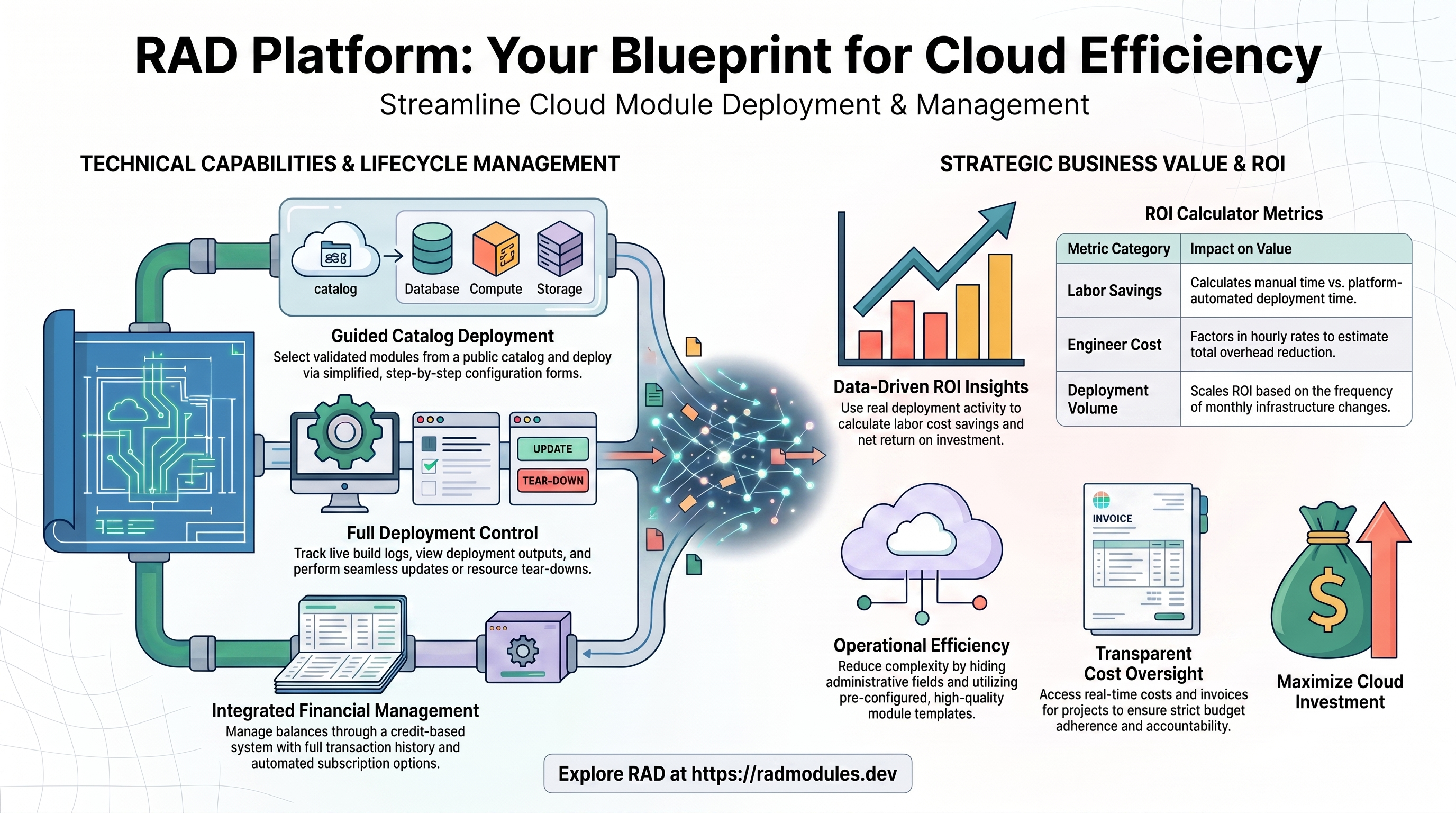
This guide is for anyone using RAD to deploy and manage cloud modules — the default User role. New to RAD? Start with Using RAD.
What you can do
- Answer four plain questions on Build Solution and have RAD work out which applications you need, what the whole thing costs, and deploy them.
- Browse the module catalog on Solutions → Solution Modules and deploy ready-made modules through a guided form.
- Track and manage your own Deployments — view results and logs, update, and tear down.
- Manage Credits — check your balance, review your transaction history, and buy more.
- Subscribe to a recurring credit plan.
- Estimate your savings with the ROI calculator, on the Credits page.
- Get help through the Support form.
After you sign in you land on Solutions, on the Build Solution tab — signing in opens on what you can build rather than the list of what you built last time.
Solutions holds everything you can deploy, on four tabs:
- Build Solution — four questions that end in a working, priced solution. Start here if you know what you want to achieve but not what it is called.
- Custom Solutions — the bundles you have composed yourself.
- Platform Solutions — ready-made bundles curated by RAD.
- Solution Modules — the full catalog of individual applications.
Your top navigation shows Credits (when credits are enabled), Deployments, Solutions, and Help.
Building a solution from a description
On Solutions → Build Solution — also reachable directly at /build — describe what you want people to be able to do, in your own words, no app names needed. RAD works out which applications deliver it, then asks three short questions:
- Where should it run? Your own Google Cloud project is the default: you keep the billing relationship, your organization's policies, and the project itself afterwards. Choosing a RAD-managed project instead puts the infrastructure inside RAD's own organization and billing account, and you then also say what the environment is for — trying things out, for your developers, or for your end users. A RAD-managed project also asks you to be holding a minimum balance of purchased credits, which the page states. That is a balance requirement, not a charge.
- Where should it live? Pick the location closest to the people who will use it. Your own project can use any Google Cloud region; a RAD-managed project offers the locations RAD supports — the cheapest in each part of the world.
- What should we call it? A name for your own reference, plus a short name (up to seven letters or numbers) used inside your cloud resources. Reuse that short name later to share the same cloud resources.
If the applications RAD proposes aren't quite right, use Not quite? Tell us what to change underneath them — say what to add or drop, and RAD reworks the set instead of starting from scratch. You can also remove a single application, or Start over to clear your answers and the proposal together.
A panel beside the questions shows what you'll get, what it costs and how long it takes — the whole cost, including the shared services RAD adds for you, split into what is taken when you build and what is metered as each part finishes, alongside a build-duration estimate such as "about 1h 20m". Build this deploys it. Show the engineering detail opens the same solution on the full configuration form if you would rather set everything yourself.
Finding a module
Open Solutions and choose the Solution Modules tab to browse the module catalog. Modules appear as cards.
- Browse: You see a single combined catalog of public modules — both modules published by RAD and public modules published by partners.
- Search: Use the search bar to find a module by name, then page through the results.
- Filter by category: Use the category list beside the grid to narrow the catalog to one category. Each entry shows how many modules it holds; All clears the filter.
- Pin: Click the pin on a card to keep a favourite module at the top of your catalog for quick access.
- Read each card: Every card shows the module description, a documentation link, an average star rating, how many times it has been deployed, and a credit cost badge.
- Get help on a module: Click Help on a card to open the Get Support dialog. It has three tabs: End User Support raises a support ticket about the module, Module Implementation Support requests paid help setting it up, and Contact Publisher emails the module's publisher with a question.
A stats strip at the top shows total deployments, your current credit balance (when credits are enabled), and how long deployment history is retained.
Deploying a module
- Choose how to configure it. Click a module card and pick Conversational Assistant (the default) or Configuration Form. The assistant describes every setting in one go, then applies only the changes you accept — each proposed change is shown for you to apply individually, so nothing is set without your say-so. You can switch to the form at any time. Two things the assistant will not do: it never sees or sets a secret (an API key or password) — it tells you the field exists and you type the value into the highlighted box on the page, never into the chat — and it will not accept a value that breaks a field's own rule, telling you what the rule is and asking for a corrected one rather than quietly changing what you typed.
- Open the form. The guided configuration form. The first time you deploy a module, the form shows only the essential (mandatory) fields — administrative and internal fields are hidden from you, and optional advanced configuration is deferred. You can unlock the full set of configuration steps later, from the deployment's Update action, once your credit balance covers the extra cost.
- Fill in the configuration. Complete the required fields on each step (for example, project and region). Move forward when each step is valid. The form is generated from the module itself, so where the module declares a rule for a field — a naming pattern, a length limit — you see that module's own error as you type rather than several minutes into a failed build. Fields holding a secret (an API token, a password) are masked and stored in Google Secret Manager rather than saved with the rest of your configuration; because the value never comes back to the browser, such a field shows Configured or Not configured instead, and leaving a configured one blank keeps it rather than clearing it.
- Confirm. Before launching, a confirmation dialog may appear — for example when the module costs credits, has dependencies, or needs special permissions. Review the details, including how many credits the deployment will cost.
- Deploy. Click Deploy Module to queue the deployment. If you don't have enough credits, RAD shows the module's credit cost against your current balance and prompts you to top up first.
What happens next: Your deployment is queued and then provisioned on Google Cloud. You can follow its progress on the Deployments page and in the deployment's details.
Deploying a solution
A solution deploys several modules together as one unit, in the right order, into a single tenant. Click Solutions in the top navigation. Two of its four tabs hold ready-to-deploy bundles — the other two are Build Solution and Solution Modules, described above.
Platform Solutions are pre-composed by RAD — browse by category, open one to see its members, fill in the shared configuration once, and deploy the whole bundle. Members that depend on another wait for it automatically.
Custom Solutions are your own, composed in conversation. Describe what you want to build — "I need a marketing site with a blog and email campaigns" — and RAD suggests modules from the catalog with a short reason for each. Add the ones you want (up to 12), give it a name, and save it. Your custom solutions are private to you.
- A saved solution shows Draft until you deploy it, then Deployed. A draft can be edited in place; once it has deployed, editing offers to copy it into a new draft instead, so the record of what you actually built stays accurate.
- Delete removes the saved solution only. It never touches infrastructure you have already deployed — tear that down from the Deployments page.
- RAD connects members to each other only where a known connection exists between those two applications. Where two members have no such connection, it says so on the card rather than guessing — they still deploy, you just wire them up yourself if they need to talk.
Managing your deployments
Click Deployments to see your deployments. Each row shows the module, the deployment ID, an editable star rating, when it was created, how long it took, the status, and the action. There's no project or credits column — open a deployment for its project, and its Builds tab for what each build consumed.
Deployment statuses include Queued, Pending, Working, Waiting (on a prerequisite deployment to finish), Success, Failure, Internal Error, Deleting, Deleted, Cancelled, Timeout, and Expire.
Open a deployment to see its details, which has these tabs:
- Outputs — the non-sensitive results of the deployment (such as application URLs, addresses, and endpoints exported by the module). These appear once the deployment succeeds.
- Build Status — live logs, useful for watching progress or troubleshooting a failure. Once the deployment has succeeded, Explain this opens a plain-English explanation of the Google Cloud resources it created, written for someone who does not read Terraform. It sends only the kinds of resource involved and how many of each — never your project ID, resource names, email addresses or any configured values. It also links the module's own documentation page, so the explanation is grounded in how that module actually works rather than in general knowledge. On a step that has failed, Search for a fix opens a search built from the actual error the step printed, and Ask for help raises a support request with that same output attached.
- Builds — the build history for the deployment.
From the details view you can also:
-
Update — reopen the configuration form (pre-filled with the current values), change what you need, and re-apply. Available once a deployment has finished — succeeded, failed, timed out, been cancelled, or expired. Update also needs some purchased credits on your account: if you hold only awarded credits, RAD shows a "Credits required" prompt and sends you to Buy Credits instead of opening the form.
Two things can stop an update before you get to the form. If this deployment depends on another one that has failed, been cancelled or timed out, RAD refuses and lists the deployments to start first — fix those, then retry. (A prerequisite that is still building is fine: the update is accepted and parked until it finishes.) And if you edit a setting that cannot be changed on a running deployment — a region, an encryption key, a toggle that creates a resource — RAD raises a confirmation naming exactly which settings will destroy and rebuild resources. Where your administrator has switched on Enforce Update Safe, those fields are read-only instead, and the only way to change one is to delete the deployment and create a new one.
-
Cancel — shown while a deployment is in Queued or Waiting, before it starts building. Cancelling releases it so you can try again, and a cancelled Waiting deployment also releases anything waiting behind it. The same button appears for a purge that has gone an hour without progress.
-
Delete — remove the deployment. You get two choices:
- Delete runs a teardown that destroys the cloud resources the deployment created. This includes a RAD-managed GCP project (the "GCP Project on RAD" option): because deleting it takes the whole project with it, RAD refuses while any other deployment is still running in that project and lists the ones to delete first. Google keeps a deleted project recoverable for about 30 days.
- Purge removes the deployment from RAD without destroying the cloud resources. Use Purge when a deployment is stuck or was changed outside RAD.
To rate a module, go back to the Deployments list and click the stars on that deployment's row — the rating isn't set from the details page, and you can only rate deployments you made yourself.
Credits
Open the Credits page to manage your balance.
Your credits sit in three separate balances, and they behave differently:
- Awards — free credits: your signup grant, monthly grants, and referral rewards. These are reset each month.
- Subscription — credits from a subscription plan. Where the platform is set to reset them, a renewal replaces the allowance rather than adding to it.
- Top-up — credits you bought outright as a one-off. These never expire.
Spending draws on awards first, then subscription, then top-up — so the credits that expire soonest are used first, and the ones you bought outright are kept until last.
Deploying a module charges the module's credit cost plus a build cost, metered from how long the build actually runs.
The confirmation dialog quotes the whole chain, not just the application you picked. Deploying into a RAD-managed project also creates your private Google Cloud project and the shared services your applications use, and those carry their own costs — the dialog lists them under "RAD also sets these up for you" with a combined total. It also separates what is taken when you confirm from what is metered as each build finishes, so the second charge is not a surprise. Build costs are estimates until the build completes, so the final figure can differ a little.
Updating a deployment charges the build cost only.
Failed deployments. Whether a deployment that fails is charged is a platform setting rather than a fixed rule: Finance decides, separately for the build cost and the module fee, whether either is taken when a new deployment fails or is cancelled. In the current release neither is charged — a failed deployment costs you nothing. A failed update or teardown is not charged either.
The Credits page has these tabs:
- Credit Transactions — your full history of awards, purchases, and spend, with an Awards, Top-up, and Subscription balance after each entry. Filter by deployment and by date, and use Export CSV to download a report.
- Project Transactions (when project credits are enabled) — what each Google Cloud project cost you, one row per project, with a project search and a date range. A project charge lands on Credit Transactions as a single combined row covering all your projects at once; this tab is the breakdown of that charge.
- Subscriptions (when enabled) — subscribe to a recurring credit plan, or cancel or reinstate the one you have.
- Buy Credits (when enabled) — top up your balance.
- ROI — the ROI calculator described below.
To buy credits: open the Buy Credits tab, pick a payment provider, choose a currency and amount, and complete checkout on the provider's secure page. The minimum top-up is $10 USD, shown converted into your currency, and the form tells you how many credits the amount will buy before you pay. Your credits are added automatically once the payment confirms.
Some deployments require purchased credits (subscription or top-up, not awarded) before you can start them — in that case, buy credits first even if you have an awarded balance.
Subscriptions
A subscription is an optional recurring plan that grants a set number of credits each billing cycle.
- Subscribe: choose a plan and complete checkout via your chosen payment provider. You can hold only one subscription at a time — to move to a different tier, or a different payment provider, cancel the one you have first and wait for it to lapse at the end of the current billing period.
- Cancel: stop future renewals. Your remaining credits stay available until you spend them.
- Reinstate: resume automatic renewals on a cancelled plan if you change your mind.
A subscription only grants credits — it does not change your role on the platform.
ROI calculator
Open Credits and go to the ROI tab to use the interactive ROI calculator. It comes pre-filled with your real recent activity (your deployments and spend) and lets you adjust assumptions — monthly deployments, manual deployment time, engineer hourly cost, and time-savings percentage — to estimate your labour cost, platform cost, net savings, and return on investment. It's an estimator only: it never deploys anything or charges your account.
Seeing what you've spent
You can see your own spending two ways on the Credits page. Credit Transactions lists every award, purchase, and deployment charge on your account, filterable by deployment and date. Project Transactions — available whenever project credits are enabled — breaks the project side of that down per Google Cloud project, showing the credits debited and the underlying cloud cost for each one over a date range you choose.
Platform-wide reporting is still restricted: the Module Costs and Project Invoices tabs and the whole Billing page are limited to administrators and finance users. If you need a formal invoice, ask through the Support form.
Getting help
Open Help and use the Support tab to raise a question or report a problem. Fill in the form to send your message — this raises a support ticket and notifies the support team, who follow up with you. A Contact us link in the footer also takes you to the Help page.
Need RAD to do something it does not do yet? Request it on the roadmap, or vote on what is already there.