Partner Guide
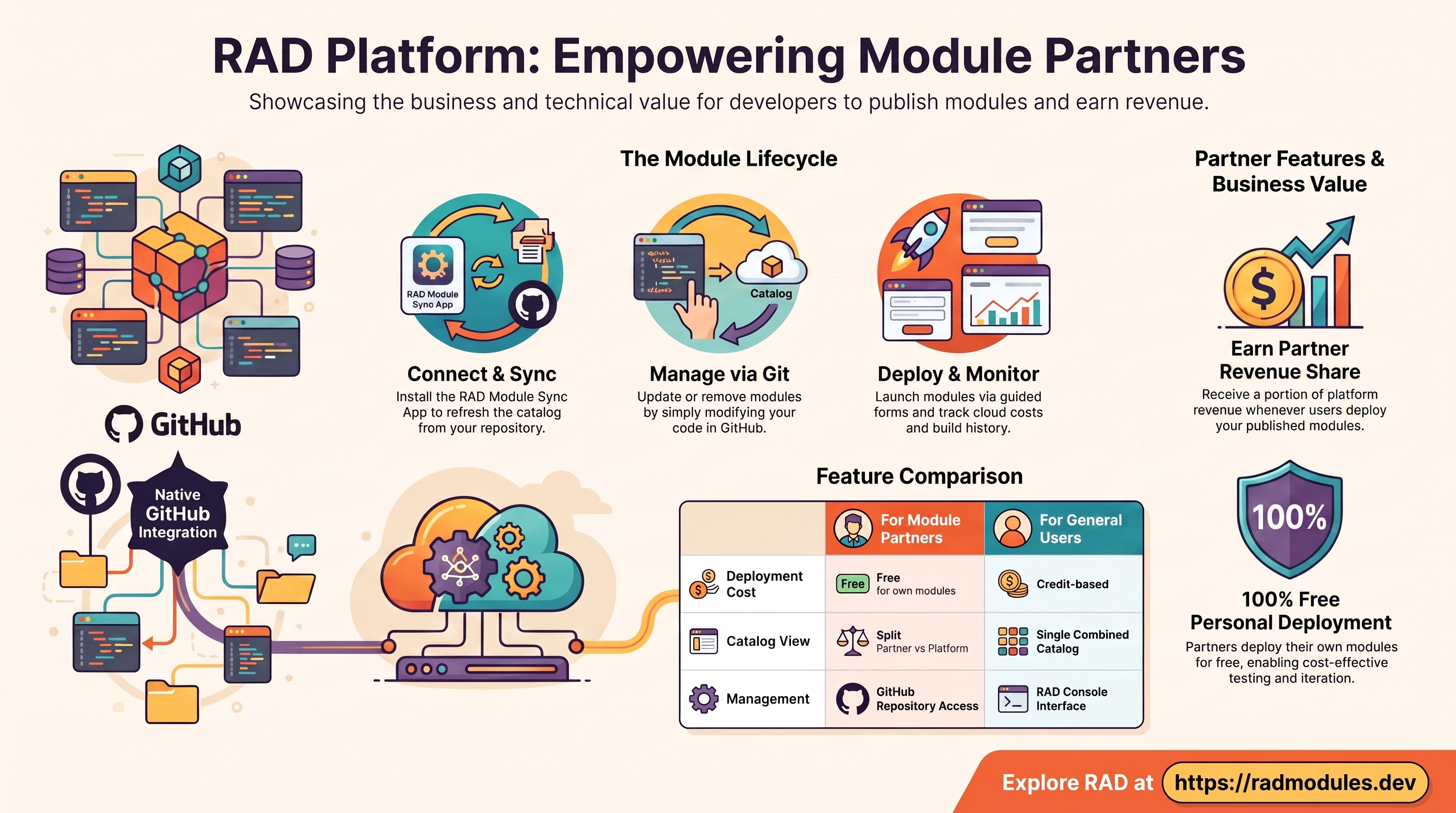
For module authors who publish their own modules to RAD and earn a revenue share when others deploy them. New to RAD? Start with Using RAD.
A Partner is always also a User, so everything in Using RAD — signing in, navigating, deploying, managing deployments, and credits — applies to you too. This guide covers the extra things only Partners can do.
The Partner role is assigned manually by an administrator. Subscribing to a plan grants credits but does not make you a Partner. If you need Partner access, ask an administrator.
What you can do
- Connect your own GitHub repository so RAD can read your modules.
- Sync your modules into the catalog from your repository.
- Deploy your own modules for free, alongside platform modules and other partners' public modules.
- Earn a partner revenue share when others deploy your modules (statements provided by the Finance team).
After you sign in you land on Solutions, on the Build Solution tab — the same landing users and admins get. Your top navigation shows: Credits, Explore, Sync, Deployments, Solutions, Revenue, Help. The module catalog lives on Solutions → Solution Modules; it no longer has its own menu entry. Sync appears only once you have selected a module repository in your profile — until then it is hidden from the menu.
Connecting your GitHub repository
Before you can sync anything, connect the repository that holds your modules. Open the profile dropdown (top-right) and go to Profile. There are two steps, and the second is easy to miss:
- Under RAD Module Sync App, click Install App and install the RAD Module Sync GitHub App on the repository (or organization) that holds your modules. The App grants RAD read access — no personal access token is needed.
- Under Partner Settings, choose that repository from the GitHub Repository dropdown and click Update Repo.
Until the second step is done, RAD does not know which repository is yours: Sync stays hidden from your navigation and the Solution Modules tab shows no Partner tab. Note that leaving the dropdown on Use platform default and saving clears your repository rather than setting one.
Syncing your modules
Go to the Sync page to bring your modules into the catalog. The page is a read-only sync console:
- It lists the valid modules found in your connected repository.
- Click Sync Now to refresh the catalog from your repository. Synced modules appear in the catalog for users to deploy.
- To update a module, change it in your repository and run Sync Now again — modules are managed in GitHub, not edited in RAD.
- Removing a module from your repository and re-syncing removes it from the catalog. You can only affect your own modules — never another partner's or a platform module.
If a repository can't be read — the GitHub App isn't installed on it, or it holds more module directories than the platform allows — the Sync page names the repository and explains why. Problems inside an individual module are quieter: a module whose variables.tf can't be parsed is skipped and left exactly as it was, and a directory that declares no public_access variable is treated as a helper and never listed. Neither is reported back to you, so if a module you expected doesn't appear after a sync, check its variables.tf in your repository.
How your modules appear to users
On the Solution Modules tab you see two sub-tabs:
- Partner modules — the modules you've published from your own repository. This is your workspace for testing and iterating.
- Platform modules — modules published by RAD, plus other partners' public modules.
Everyone else sees a single combined catalog of public modules. Each module card shows the description, a documentation link, an average star rating, how many times it's been deployed, and a credit cost badge.
Deploying your own module waives the module fee — the module's own credit cost isn't charged when you deploy it yourself. The build cost is still metered after the build and deducted from your balance exactly as it is for everyone else, so a self-deploy isn't entirely free.
Earning revenue
You earn a partner revenue share when other users deploy your modules. The share is calculated on the module's own credit cost only — build cost is excluded — and only on the part of that cost a user paid for with purchased credits, so a deployment settled entirely from awarded credits earns you nothing.
Track it on the Revenue page. It opens on My Referral Revenue, which belongs to the separate Agent referral feature and only has activity if you also hold the Agent role, so switch to Module Revenue for your partner-module earnings. Nothing appears there until you pick a start and an end date and click Fetch Partner Revenue; Export to CSV downloads the whole filtered set, not just the page on screen. Finance also has an org-wide view on Billing → Partner Revenue.
Costs and invoices
Cloud costs and project invoices aren't available to Partners in the console — the Module Costs and Project Invoices tabs on the Credits page, and the whole Billing page, are restricted to Finance and administrators. If you need the GCP cloud cost or an invoice for a project you own or deployed, ask the Finance team.
Everyday tasks (same as any User)
These work exactly as described in Using RAD:
- Solutions → Solution Modules — browse the catalog, configure with either the Conversational Assistant (the default) or the guided Configuration Form, and launch.
- Deployments — track your deployments; open one for Outputs, Build Status, and build history; Update, Delete, or Purge; and rate modules.
- Credits — view your balance and Credit Transactions (with Export CSV), Buy Credits, and manage subscriptions.
Getting help
Open the Help page and use the Support tab to contact the support team. The ROI calculator, for estimating your savings, is a tab on the Credits page. The Contact us link in the footer also goes to Help.
Need RAD to do something it does not do yet? Request it on the roadmap, or vote on what is already there.