Support Guide
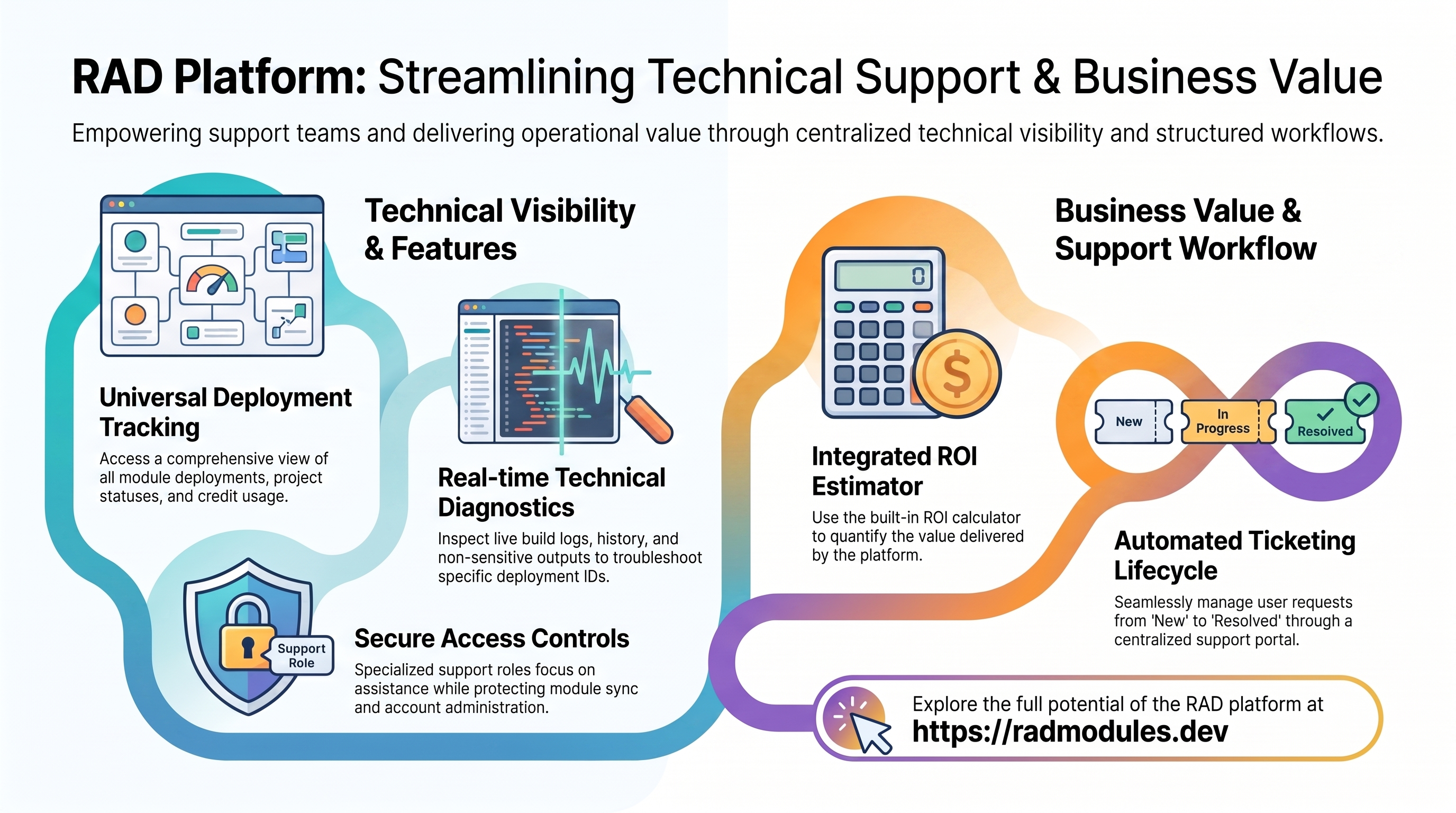
For help-desk staff who triage support requests and assist users on RAD. New to RAD? Start with Using RAD.
What you can do
- Handle support tickets on the Support Tickets tab of the Help page — view tickets raised through the Help form, update their status, add notes, and claim them.
- View the deployments of the customers whose open tickets are assigned to you, on the Deployments page.
- Raise a ticket of your own through the Help page's Support form.
Your top navigation shows: Deployments and Help. (Support Tickets is a tab inside the Help page.)
Handling support tickets
The Support Tickets tab on the Help page is your main workspace.
- Click Help in the top navigation bar, then open the Support Tickets tab.
- Set a From and a To date, then click Load Tickets. Nothing is listed until you do: both dates are required, and the range cannot exceed 366 days. You get the 100 most recent tickets in that range, so narrow the dates if you think you are missing older ones. You can also filter by status and by assignee (All assignees, Assigned to me, Unassigned), and download what you are looking at with Export CSV. Each ticket captures what a user submitted through the Help form.
- Open a ticket to see its details.
- Update the ticket status as you work it:
- New — just received, not yet picked up.
- In progress — you are actively working on it.
- Resolved — the issue has been addressed.
- Closed — the ticket is complete and needs no further action.
- Add notes to record what you found, what you advised, or any steps you took. Notes keep the ticket history clear for you and your teammates.
- Claim an unassigned ticket to take ownership of it, or Release one you hold if you picked it up by mistake. Claiming is also what gives you sight of that customer's deployments. You cannot take a ticket off another agent or hand one to a colleague — ask an administrator or the finance team to reassign it.
Where tickets come from
Tickets are created from the Help page.
- On the Help page, the Support tab is a contact form. When a user fills it in and submits, RAD raises a support ticket and emails the support team.
- The Contact us link in the footer also goes to the Help page's Support form.
When a user asks how to reach you, point them to Help → Support (or the Contact us footer link). Anything they submit there shows up for you on the Support Tickets tab.
Viewing deployments
The Deployments page lets you look up deployments when helping a user. You cannot reach the module Sync console — module management is for admins and partners.
- Click Deployments in the top navigation bar.
- The view is scoped to your own tickets: it lists the deployments of the customers whose tickets are assigned to you and still New or In progress. Claiming a ticket is what gives you sight of that customer's deployments; resolving or closing it takes that access away again, and reopening the ticket restores it. If you need a deployment that belongs to someone else's ticket, ask the agent holding it or an administrator.
- Each row shows the module, deployment ID, the star rating, who deployed it, when it was created, how long it took, the status, and the action. There is no project or credits column — open the deployment for its project, and its Builds tab for what each build consumed.
- Open a deployment to see Build Status (live logs) and Builds (build history). The Outputs tab is not available to you: outputs can carry connection strings and generated credentials, so only the deployment's owner and administrators can read them — as with the deployment's configuration variables. Ask the user for any value you need from there.
Use the deployment ID a user gives you to find their specific deployment and review its status and logs. Opening another user's deployment status, build logs, or credit history is recorded in the platform audit trail against your account. That's expected while you're working their ticket — it's why the reads are worth keeping to the tickets you hold.
What support can't do
To set expectations clearly, the Support role does not include:
- Viewing or editing user accounts.
- Changing anyone's credits or roles.
- Connecting a GitHub repository or syncing modules.
- Deleting, purging, updating, or re-deploying anyone's deployment, or reading its configuration variables — those stay with the deployment's owner and administrators.
- Acting on another user's behalf — there is no impersonation anywhere in RAD.
If a request needs any of these, route it to an administrator (or to Finance for credit adjustments).
Getting help
- For platform basics — signing in, navigation, credits, and how deployments work — see Using RAD.
- For your own questions, use the Help page: the Support tab raises a ticket, which lands on the same Support Tickets queue you work.
Need RAD to do something it does not do yet? Request it on the roadmap, or vote on what is already there.