Trainer Guide
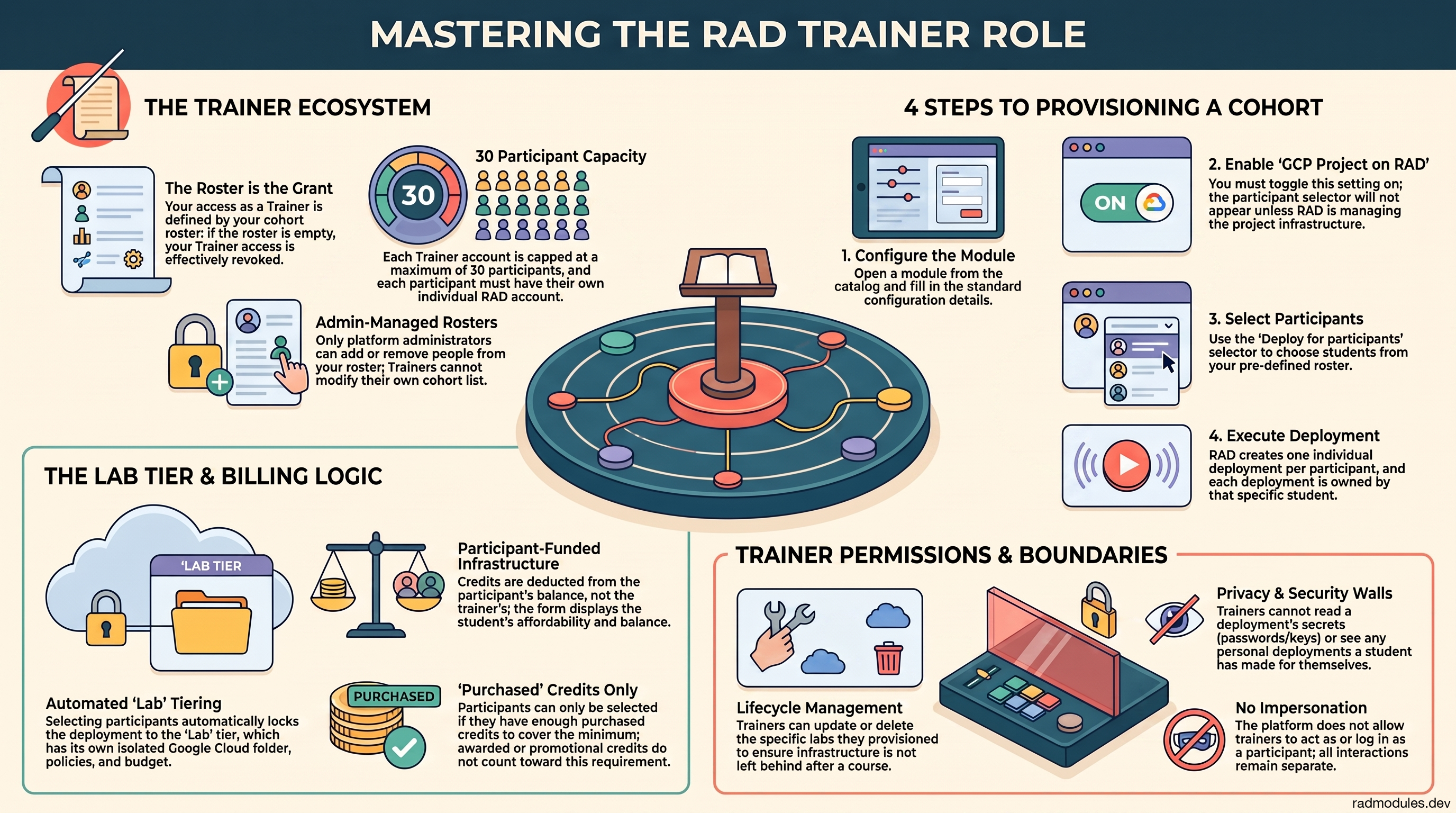
For trainers who run a course on RAD and give each participant their own lab environment in Google Cloud. New to RAD? Start with Using RAD.
What you can do
- Run lab sessions from Solutions → Managed Environments, under Lab sessions. A session is a named cohort of participants that shares a time window, a per-participant credit allowance and a region.
- Choose, per session, who pays for a participant's place: you, or each participant.
- Pay for one participant's place yourself when they can't pay on RAD — for example, they paid you in cash, or their bank won't work with the payment provider.
- Build the same module or solution into every participant's environment in one action, start their clocks, add time or credits, and end environments early.
- Get back every credit your participants did not use once the session settles. Those credits are yours to keep.
You don't need a separate roster or a special deploy form. Everything happens on Solutions → Managed Environments. If you open an ordinary deploy form, it points you back there with Open lab sessions.
Getting access
Sign in as any user does; your account is created as an ordinary user. An administrator then grants the Trainer role on the Users page — it can't be requested from inside RAD, so ask them. Lab sessions must also be switched on for the platform. Once both are true, a Managed Environments tab appears on Solutions, as its last tab. There is no separate Labs menu entry for trainers. If the tab doesn't appear, ask an administrator.
A trainer is always a user too, so you keep Solutions, Deployments, Credits and Help, and you land on Solutions when you sign in, like any user: on Build Solution with AI if you have purchased credits, otherwise on Solution Catalog → RAD modules. Credits is where you buy the purchased credits a session you fund is paid from.
Administrators can see and manage every trainer's sessions. When they add credits or participants to your session, the credits still come from your purchased credits, and you are told who acted. Finance staff can see every session and can end one to stop its spending, but can't change it.
Creating a session
On Solutions → Managed Environments, filter to Lab sessions and choose New lab session. The dialog asks for:
- Session name — up to 100 characters.
- Participant emails — paste a list. The dialog confirms how many addresses it recognised. An address it can't read stops the whole session from being created, so nothing is charged for a list that was only partly understood. How many participants a session may hold is set by your administrator.
- Credits per participant — each participant's allowance. It can't be lower than the minimum a lab environment needs, or higher than the ceiling your administrator sets.
- Duration (minutes) — how long each participant's environment runs once their clock starts, up to 24 hours.
- Countdown starts — By trainer (you start the clocks) or When ready (each clock starts as soon as that environment is built).
- Region — one of RAD's regions, fixed for the session.
- Overrun ceiling (%) — how far above an allowance an environment may run before it is switched off (default 20%). You can change this while the session is open.
- Participants buy their own place — who pays. It is on when the dialog opens; switch it off to fund every place yourself. See the next section.
You choose the module or solution later, on the session itself, not in this dialog.
Who pays
You decide when you create the session. That choice is fixed once the session exists. To run a session the other way, create a new one.
You pay. The whole cohort's allowance — participants × credits per participant — is reserved from your purchased credits when you create the session. Free credits you were given can't be used. The dialog shows what you hold, what is taken and what you'll have left. Adding participants or credits later is also paid from your purchased credits.
Participants buy their own place (the default for a new session). Nothing is reserved from your credits. Each participant pays the credits per participant from their own purchased credits (free credits don't count), and that payment becomes their allowance. Nobody's environment is built until they have paid. Participants you add later buy their own place too.
VAT. If RAD's finance team has set a VAT rate for whoever pays for a place, that place costs the allowance plus VAT, so the allowance lasts as long as the plan says: your rate for a session you fund or a place you pay for, the participant's own rate for a place they buy.
When does a participant's payment become yours? Only once that participant's clock starts, which is the moment they get access to their lab. Until then their payment is held. If they never get access — their environment was never built, or failed to build, or was never started — their payment is returned to them when the session settles.
Paying for a participant's place yourself
Some participants can't pay on RAD: their bank won't work with the payment provider, or they have cash rather than a card. They can pay you however you agree, and you buy their place for them.
- Open the session and find the participant on the Participants list. A place that hasn't been paid for shows Pay for place next to Remove.
- Choose Pay for place. The dialog shows the price — the session's credits per participant — and says it comes from your credits.
- Optionally add a note about the payment, such as "Cash, receipt 0412" (up to 120 characters). It is kept with the place and shown when you hover over its badge.
- Choose Pay N credits (the price) to confirm.
The price is taken from your purchased credits (free credits can't be used) and paid into the session exactly as if the participant had bought the place. From then on the place works like any other: their environment is built, their allowance is spent, and what they don't use comes back to you at settlement. The row shows Paid by trainer, and the participant is emailed that their place is paid for, so they don't try to pay again.
- If the place is never used — the session ends before their clock starts, or you remove them before their environment is built — the credits come back to you, not to the participant, when the session settles.
- RAD doesn't take, hold or check the payment made to you. That's between you and the participant; RAD only records your note.
- Only the session's own trainer can do this, because it spends your credits. An administrator looking after your session is not offered the button.
- It isn't offered on a session you already fund: every place in it is already paid for.
What happens to unused credits
Whichever way the session is funded, whatever the participants did not use comes back to you when the session settles, into your top-up credits, which don't expire. In a session where participants pay, that remainder is your margin.
If environments run beyond their allowance, the overrun is charged to your purchased credits, up to the ceiling you set.
When a session settles
Settlement waits until Google has reported the session's cloud costs. That usually takes up to a day after the last environment was switched off, because Google's billing data arrives late. Settling any earlier would pay you back credits the environments had in fact already used.
The session's Settlement panel shows what was committed, consumed and refunded, plus any overrun charged to you. You also get an email, "Lab session settled", unless you turned it off in your notification preferences. Every movement appears in your credit history as Lab escrow and Lab refund entries.
Participants
Each participant needs their own RAD account, under the exact email address you enrolled.
- Participants without an account are emailed an invitation to sign up. A Resend button on their row sends it again, and Resend to all not yet signed up above the list does the same for everyone still waiting; neither sends to the same person more often than every 10 minutes. Until they sign up, Provision leaves them out.
- Participants who already have an account are emailed to say they have been added.
- In a session where participants pay, both emails state the price of a place and tell them they must buy it before anything is built, and how to do it. They pay from the lab banner at the top of every RAD page, or choose Decline there if they don't want the place. A declined place ends and comes off your roster; only you can offer it again. If you pay for someone's place yourself, they get a separate email saying it is paid for.
To add people to a running session, use Add participants. In a session you fund, the dialog shows what it will take from your credits before you confirm. An address already in the session — even one you removed earlier — can't be added again.
To stop people, tick their rows. End selected switches their environments off. Remove also takes them off the session. Their unused allowance comes back to you at settlement.
If you remove someone before their environment was built, their banner tells them nothing was created. If they had paid for their place, it also tells them the payment is returned to their credits when the session settles, and then that it has been. If you paid for their place, the credits come back to you instead, and they are not told otherwise.
Building and running environments
- Choose what to build on the session: Module or Solution (from RAD's catalogue), or Custom for one of your own custom solutions from Solutions → Solution Catalog → My solutions. Then search the list. Your custom solutions are private to you, so only you (or an administrator) can pick one; your participants get the environment, not the solution. Fill in the module's first page of settings; the region always comes from the session. Your choice is saved with the session as you make it, so it is still selected when you leave the page and come back; it changes only when you pick something else or remove it.
- Provision. RAD shows a plan with the cost per participant and in total before anything starts. Environments build a few at a time, so a large cohort takes longer to finish. Participants who haven't signed up for RAD yet are left out and counted beneath the button ("N waiting to sign up"); provision again once they have.
- Start the clocks. An environment that has finished building shows Ready and waits for you; once every environment in a By trainer session is built, the sessions list shows the session as Ready to start. Use Start all or Start selected. With When ready, clocks start on their own. Each participant gets the full duration from their own start.
- While it runs, use Extend time to add time to running environments (the total can't pass the session's maximum), Add credits to top up allowances, or Add to running to deploy something extra into environments that are already running without touching their clocks.
An environment that is built but never started can't wait for ever: by default, after a week unstarted it is torn down, not started. While any are waiting, Keep waiting longer gives them more time, up to the longest wait the platform allows.
When time runs out
Participants are emailed a warning before their time ends, by default at 15 and 5 minutes. The email states the time actually left. If you extend their time after a warning, they are warned again before the new end.
At the end, the environment's billing is switched off, any build still running for it is cancelled, the participant's access to the project is removed and the lab project is deleted. An environment is also switched off early if it uses up its credits, or if its spending passes the overrun ceiling.
Each participant gets one email saying their lab has ended and why: its time was up, its credits were used up, or it was ended early. It says you ended it only when you did; when an administrator or Finance ended it, it says the lab was ended early.
Use End now to end the whole session at any time. It stops the session's spending straight away but moves no money itself: RAD checks every 10 minutes for sessions ready to settle, and settles yours once Google has reported its cloud costs (see When a session settles). If no environment was ever built, there is nothing to wait for, and the refund arrives at the next check. A session nobody provisions is ended automatically after 14 days.
Exporting and reusing a session
Above a session's Participants list:
- Export CSV downloads the participants table: each participant's status, start and end times, modules and deployment IDs, and credits allocated, consumed and remaining.
- Duplicate session opens New lab session filled in from this one: its settings, who pays, its participants (except those you removed) and the module or solution you chose, with its settings. Secret values are not copied, so enter them again. Creating it is an ordinary new session, paid for as usual.
What your participants see
Participants see a lab banner at the top of every RAD page. It shows:
- when their environment is being built;
- when it is ready and waiting for you to start their clock;
- once it runs, their time and credits left, and a link to their project in the Google Cloud console.
When their clock starts they get access to their project in the console. They can see what was deployed and its logs, read the files in its storage buckets, and connect to its Cloud SQL database. On Cloud Run they can delete an old revision and run existing jobs; on GKE they can restart pods, roll a deployment back and port-forward. They can't read Secret Manager or Kubernetes secrets, change configuration or images, scale, or create resources, and everything is deleted when the lab ends.
Don't put credentials in ordinary settings. Participants can see a Cloud Run service's plain environment variables and the files in its buckets. A value a module marks as secret, such as an API key field, is stored in Secret Manager and stays hidden from them.
Participants can't deploy anything themselves in a lab. Every lab deployment is yours.
What a trainer can't do
- Change who pays after creating a session. Create a new session instead.
- Read secrets on lab deployments: their configuration variables stay with administrators, and generated passwords with the participant and administrators. You can see a lab deployment's outputs, with sensitive values removed.
- Use advanced settings when updating a lab deployment. Only administrators can.
- See a participant's own deployments. Your access covers the lab environments in your sessions, not anything a participant deploys for themselves.
- Force a teardown. Only administrators can.
- Deploy for someone from the ordinary deploy form. Only administrators can deploy on another person's behalf there; you provision for participants from a lab session.
- Purge a participant's environment before it is destroyed. Deleting it destroys the resources; purging only the record first is for an administrator. Once a lab has ended, you can still purge the record of an environment that has already been deleted.
- Change a session's region, or edit a session once it has ended.
Getting help
- For platform basics — signing in, navigation, credits, and how deployments work — see Using RAD.
- For the Trainer role, access to lab sessions, the participant ceiling or a participant's credits, use the Help page's Send Message tab, and follow your ticket on My Tickets. Support staff, administrators and finance work that queue.
Need RAD to do something it does not do yet? Request it on the roadmap, or vote on what is already there.