PDE Certification Preparation Guide: Section 4 — Implementing observability practices and troubleshooting issues (~25% of the exam)
📚 Official exam guide: Professional Cloud DevOps Engineer certification — always confirm section weightings against the current Google Cloud exam guide.
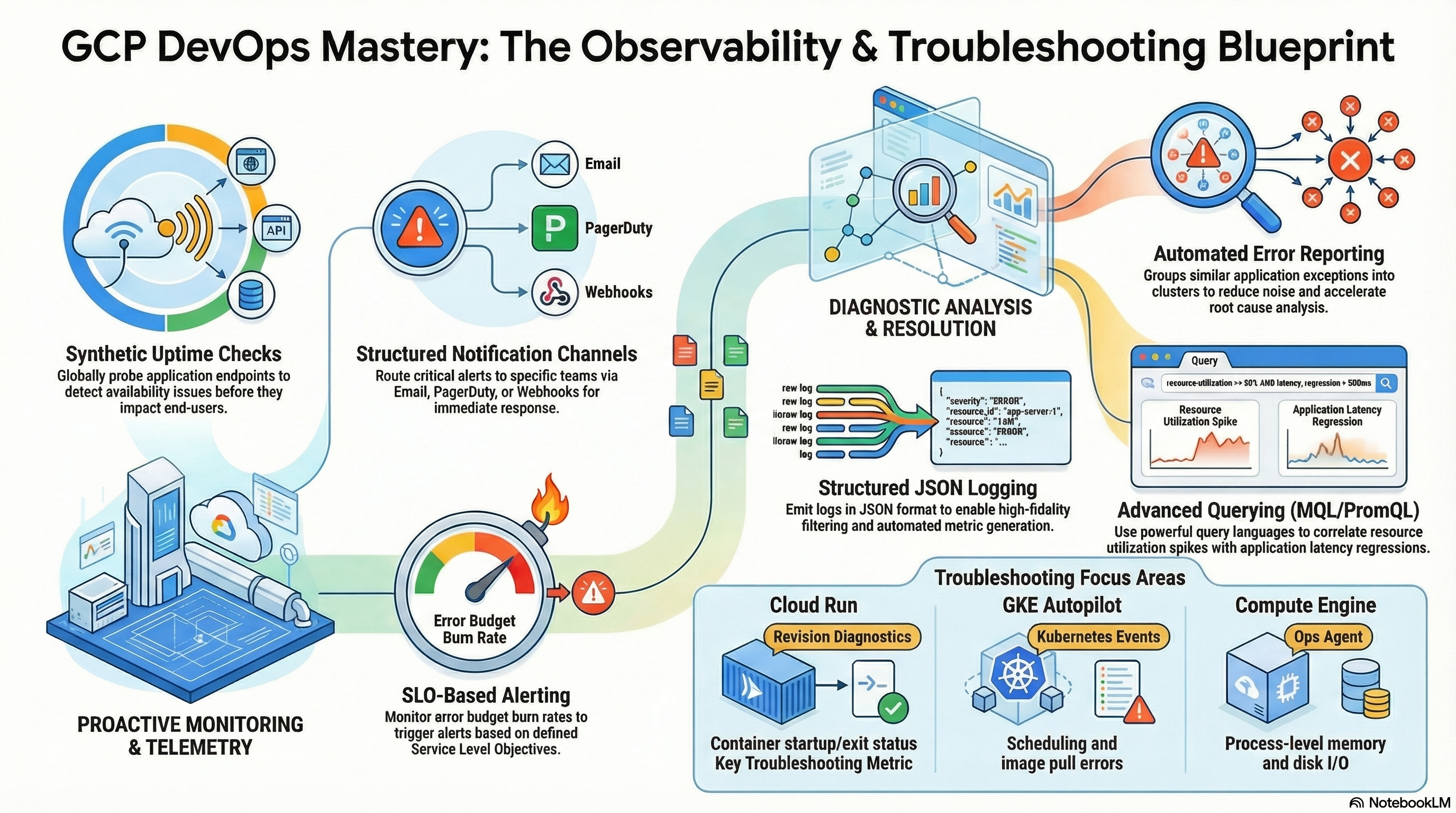
This guide covers exam Section 4 — the second-heaviest domain — using the RAD foundation modules. The observability surface is built from the monitoring layer (notification channels + alert policies), auto-generated per-platform dashboards, Data Access audit logging in every module, and the GKE cluster's logging/monitoring configuration. Deploy the Observability baseline profile from the Lab Map; the GKE parts also need the GKE release engineer profile.
One scoping note up front: the application engines create a real synthetic uptime check from uptime_check_config (default { enabled = false, path = "/" } — you must opt in) — and then only when the endpoint is publicly reachable. Cloud Run probes the first application_domains entry, else the nip.io LB host, else the run.app URL when ingress_settings = "all"; GKE probes the custom domain via the Gateway (HTTPS:443) or the LoadBalancer Service ingress IP over HTTP on service_port. Internal-only deployments get no check, and the uptime_check_names output returns the created check's name (empty when skipped).
4.1 Instrumenting and collecting telemetry
⏱ ~60 min · 💰 low–moderate (log ingestion if audit logging is on) · ⚙️ Requires: Observability baseline profile; GKE release engineer profile for cluster telemetry
Why the exam cares — Telemetry questions test what is collected automatically vs. what needs opt-in: Cloud Run and GKE emit logs and platform metrics natively; workload metrics, data-access audit logs, Prometheus metrics, traces, and synthetic probes all require deliberate enablement. You should know which agent/config produces which signal.
How RAD implements it
| Signal | How it's produced |
|---|---|
| Application logs | automatic — Cloud Run revisions and GKE containers write stdout/stderr to Cloud Logging; the GKE cluster explicitly enables system-component and workload logging |
| Platform metrics | automatic (run.googleapis.com/*, kubernetes.io/*); the cluster enables system-component monitoring |
| Prometheus metrics | Managed Service for Prometheus is enabled on every Services_GCP cluster — it scrapes workload metrics, queryable with PromQL in Metrics Explorer |
| Notification channels | support_users (app modules) → one email channel each (created with force-delete enabled); notification_alert_emails + configure_email_notification = true in Services_GCP for platform alerts |
| Audit telemetry | enable_audit_logging (default false) → ADMIN_READ/DATA_READ/DATA_WRITE on allServices + explicit Secret Manager and KMS configs |
| VM-level metrics | the Services_GCP self-managed NFS VM's memory alert uses the Ops Agent metric agent.googleapis.com/memory/percent_used — memory is invisible to the hypervisor without the agent |
| Build/deploy telemetry | Cloud Build logs forced to CLOUD_LOGGING_ONLY |
| Uptime checks | <service>-uptime-check (HTTP GET, period from check_interval default "60s", timeout default "10s") plus <service>-uptime-check-alert on monitoring.googleapis.com/uptime_check/check_passed, created only for publicly reachable endpoints (see note above) |
Note the activation logic in App_CloudRun: monitoring is configured when support_users is non-empty, or alert_policies is non-empty, or uptime_check_config.enabled is true — but the email channels and the built-in CPU/memory alerts are only created when support_users has at least one entry.
Try it
- Apply the Observability baseline profile, then confirm the channels exist:
gcloud beta monitoring channels list \
  --format="table(displayName,type,labels.email_address)"
- Query workload telemetry with PromQL: Console > Monitoring > Metrics Explorer > PromQL and run
rate(container_cpu_usage_seconds_total[5m])against the GKE namespace (works because managed Prometheus is enabled cluster-wide). - Verify the audit pipeline: read a secret, then find your own
AccessSecretVersionentry:
gcloud logging read \
  'protoPayload.serviceName="secretmanager.googleapis.com"' --limit=3 \
  --format="table(timestamp,protoPayload.methodName,protoPayload.authenticationInfo.principalEmail)"
- Inspect the module-created synthetic check (publicly reachable deployments only):
gcloud monitoring uptime list-configsshows<service>-uptime-check; open it in Console > Monitoring > Uptime checks and trace the attached<service>-uptime-check-alertpolicy back to your email channel. - You know it worked when channels list your email, PromQL returns series for your namespace, the audit entry names you, and the uptime check turns green from multiple regions.
Check yourself
Q1: Your GKE pod's memory metrics appear in Cloud Monitoring, but your custom application metric (orders_processed_total) does not. The app exposes it on /metrics. What's missing?
A: Platform metrics are automatic, but Prometheus-format application metrics need scraping. With managed Prometheus enabled (as Services_GCP does), you still must add a PodMonitoring custom resource targeting the pod's metrics port — collection infrastructure being enabled doesn't mean your endpoint is being scraped.
Q2: Why does the NFS VM memory alert require the Ops Agent while the CPU alert does not?
A: CPU utilization (compute.googleapis.com/instance/cpu/utilization) is measured by the hypervisor; guest memory usage is not visible from outside the OS, so it requires the in-guest Ops Agent reporting agent.googleapis.com/memory/percent_used. A standard exam distinction between hypervisor and agent metrics.
Beyond the modules — Scripted synthetic monitors (Cloud Functions-based synthetics beyond plain uptime checks), private uptime checks against internal endpoints, Cloud Trace (distributed latency tracing — instrument via OpenTelemetry; Cloud Run propagates X-Cloud-Trace-Context), Cloud Profiler (continuous CPU/heap profiling), and log-based metrics are all untouched by the modules. In a scratch project: gcloud monitoring uptime create against a private endpoint, the Trace explorer waterfall view, and gcloud logging metrics create are quick to try and frequently examined.
⚠️ Exam trap — "Monitoring is enabled" has many layers: a variable that accepts monitoring config is not by itself evidence the signal is collected (earlier platform releases accepted uptime_check_config without creating any check; verify in the console — today it provisions one, but only for public endpoints). On the exam, match each signal to its producer: agent, platform, scrape config, or audit config.
4.2 Troubleshooting and analyzing issues
⏱ ~75 min · 💰 no additional cost · ⚙️ Requires: any deployed application; GKE profile for the Kubernetes paths
Why the exam cares — Troubleshooting questions are scenario-driven: a revision won't start, pods crash-loop, a deploy succeeded but traffic fails. The skill tested is choosing the right diagnostic surface — Logs Explorer filters, Kubernetes events, revision status conditions, build logs — and reading them in the right order.
How RAD implements it — The modules don't add troubleshooting tools per se; they produce richly labeled, predictable workloads to troubleshoot. Useful structure the modules guarantee: every resource carries application, deployment, tenant, and managed-by labels; Cloud Run revisions gate on a startup probe (/healthz by default) so misconfigured apps fail visibly at deploy time; GKE workloads run in a dedicated namespace with a deterministic name; init jobs (database setup, NFS setup) run as Cloud Run jobs / Kubernetes Jobs whose logs explain most first-deploy failures; and Cloud Build logs are in Cloud Logging (CLOUD_LOGGING_ONLY).
Try it
- Stage a failure: in the portal, point
container_imageat a tag that doesn't exist (or setstartup_probe_config.pathto a bogus path) and apply. - Cloud Run diagnosis path — revision conditions first, logs second:
gcloud run revisions list --service=<service> --region=us-central1
gcloud run revisions describe <bad-revision> --region=us-central1 \
  --format="yaml(status.conditions)"
gcloud logging read \
  'resource.type="cloud_run_revision"
   AND resource.labels.service_name="<service>"
   AND severity>=ERROR' --limit=10
- GKE diagnosis path — events first, then pod state, then logs:
kubectl get events -n <namespace> --sort-by=.lastTimestamp | tail -20
kubectl get pods -n <namespace>          # look for ImagePullBackOff / CrashLoopBackOff
kubectl describe pod <pod> -n <namespace>
kubectl logs <pod> -n <namespace> --previous   # logs from the crashed container
- In Console > Logging > Logs Explorer, reproduce step 2's query with the UI filters, switch on the Histogram, and correlate the error spike with the deploy timestamp.
- Fix the variable, re-apply, and confirm recovery: the new revision reports
Ready: True/ pods reachRunning. - You know it worked when you can state the failure cause from
status.conditionsor the event stream before opening application logs.
Check yourself
Q1: A new Cloud Run revision deploys but receives 0% traffic and the previous revision still serves. The deploy command reported failure. What happened and why is this good?
A: The startup probe (or container start) failed, so Cloud Run never marked the revision Ready and never shifted traffic — the previous revision keeps serving. This is fail-safe deployment: a broken image can't take an outage. Diagnosis: status.conditions on the revision, then its startup logs.
Q2: kubectl logs returns nothing for a pod stuck in CrashLoopBackOff with restarts climbing. What two commands get you the evidence?
A: kubectl logs <pod> --previous (the crashed container's output — the current one may not have logged yet) and kubectl describe pod <pod> (exit code, OOMKilled status, probe failures, events). Events and last-state often answer it without any application log at all.
Q3: A scheduled job worked for months, then silently stopped producing output. Logs show nothing at the expected time. Where do you look on this platform?
A: Absence of logs at the expected time means the job never ran — check the trigger layer, not the application: CronJob status/suspend flag and events on GKE (kubectl get cronjob -n <ns>), or the Cloud Run job execution history. Then check audit logs for who changed it.
Beyond the modules — Error Reporting (automatic exception grouping), Log Analytics (SQL over logs), trace-correlated log views, and gcloud builds log <id> --stream for live build debugging. Practice the Logs Explorer query language seriously — resource.type, severity>=, jsonPayload.field=, and timestamp bounds appear in exam answers verbatim.
⚠️ Exam trap — kubectl logs without --previous shows the current container instance. In a crash loop, the current instance is often seconds old and empty; the evidence is in the previous instance's logs.
4.3 Managing metrics, dashboards, and alerts
⏱ ~60 min · 💰 low · ⚙️ Requires: Observability baseline profile
Why the exam cares — The exam tests alert policy mechanics — filters, aligners, reducers, duration windows, notification routing, renotification — and dashboard design that surfaces the four golden signals (latency, traffic, errors, saturation). You should be able to read an alert policy definition and predict exactly when it fires.
How RAD implements it
- Fixed alerts (the monitoring layer, created when
support_usersis non-empty): CPU and memory utilization, threshold0.9, greater-than comparison, duration60s, renotify every1800s. Aggregation differs by platform deliberately — Cloud Run aligns by delta and reduces with the 99th percentile overrun.googleapis.com/container/cpu/utilizations; GKE aligns and reduces by mean grouped by pod name overkubernetes.io/container/cpu/limit_utilization. - Custom alerts: the
alert_policiesvariable (list of{name, metric_type, comparison, threshold_value, duration_seconds, aggregation_period}) becomes one policy per entry, auto-filtered to this service/namespace, aligned by mean, and routed to the same email channels. - Dashboards: Cloud Run gets Request Count, Request Latency (p95), Container Instance Count, and Container CPU Utilization, pre-filtered to the service; GKE gets CPU Usage (Cores), Memory Usage (Bytes), Pod Restart Count, and Network Egress (Bytes), pre-filtered to the namespace.
- Platform-layer alerts (Services_GCP, gated on
configure_email_notification, defaultfalse): Cloud SQL CPU/memory/disk policies driven byalert_cpu_threshold/alert_memory_threshold/alert_disk_threshold(all default80, divided by 100 into ratios), plus NFS-server CPU, memory (Ops Agent metric), and an instance-down policy built on metric absence of CPU utilization.
Try it
- Add a latency alert via the portal:
alert_policies = [{
  name             = "p99-latency-high"
  metric_type      = "run.googleapis.com/request_latencies"
  comparison       = "COMPARISON_GT"
  threshold_value  = 1000
  duration_seconds = 300
}]
- Apply, then read back exactly what was created:
gcloud alpha monitoring policies list \
  --format="table(displayName,conditions[0].conditionThreshold.thresholdValue,conditions[0].conditionThreshold.duration)"
- Open Console > Monitoring > Dashboards, find the module dashboard (named
<display name> - Cloud Run Dashboard (<deployment-id>)or the GKE variant), and walk each widget; note thedashboardFilterspinning it to your service/namespace. - Force a notification: temporarily set a custom alert with
threshold_value = 1onrun.googleapis.com/request_count, generate traffic, and confirm the email arrives; check Monitoring > Alerting > Incidents for the open incident, then remove the test policy. - You know it worked when the policy appears with your threshold and duration, the incident opens and closes as traffic starts/stops, and email lands at the
support_usersaddress.
Check yourself
Q1: The Cloud Run CPU alert reduces with the 99th percentile across series while GKE reduces by mean grouped by pod. Why might the same "CPU > 90%" intent be aggregated differently?
A: Cloud Run instances are interchangeable and short-lived — alerting on the p99 across instances catches the worst instances without paging on a single outlier mean shift. GKE pods are longer-lived, fewer, and individually meaningful, so a per-pod mean (grouped by pod name) identifies which pod is hot. Aggregation strategy should match the failure unit you'd act on.
Q2: An alert has duration 300s. CPU spikes to 95% for 90 seconds, four times an hour. Does it fire?
A: No — the condition must hold continuously for the full duration window. 90-second spikes reset the clock each time. That's the false-positive defense duration provides, and also why genuinely bursty problems may need a shorter duration or a percentile aligner instead.
Q3: How does the Services_GCP "NFS instance down" alert detect an outage when a dead VM emits no metrics at all?
A: It's a metric-absence condition on compute.googleapis.com/instance/cpu/utilization: no data for the window means the instance stopped reporting, which is the failure signal. Threshold conditions can't catch "no data" — absence conditions exist precisely for dead-emitter detection.
Beyond the modules — SLO-based (burn-rate) alerting, log-match alert conditions, multi-condition policies with AND/OR combiners, webhook/PagerDuty/Slack notification channel types (only email is created here), MQL/PromQL alert queries, and dashboard Compare to past workflows. Each is a 10-minute console exercise on top of the deployed lab.
⚠️ Exam trap — Renotification (every 1800s here) controls reminders for a still-open incident; it does not re-evaluate or re-fire the condition. Confusing renotification with re-alerting leads to wrong answers about alert noise tuning.
Need RAD to do something it does not do yet? Request it on the roadmap, or vote on what is already there.